> This is part 1 of 2 of the full documentation (pages 1–100 of 178).
> The content is paginated: fetch every part to see all of it.
> Next part: https://docs.makerobos.com/chatman-enterprise-whatsapp-platform/llms-full.txt/1
> Page index: https://docs.makerobos.com/chatman-enterprise-whatsapp-platform/llms.txt
# Welcome To Chatman: An Overview
Chatman is **Open SaaS Platform** for WhatsApp. It can seamlessly integrate with WhatsApp to automate customer interaction, engage them throughout their journey, identify potential leads, and drive conversion. It's truly a next-gen strategy that every business must adopt to optimize customer engagement.
Our mission is to bridge the gap between brands and customers by leveraging the power of **AI-driven conversations** to enhance support, streamline sales operations, and elevate the overall user experience.
Join us as we help you gain deep insights into the capabilities of Chatman, where every interaction leaves a lasting impression, building rapport with your customers.
Check all the plans and select one best suited to your needs. [Pricing plans](https://chatman.makerobos.com/pages/plans-pricing)
[**How to Get Started**](/chatman-enterprise-whatsapp-platform/welcome-to-chatman-an-overview/how-to-get-started-with-chatman) **with Chatman?**
## Salient Features of Chatman
### **Shared Team Inbox**
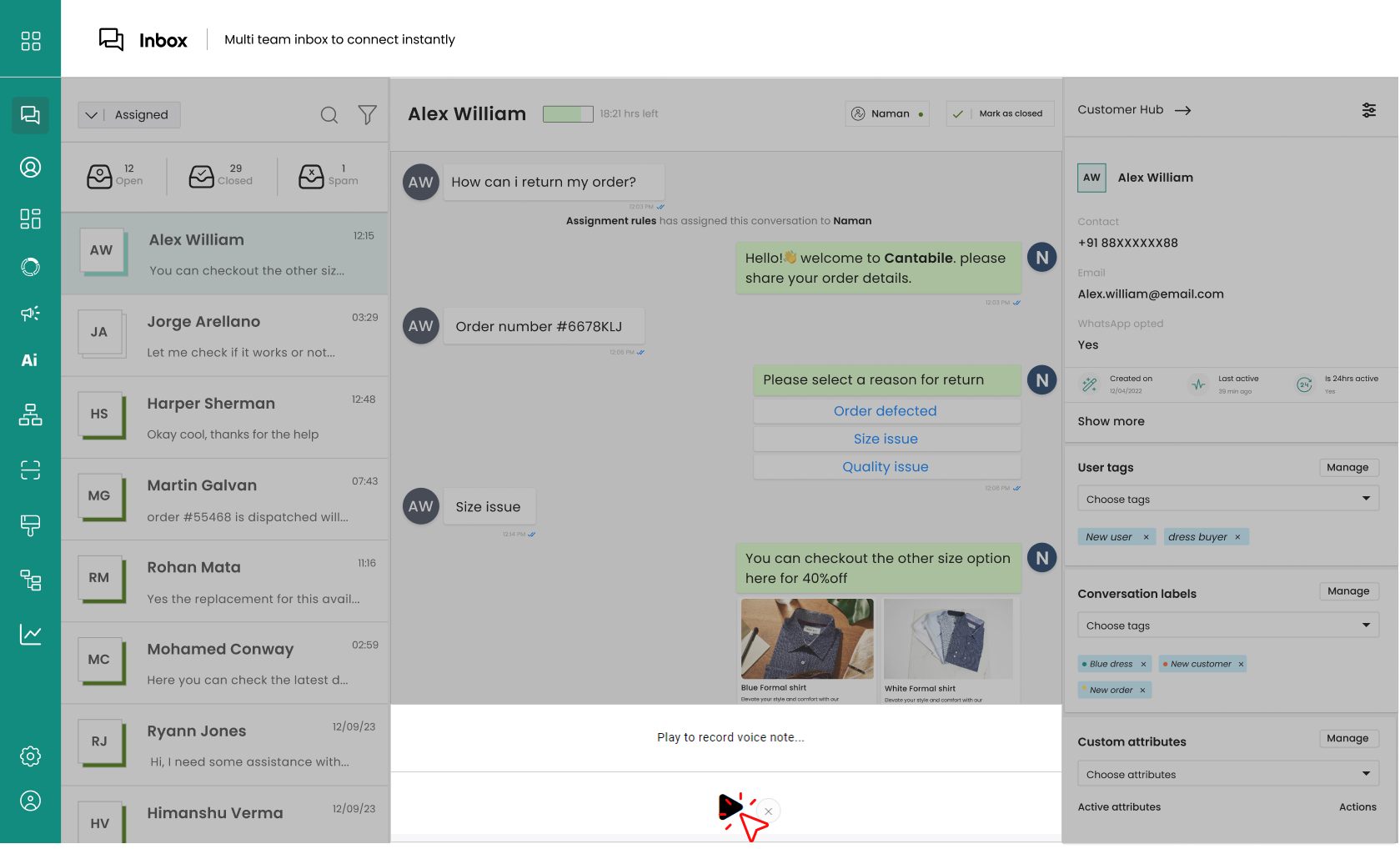
Chatman's shared team inbox helps businesses in different fields manage and address customer inquiries efficiently.
* **Assign queries** to team members.
* **View**, **search**, and **filter** a comprehensive customer list.
* Displays assigned **attributes** and **chat** **history**.
* Manage **spam** **users**.
* Facilitates **multimedia** **response** options.
* Close the chat.
{% content-ref url="/pages/yM1NDnkZhf8cLlxIPHd4" %}
[Shared Team Inbox](/chatman-enterprise-whatsapp-platform/chatman-functions/shared-team-inbox)
{% endcontent-ref %}
### **Assignment Rules**
* Helps assign messages (customer chats) to specific team members or a group of team members.
* Automatically assign chat to the agent on the basis of the **assignment** **rule**, as designed.
{% content-ref url="/pages/HpizdW8eejt4vuaaeRnM" %}
[Assignment Rule](/chatman-enterprise-whatsapp-platform/chatman-functions/assignment-rule)
{% endcontent-ref %}
### **Audience Management**
* Automatically stores the details of all the customers who initiate the conversation with the bot.
* Acts as a centralized hub of for all your customer engagement.
* Search and apply filters to segregate customers into segments.
* Customize your table as per your choice.
{% content-ref url="/pages/BlzjfcZ8yISpDN92dYmT" %}
[Broken mention](broken://pages/BlzjfcZ8yISpDN92dYmT)
{% endcontent-ref %}
### Manage Templates:
* Create **different** **templates** for various use cases.
* Store templates in the **library** for later use.
* Submit for WhatsApp approval; once approved, use them for automated conversations.
{% content-ref url="/pages/fzH8ofpoYDw71HKSSOzy" %}
[Templates](/chatman-enterprise-whatsapp-platform/chatman-functions/templates)
{% endcontent-ref %}
### **User Utterance Detection - Instinct AI**
Chatman introduces the keyword automated chatbot feature.
* Train your conversational AI with **custom** **user** **utterances** and create an automation to reply through **text** **messages**, **journey** (**aka** **chatbot**) or **interactive** **blocks**.
* Set up **flows** to handle **unanswered** **queries**.
* Automate replies and improve response coverage by adding more variation of the user intents.
{% content-ref url="/pages/q0oAEQhbZf0Ar7QatFtp" %}
[Instinct-AI](/chatman-enterprise-whatsapp-platform/chatman-functions/instinct-ai)
{% endcontent-ref %}
### Segment
Create **static** or **live** **customer** **group** **segments** for running different campaigns and journeys.
{% content-ref url="/pages/ZqqVLqLeHiy6yK1x9Lou" %}
[Segment](/chatman-enterprise-whatsapp-platform/chatman-functions/segment)
{% endcontent-ref %}
### Run Campaigns
Create and run **one-time**, **triggered**, **drip** and **recurring** **campaigns** to launch your new product and send promotional offers.
{% content-ref url="/pages/3T0OqSeyXuosazU9QhKD" %}
[Campaign](/chatman-enterprise-whatsapp-platform/chatman-functions/campaign)
{% endcontent-ref %}
### Journeys
Craft and create personalized **journeys** for **different** **intents**, reducing customer wait time.
{% content-ref url="/pages/I1ipvbVRBrnBOtgcuuqO" %}
[Broken mention](broken://pages/I1ipvbVRBrnBOtgcuuqO)
{% endcontent-ref %}
### **Create Message Links/QR Code**
Message links are URLs that direct users to specific conversations or content within a platform.
* Integrate QR code with a widget to efficiently share specific content.
* Streamlines users' path to the product, discussion, or information.
{% content-ref url="/pages/tM9DPVtmQ1rzCJrdwssx" %}
[QRcodes](/chatman-enterprise-whatsapp-platform/chatman-functions/qrcodes)
{% endcontent-ref %}
### **Key Analytics**
Gain deep insights into the customer's engagement procedure.
* Showcases a brief of **active**, **new**, and **returning** **customers** in **numerical** and **graphical** **format**.
* A **downloadable** summary of **business** and **user**-**initiated** **conversations** for comparing performance metrics.
* A summary to assess the **template** **quality** for improvement and better customer engagement.
* A numerical as well as graphical summary of user-initiated conversation based on source type: **direct**, **message** **link** and **ad**-**click**.
* A summary of **different** **channels** through which users joined the conversation. Allows for the analysis of trends for better engagement and strategic decision-making.
* A data-driven overview of **agents' performance** through the number of **assigned** **tasks**, the **count** **of** **conversations** **replied** **to**, and the **total** **number** **of** **successfully** **closed** **cases**.
* A summary of **SentiTrack** **surveys**, including the **number** **of messages** **sent**, **read,** **replied** **to**, and the **total** **response** **rate** **gained**.
{% content-ref url="/pages/UJJrLJcSZ8ZrVoAU9f4U" %}
[Analytics](/chatman-enterprise-whatsapp-platform/chatman-functions/analytics)
{% endcontent-ref %}
### Manage Teams
* A centralized place for overseeing and **managing all the agents**.
* Add one or more team members with **varying access levels** to manage your business.
* Check individual team members' information, group assigned to and permissions they have.
{% content-ref url="/pages/MomDqyd8nW8KUniHl6kf" %}
[Teams](/chatman-enterprise-whatsapp-platform/settings/my-account/teams)
{% endcontent-ref %}
### **Create User Groups**
* Organize your agents into groups to assign specific chat-handling tasks on the basis of their expertise.
* Add one agent to different groups for handling multiple tasks and responsibilities.
{% content-ref url="/pages/lbrFpoovodmQuFe9t1CH" %}
[User Groups](/chatman-enterprise-whatsapp-platform/settings/my-account/user-groups)
{% endcontent-ref %}
### **Automated Reply/Agent Assist**
Comprehensive functionality of Chatman that **automates** **messages** tailored to customers' information and their past interactions, contributing to effective communication management.
{% content-ref url="/pages/T6vahSaGdzdmUTbK3zPt" %}
[Agent Assist](/chatman-enterprise-whatsapp-platform/settings/inbox-settings/agent-assist)
{% endcontent-ref %}
### **Profile Personalization**
Configure **notifications**, **time** **zones**, **language**, **profile** **pictures**, and **business** **details** for a personalized touch.
{% content-ref url="/pages/9QaGQRdZfh1gFNPoPVgG" %}
[My Account](/chatman-enterprise-whatsapp-platform/settings/my-account)
{% endcontent-ref %}
### Widget
* Set up an **interactive** **WhatsApp** **widget** that pops up on every page of a website.
* Develop an interesting experience for all the visitors by solving their queries with a knowledge base or by giving them the option to converse via WhatsApp chat.
{% content-ref url="/pages/b2ZbY6hkhqnrpWNnTVn0" %}
[Widgets](/chatman-enterprise-whatsapp-platform/chatman-functions/widgets)
{% endcontent-ref %}
### Integrations
* Optimize App connections and automate the journey with Chatman.
* **Automatically** **update** the **audience** **page** when the custom event triggers on any integrated application.
{% content-ref url="/pages/RND0C4gmdQZZXbhr3LzC" %}
[Applications](/chatman-enterprise-whatsapp-platform/settings/external-protocols/applications)
{% endcontent-ref %}
# How To Get Started With Chatman
Chatman is full of capabilities, and getting started is super easy. Here are the steps you need to adhere, to get started with Chatman.
## Set Up Your Account
To set up your **WhatsApp** **Business** account, navigate to **Settings**>**My** **Account**>**Billing**>**Insights**.
{% content-ref url="/pages/9QaGQRdZfh1gFNPoPVgG" %}
[My Account](/chatman-enterprise-whatsapp-platform/settings/my-account)
{% endcontent-ref %}
## Manage Agents:
**Add** **team** **members** and assign them their **roles** and **permissions**. Navigate to **Settings**>**Team**.
{% content-ref url="/pages/MomDqyd8nW8KUniHl6kf" %}
[Teams](/chatman-enterprise-whatsapp-platform/settings/my-account/teams)
{% endcontent-ref %}
{% content-ref url="/pages/lbrFpoovodmQuFe9t1CH" %}
[User Groups](/chatman-enterprise-whatsapp-platform/settings/my-account/user-groups)
{% endcontent-ref %}
## Want To Book A Demo With Chatman?
{% content-ref url="/pages/74LDCGNUQeHMNm5xc9cR" %}
[How To Book Demo With Chatman](/chatman-enterprise-whatsapp-platform/welcome-to-chatman-an-overview/how-to-get-started-with-chatman/how-to-book-demo-with-chatman)
{% endcontent-ref %}
# How To Book Demo With Chatman
Pick up the link below and book your demo session.
# Shared Team Inbox
Transforms the way to handle customer conversations via chatbot.
A **single place for managers, agents, and owners to view and handle all the customer conversations**. Chatman shared team inbox boasts an array of features, including:
### **Search Option**
**Quickly allows team members to find specific conversations or messages within the inbox**.
{% content-ref url="/pages/ozDkZz10ChbNpXo7Z7g8" %}
[Search Customer](/chatman-enterprise-whatsapp-platform/chatman-functions/shared-team-inbox/search-customer)
{% endcontent-ref %}
### **Filter Option**
Filters allow team members to **categorize** and **prioritize** **conversations** based on **specific** **criteria** such as **status** (open or closed), **priority** **level**, **date**, or even **assigned** **team** **members**.
{% content-ref url="/pages/hf0qxqPzCSMafWGMTExH" %}
[Filter Customer List](/chatman-enterprise-whatsapp-platform/chatman-functions/shared-team-inbox/filter-customer-list)
{% endcontent-ref %}
### **Assign Chat**
The Assign Chat feature allows agents to **designate** **conversations** to specific **team** **members** **manually**. Additionally, chats can be **automatically** **assigned** based on **predefined** **assignment** **rules**.
{% content-ref url="/pages/cPgnwowd0rgU5W9ObXyj" %}
[Assign Chat](/chatman-enterprise-whatsapp-platform/chatman-functions/shared-team-inbox/assign-chat)
{% endcontent-ref %}
### **Close Chat**
Close Chat lets agents **end chats manually**. Alternatively, chats can **end on their own** based on the **auto-close rule** or when the raised intents are resolved.
{% content-ref url="/pages/vrpyQlWmcnTURnGvL6EA" %}
[Close Chat](/chatman-enterprise-whatsapp-platform/chatman-functions/shared-team-inbox/close-chat)
{% endcontent-ref %}
### Response Type
Different response types for easy **chat** **handling**.
{% content-ref url="/pages/70NM9BgyfsxCW7nPsTad" %}
[Response Types](/chatman-enterprise-whatsapp-platform/chatman-functions/shared-team-inbox/response-types)
{% endcontent-ref %}
# Search Customer
View a comprehensive customer list and search to start a conversation.
This is where you can **search for any of your customers for interaction**. Further, Chatman has four different options to view the customer list.
Let's explore how both works!
### Different Ways To View Customer List
1. **All:** Displays the list of all the customers interacting with the team.
2. **Assigned**: Displays the list of all the customers assigned to team members, including you.
3. **Unassigned**: Displays the list of all the customers that are yet to be assigned.
4. **Journey**: Displays the list of all the customers with ongoing automated conversation.
5. **Mine**: Displays the list of all the customers that are assigned to you.
{% hint style="info" %}
**Tap any to view the customer list based on that particular preference**.
{% endhint %}
## Using Search
Allows you to search for the customer you're looking for, saving time. You can **search by customer name, email, or phone number**.
Say you want to message a customer who contacted you in the last week, you can use the search options for **quick access to their inbox**.
1. Tap on the **Search** icon.
2. **Enter the customer's name or contact details** in the '**Search Here**' box and press Enter.
For instance, if you're **searching for a customer named John Smith**, type "**John Smith**" and **press** **Enter to see relevant results**.
3. Relevant result will be displayed. **Tap the name to open the particular customer inbox**.
{% hint style="info" %}
**If you want to search with a customer's phone number or email, simply type it in the search here box instead of the name and follow the procedure.**
{% endhint %}
# Filter Customer List
Chatman provides a **list of filters in 'Shared Team Inbox' to quickly find out the relevant customers based on various criteria.**
### **Different Filter Options**
* **Assigned to:** You can filter customers based on which agent was assigned to handle the queries.
* **User tags:** You can filter customers based on the tags you assign to them. Tags are labels that describe the user’s interests, preferences, behavior, or status.
* **Conversation status:** You can filter customers based on the status of their conversation. For example, you can filter users who have an open or closed conversation.
* **Conversation labels:** You can filter customers based on the labels you assign to their conversations. Labels are categories that describe the topic or purpose of the conversation.
* **Created on:** You can filter customers based on the date when they started the conversation.
* **Last active:** You can filter customers based on the date when they last interacted.
* **Is 24hr active?:** You can filter customers based on whether they have been active in the last 24 hours.
* **Time of user’s last message:** You can filter customers based on the time when they sent their last message.
* **User’s last message was answered?:** You can filter customers based on whether their last message was answered or not.
* **Last message read by user?:** You can filter customers based on whether they have read the last delivered message.
### Using Filter Option
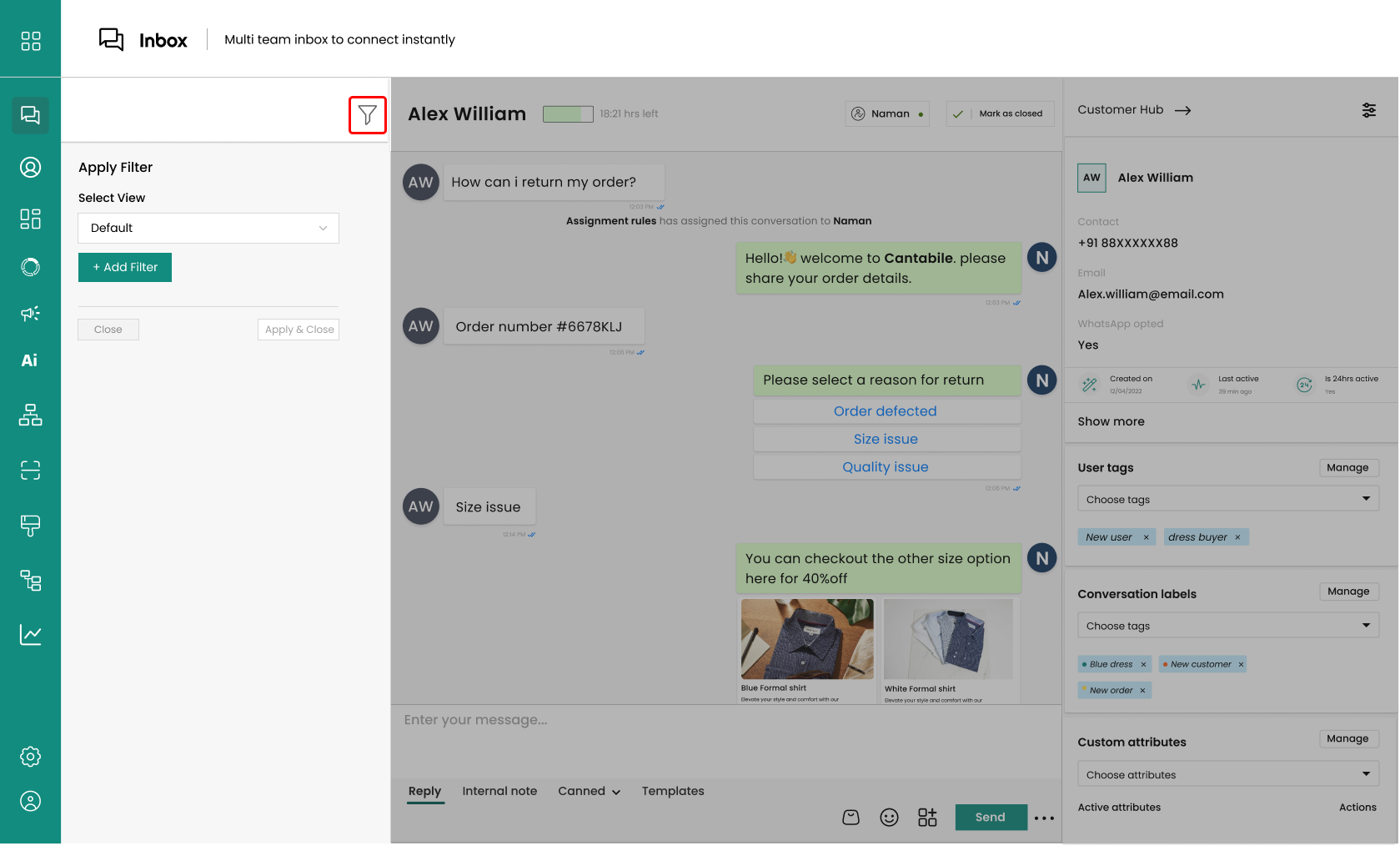
1. In the **right-hand corner** of the **Customer's Name** section**,** you can find a **Filter Icon**.
2. Click it, and you will end up at a form, as shown below.
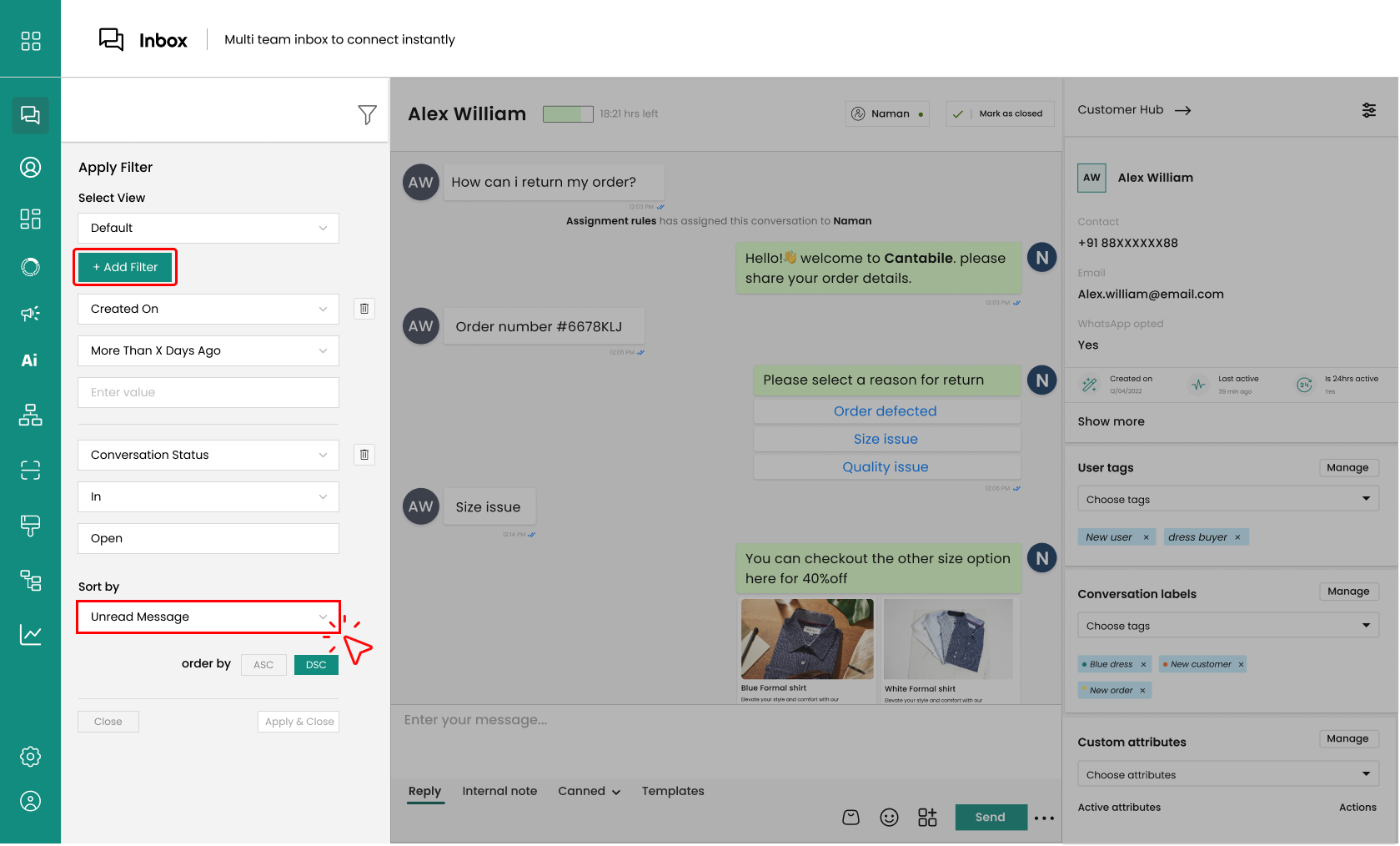
3. Tap '**Add Filter**' and **select the attribute based on which you want to narrow down your search**.
For example, if you want to **find only the customers who contacted you last week**, you can click on the filter icon, **opt for 'Created on’, select ‘Less than X days ago,’ and finally enter the value as 7**.
Different Filters
* **Assigned to:** You can filter customers based on which agent was assigned to handle the queries.
* **User tags:** You can filter customers based on the tags you assign to them. Tags are labels that describe the user’s interests, preferences, behavior, or status.
* **Conversation status:** You can filter customers based on the status of their conversation. For example, you can filter users who have an open or closed conversation.
* **Conversation labels:** You can filter customers based on the labels you assign to their conversations. Labels are categories that describe the topic or purpose of the conversation.
* **Created on:** You can filter customers based on the date when they started the conversation.
* **Last active:** You can filter customers based on the date when they last interacted.
* **Is 24hr active?:** You can filter customers based on whether they have been active in the last 24 hours.
* **Time of user’s last message:** You can filter customers based on the time when they sent their last message.
* **User’s last message was answered?:** You can filter customers based on whether their last message was answered or not.
* **Last message read by user?:** You can filter customers based on whether they have read the last delivered message.
insert
4. You can also **combine multiple filters** by simply tapping '**Add Filter**' to refine your search.
Let's say you only want the customers whose 'conversation status' is 'open' from all the customers who contacted you last week.
5. Now, under '**Sort By**', choose '**unread message**' or '**conversation updated**.'
{% hint style="info" %}
**Unread messages**: View customers **whose messages are yet to be seen**.
**Conversation Updated**: View customers whose messages are updated, which means the **agent or bot has responded to the query at last**.
{% endhint %}
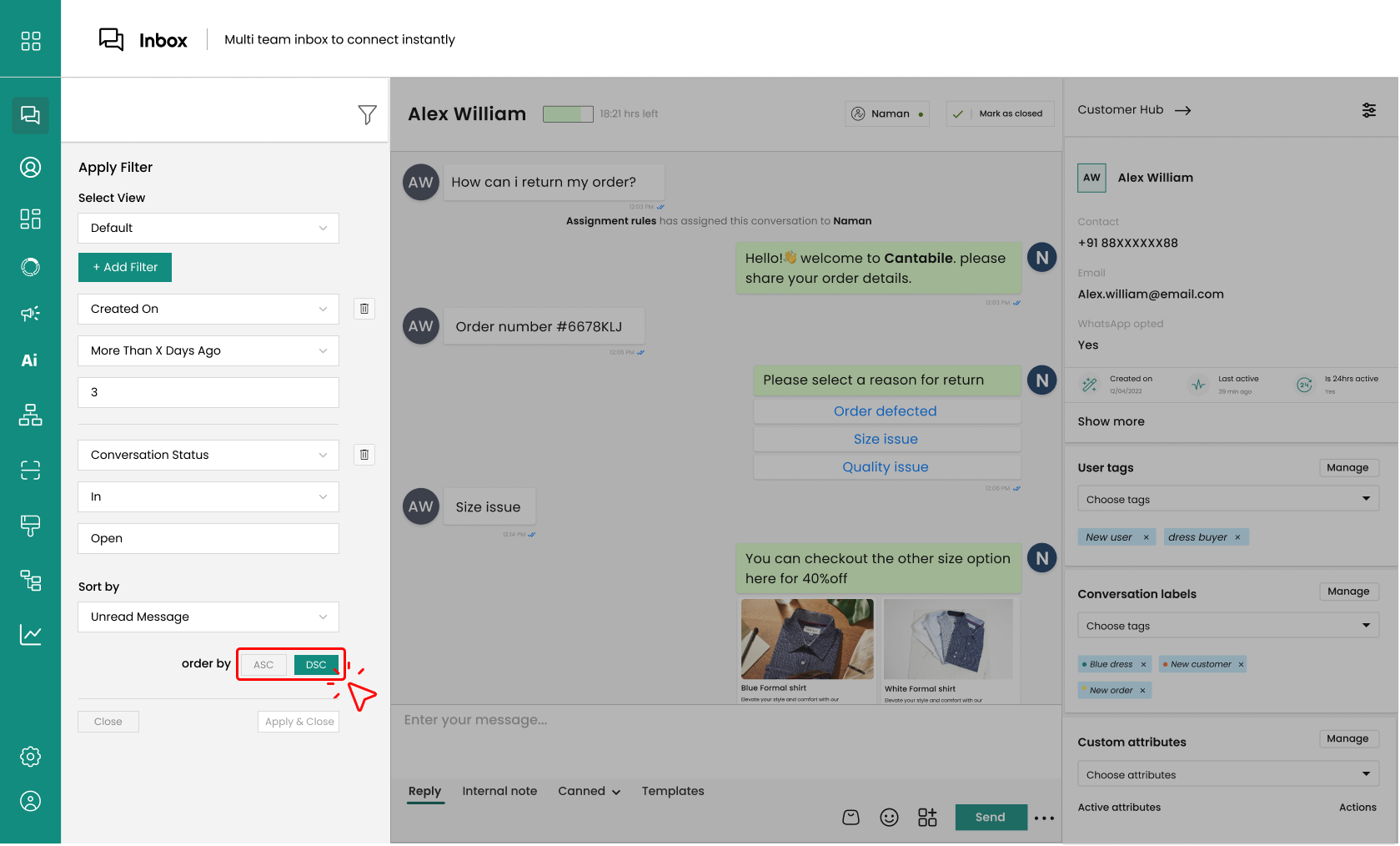
6. Now choose '**ASC**' or '**DSC**' from **order by**.
If you want the chats with the **most unread messages to be shown first, opt 'DSC'** or else **for** **chats with the least unread messages on top, opt 'ASC.'**
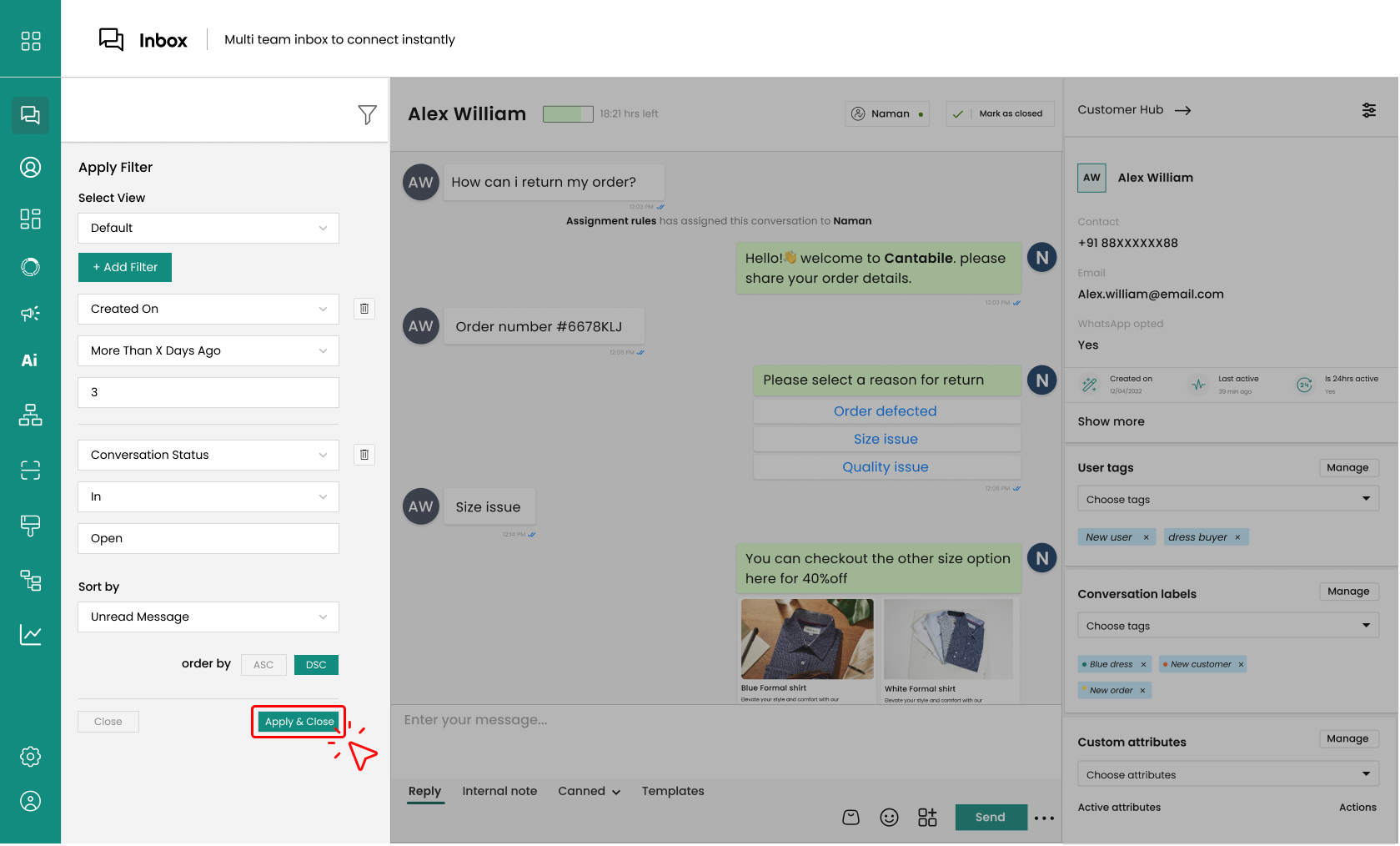
7. Tap '**Apply & Close**' to filter. You'll see the list of customers that match your preferences.
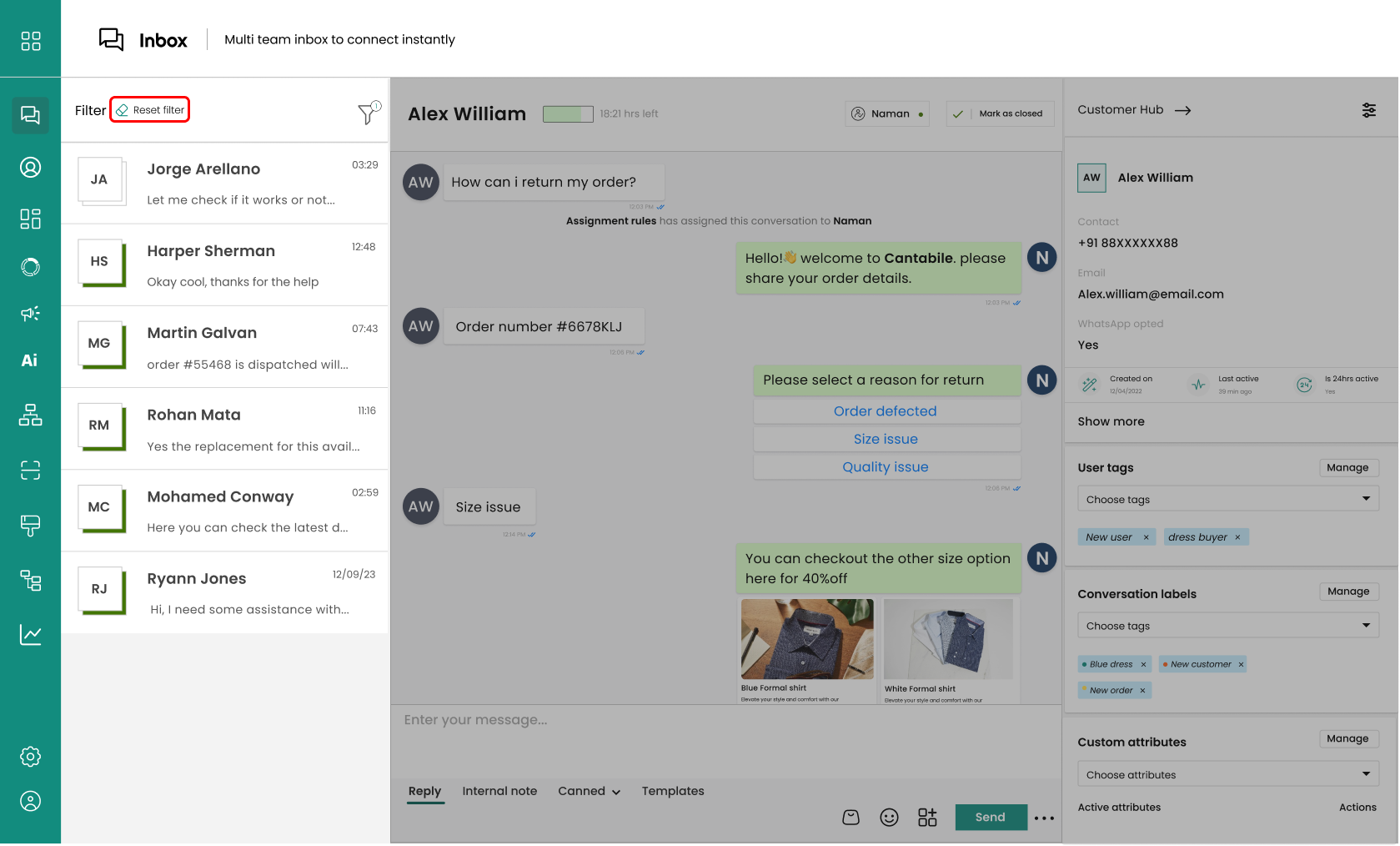
8. If you want to **reset** the filter, tap '**reset filter**' to opt out.
You get two types of views in the '**Filter**' option, the above-explained one was '**Default View**'. The other type of view is listed below:
## Types of 'View' In Filter
### **Default View**
You can add the filter to your default view.
{% content-ref url="/pages/oa1fQ79aYfW2uA43WS0W" %}
[Default View](/chatman-enterprise-whatsapp-platform/chatman-functions/shared-team-inbox/filter-customer-list/default-view)
{% endcontent-ref %}
### **Create View**
You can add the filter and create your own view, just for quick access for future use for the same filter.
{% content-ref url="/pages/AS2ajvg6yqb2t70OCIeo" %}
[Create View](/chatman-enterprise-whatsapp-platform/chatman-functions/shared-team-inbox/filter-customer-list/create-view)
{% endcontent-ref %}
##
# Default View
## Add a Filter to the Default View
1. Look for the '**Filter**' button in the upper right corner of your chat list and click on it.
2. The click will open a menu. Choose the '**Default**' option if not selected already, and then click on '**Add Filter**.'
3. Suppose you want to **filter chats based on the assigned agent**. Select '**Assigned to**' as your filter category.
4. Click on '**In**' and then '**Select Value.**' A list of agents in your team will appear.
For instance, choose "Agent Smith" and "Agent Brown."
5. Select '**Sort by**' and pick '**Unread Message**.' This means chats will be organized by the number of unread messages from customers.
{% hint style="info" %}
**Unread messages**: View customers **whose messages are yet to be seen**.
**Conversation Updated**: View customers whose messages are updated, which means the **agent or bot has responded to the query at last**.
{% endhint %}
6. Choose '**ASC**' or "**DSC**' from '**Order By**.' Choose '**Descending**' to display chats with the most unread messages first and vice versa.
7. Click '**Apply and Close**' to implement the filter and close the menu.
8. Your chat list will now show chats assigned to Agent Smith and Agent Brown, **sorted by the number of unread messages in descending order**.
You can also **create your own view** for quick access to the same filter in the future. For the same, tap below:
{% content-ref url="/pages/AS2ajvg6yqb2t70OCIeo" %}
[Create View](/chatman-enterprise-whatsapp-platform/chatman-functions/shared-team-inbox/filter-customer-list/create-view)
{% endcontent-ref %}
# Create View
**Creating your view in a filter is helpful when you don't want to apply 'filters' for preferences that you use frequently**.
Let's say you check daily for customers whose last messages were unanswered.
Applying the filter daily kills time; if you have a **view** with the **same filter**, it cuts down to three-step work (**Filter**>**Select** the **Created** **View**> **Apply** **& Close**).
## Create Your Own Filter View
1. Click on the **Filter** **Icon** in the **right**-**hand** **corner** of the Customer’s Name section. This will open a menu where you can see the existing filter views and create a new one.
insert
2. Click on the **View Name** option and then on **Create View**.
For example, you can name it ‘Assigned To Me’ if you want to see the customers who have unread messages from you.
insert
3. **Your view will be added to the list of views**. You can click on it and then on **Add Filter** to customize it.
insert
4. Say you want to see the customers assigned to you; select ‘**Assigned to**’ in the first box, ‘**In**’ in the second box, and your name in the third box. This will show you only the customers who are assigned to you.
Different Filters
* **Assigned to:** You can filter customers based on which agent was assigned to handle the queries.
* **User tags:** You can filter customers based on the tags you assign to them. Tags are labels that describe the user’s interests, preferences, behavior, or status.
* **Conversation status:** You can filter customers based on the status of their conversation. For example, you can filter users who have an open or closed conversation.
* **Conversation labels:** You can filter customers based on the labels you assign to their conversations. Labels are categories that describe the topic or purpose of the conversation.
* **Created on:** You can filter customers based on the date when they started the conversation.
* **Last active:** You can filter customers based on the date when they last interacted.
* **Is 24hr active?:** You can filter customers based on whether they have been active in the last 24 hours.
* **Time of user’s last message:** You can filter customers based on the time when they sent their last message.
* **User’s last message was answered?:** You can filter customers based on whether their last message was answered or not.
* **Last message read by user?:** You can filter customers based on whether they have read the last delivered message.
{% hint style="info" %}
**You can add multiple filter repeating the steps 3 & 4.**
{% endhint %}
insert
5. Select the sorting option from the **Sort by** menu.
For example, if you want to **see the customers with unread messages, select ‘Unread Message’ in the first box, ‘Is’ in the second box, and 'True' in the third.**
insert
6. Finally, choose how you want the result to be displayed. Say you want it in descending order, so opt for ‘**DSC**’.
{% hint style="info" %}
‘**DSC**’ means ‘**descending**’, which means the customers with the latest messages will be shown first. You can also choose ‘**ASC**’ for ‘**ascending**’, which means the customers with the oldest messages will be shown first.
{% endhint %}
insert
7. Click on **Apply** and **Close** to see the filtered and sorted customers in your view.
{% hint style="info" %}
You can **create more filter views** for different purposes and edit or delete them anytime.
{% endhint %}
insert
# Assign Chat
**Assigns the chat to an agent who can handle it**. In Chatman, chats are assigned based on two methods: [manually](#manually-assign-a-conversation) and based on set [assignment rule](/chatman-enterprise-whatsapp-platform/chatman-functions/assignment-rule).
Use Cases
1. When the query goes **beyond the bot's training** and **requires human interference**.
2. An **agent can assign a chat to another agent if a customer query remains unsolved**. Say, the agent was assigned to solve a delivered product query but wasn't able to assist much; he might assign the chat to a superior, say a 'Manager.'
In Shared team inbox, you can assign a chat manually to any agent, manager or even user groups. Let's explore the steps for the same.
## Manually Assign a Conversation
1. Head over to the right-hand corner of the Chat section, where you will find an option to **Assign.**
**insert**
2. Say you have an agent as 'Sahil'; select the **Agent** from the drop-down list and click **Confirm**.
{% hint style="info" %}
You can even **assign chat to a group of agents by creating** [**User Groups**](/chatman-enterprise-whatsapp-platform/settings/my-account/user-groups) to handle specific types of queries.
{% endhint %}
insert
3. The agent (Sahil) will be assigned to the conversation. Once it is assigned, the agent can join the conversation and close the chat once the customer is satisfied with the solution (OR in **24 hrs automatically**).
insert
This was a manual method of assigning a chat to different agents. Generally, the chats are assigned on the basis of the **Assignment Rule**.
{% content-ref url="/pages/HpizdW8eejt4vuaaeRnM" %}
[Assignment Rule](/chatman-enterprise-whatsapp-platform/chatman-functions/assignment-rule)
{% endcontent-ref %}
# Close Chat
The **closed status** clearly indicates that the particular conversation has been **successfully resolved**. Some notable points are:
* The conversation can be **closed manually**, by a **journey**, or by an **Auto** **closure** **rule**.
* **Chats marked as close helps agent quickly identify which chats still require their attention**, ensuring that they can prioritize their workload effectively.
### Manually Close Chat
The agent can **manually close the chat** once the customer's query is answered.
How do you that?
1. Head over to any customer inbox and click on the '**Mark as Close**' button on the left side of Customer hub.
### Chat Closed by Journey
Once the **Journey is over**, the chat will be **closed automatically**.
{% content-ref url="/pages/Qxnilsylq9I65FWgRuVS" %}
[End Conversation](/chatman-enterprise-whatsapp-platform/chatman-functions/journeys/rule-cards/end-conversation)
{% endcontent-ref %}
{% hint style="info" %}
**Chats closed by journeys depend completely on customer response.**
{% endhint %}
### Chat Closed by Auto Closure Rule
When a chat is answered, and the customer has **not replied back within 24 hours**, the **auto-closure rule** will be applied.
{% content-ref url="/pages/lapZVUNEcFseY6ajx8aa" %}
[Automatic Chat Closure](/chatman-enterprise-whatsapp-platform/settings/inbox-settings/agent-assist/automatic-chat-closure)
{% endcontent-ref %}
{% hint style="info" %}
You can change the auto-closure timing from **Agent Assis**t>**Automatic Chat Closure.**
{% endhint %}
# Response Types
Chatman offers **several response types to engage with customers in a way that best suits their query** while elevating customer experience. The different response types include:
### Different Response Types
Let’s understand each part in a short and simple manner.
#### **Reply**
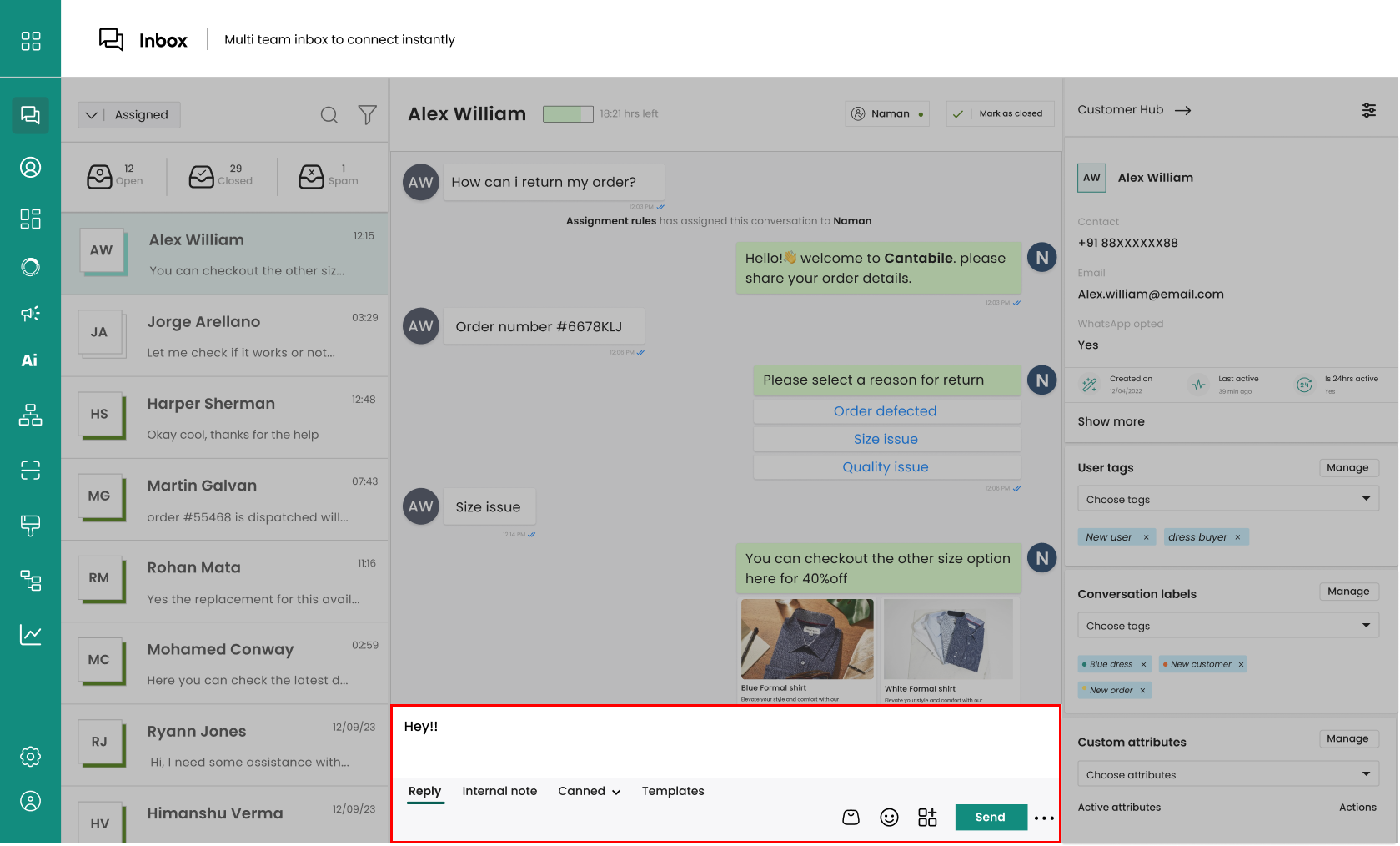
Once the customer starts the conversation with you, replying to them instantly is super easy. Just type in your message and press the reply button.
{% content-ref url="/pages/MKBGZjaiLywDGZAK8Qge" %}
[Text Reply](/chatman-enterprise-whatsapp-platform/chatman-functions/shared-team-inbox/response-types/text-reply)
{% endcontent-ref %}
#### **Internal Note**
The option to add internal notes enables you to record and include important details about your customer that you shouldn't miss. Furthermore, it allows you to communicate with other agents without broadcasting the comment to everyone.
{% content-ref url="/pages/XKdVihGpgsZotjamT9UG" %}
[Internal Note](/chatman-enterprise-whatsapp-platform/chatman-functions/shared-team-inbox/response-types/internal-note)
{% endcontent-ref %}
#### **Canned**
Canned messages are a must for prompt replies. Your team can easily add canned responses to the conversation instead of typing out each response from scratch.
{% content-ref url="/pages/hFZqEVQdVGXvyqvHe936" %}
[Canned Message](/chatman-enterprise-whatsapp-platform/chatman-functions/shared-team-inbox/response-types/canned-message)
{% endcontent-ref %}
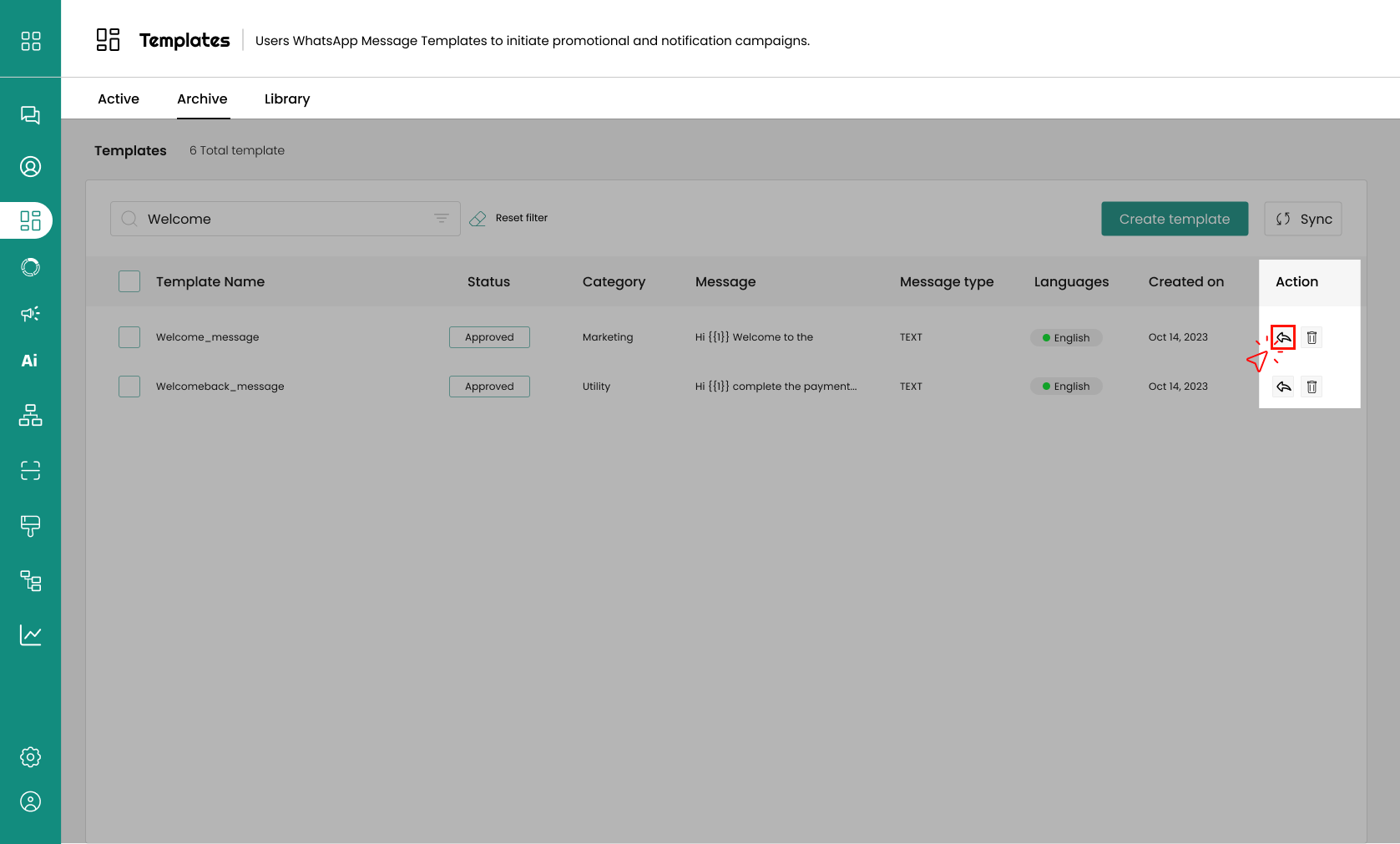
#### **Templates**
This option consists of pre-composed messages that you and your team can use while replying. These templates are helpful and time-saving when you have to type the same text repeatedly.
{% content-ref url="/pages/TrB7sRx3V62pqa01QEFn" %}
[Template](/chatman-enterprise-whatsapp-platform/chatman-functions/shared-team-inbox/response-types/template)
{% endcontent-ref %}
#### **Blocks**
Blocks messages are interactive messages that are sent by agents to initiate a conversation with a user or to send a notification. They are also called highly structured messages.
{% content-ref url="/pages/luEVEgLeUm8sDVbTN50i" %}
[Blocks](/chatman-enterprise-whatsapp-platform/chatman-functions/shared-team-inbox/response-types/blocks)
{% endcontent-ref %}
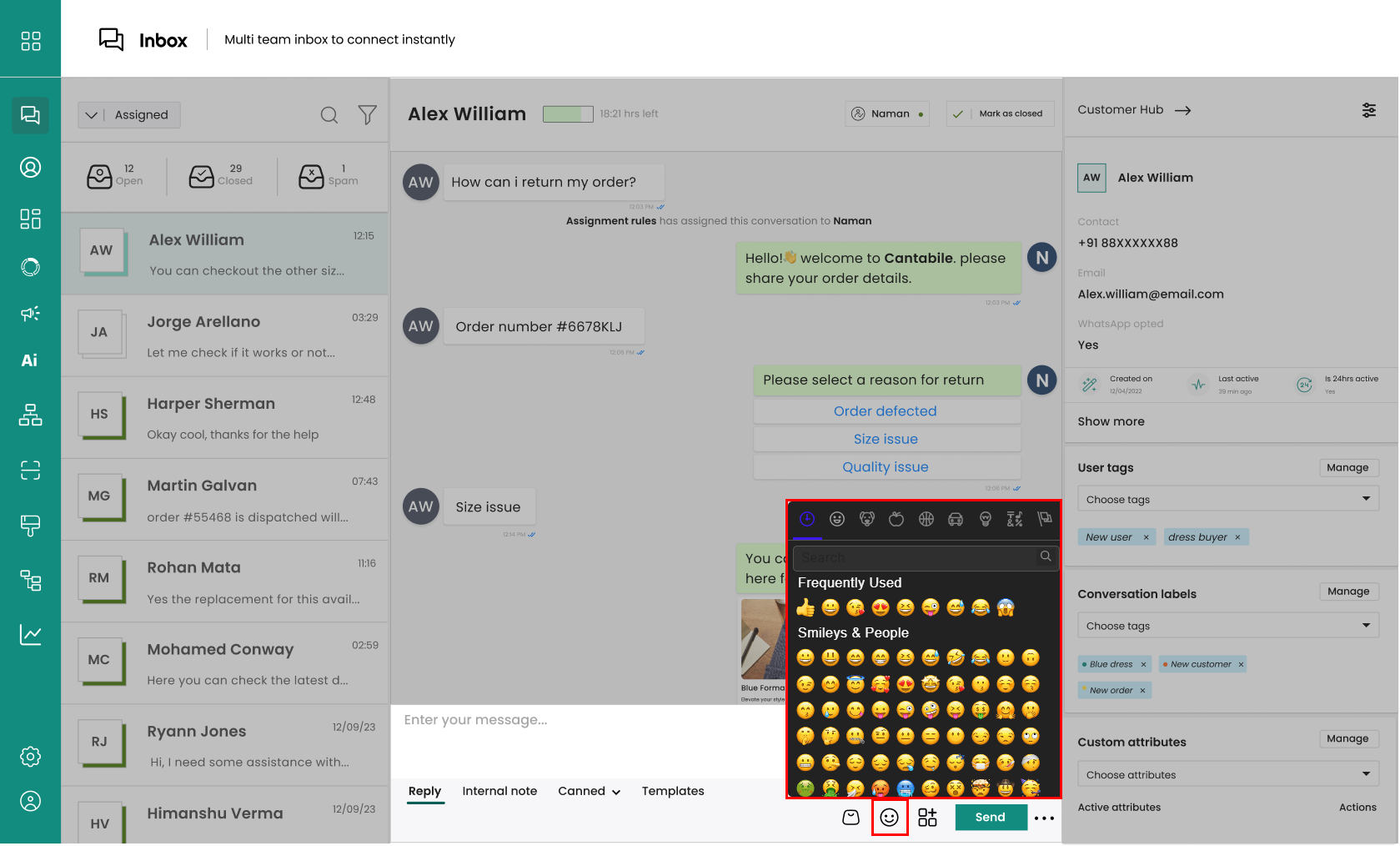
#### **Emoji**
This option will make it simple to express feelings, a certain emotion, and capture attention. Emojis add great value to your content.
{% content-ref url="/pages/UsHGO0JwqMCqvzJ29uK3" %}
[Emojis](/chatman-enterprise-whatsapp-platform/chatman-functions/shared-team-inbox/response-types/emojis)
{% endcontent-ref %}
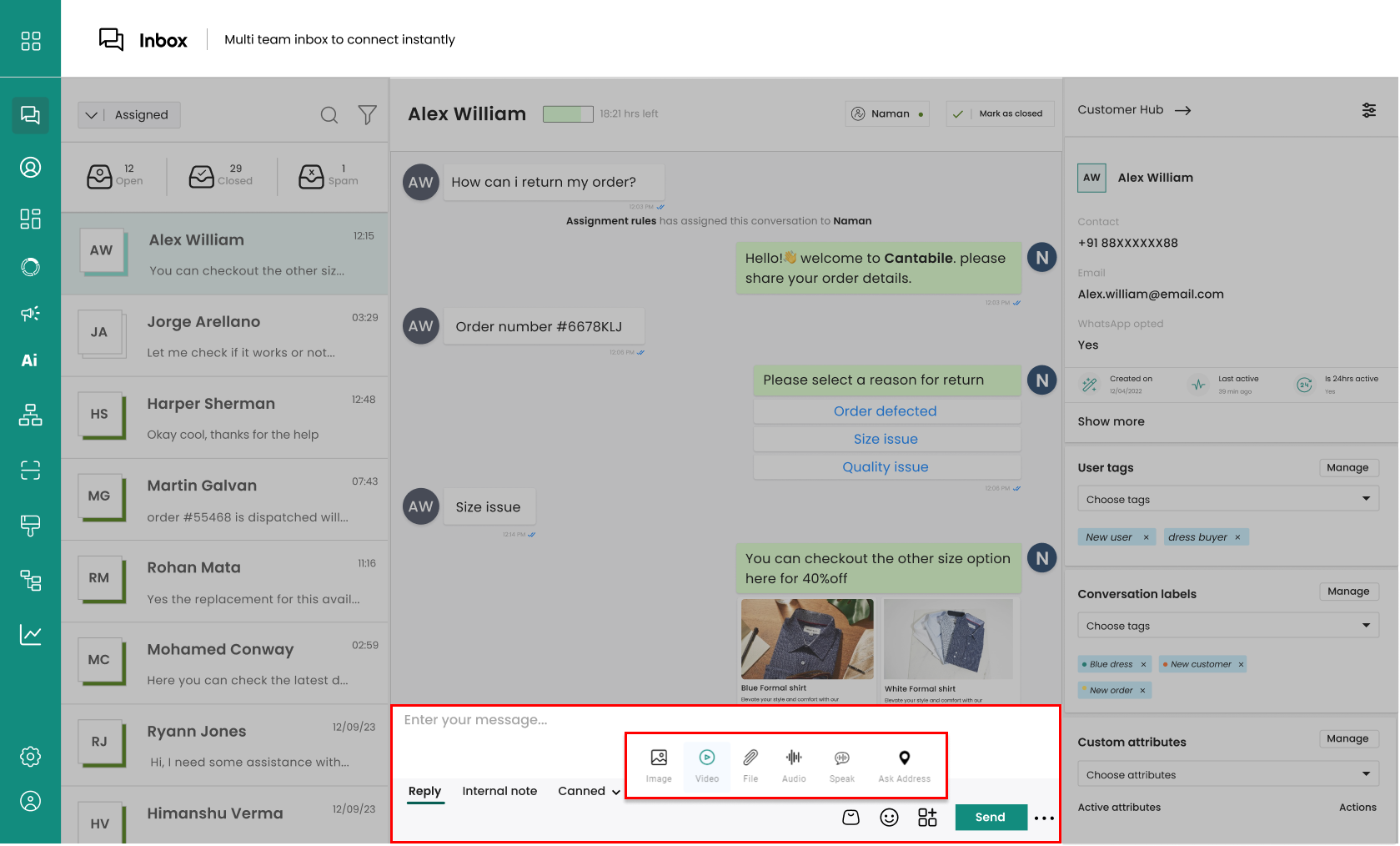
#### **Multi-media messages**
Clicking on this icon will unlock the capability to send images, videos, files, audio, speak, and provide an address.
{% content-ref url="/pages/bIjdrqKN8ZvPXbk1ofWn" %}
[Multi-Media Messages](/chatman-enterprise-whatsapp-platform/chatman-functions/shared-team-inbox/response-types/multi-media-messages)
{% endcontent-ref %}
# Text Reply
The "**Reply**" option can be used to reply and encourage customer engagement in the chatbot. It can be utilized for initiating conversation and can be leveraged under two circumstances.
1. When the chat is **not closed manually**, by the **journey**, or by the **Auto Closure Rule**.
2. When the **chat is closed** but the **chat window** is still **open for 24 hours**.
{% hint style="info" %}
**In the second case, you might need to assign the chat to a agent to access the reply option.**
{% endhint %}
Just **Type** the message and **Click on Send** or **Press Enter**.
# Internal Note
This feature allows to **add private notes** **visible only to agents and managers during user interactions**. These internal notes are helpful in various cases:
* They **help agents keep track of the user’s context and history,** which can improve the quality and speed of the service.
* They **allow agents to share information and collaborate with each other**, especially when handling complex or escalated cases.
* They **enable agents to add reminders or follow-up actions for themselves or other agents**, which can increase customer satisfaction and loyalty.
{% hint style="info" %}
Internal Notes will be **visible only to the agents** and not to the customers.
{% endhint %}
## **Steps to Write Internal Notes**
1. Click on **Internal Note** in the **Reply Section**.
insert
2. Write your Note and **Press Enter**.
insert
3. Your Note will be stored in the Note section, in the right-hand corner of the **Customer Panel**.
insert
4. Editing and Deleting the Note can be done just by clicking the relevant icon.
insert
# Canned Message
Canned messages are **template-based responses** that chatbots can use to answer common or repetitive questions from customers. They are useful for:
* Saving time and effort for human agents who do not need to type the same answers over and over again.
* Providing consistent and accurate information to customers across different channels and platforms.
* Enhancing customer satisfaction and engagement by reducing response time and improving communication quality.
## Using canned messages
1. In the Reply section of an Inbox, click on the **canned message icon** or press the **# key** in the message box. This will **open the canned message box**.
insert
2. In the canned message box, click on **Add Response**. This will open a form where you can enter the details of your canned message.
insert
3. In the form, enter a name for your canned message, such as “**Welcome**”. This will help you identify and select your canned message later.
insert
4. **In the message field, enter the text that you want to send to your customers**, such as “Hello, thank you for contacting us. How can we help you today?”
insert
5. When you are done, **click on Save Canned Response**. Your canned message will be saved and added to your list of canned messages.
{% hint style="info" %}
**Typing # will open the Canned Message Box for easy access**.
Create your own shortcut while drafting your canned message and use that during your conversation. Stop Retyping the same messages for different customers.
{% endhint %}
# Template
Convey your messages in a unique and quick way through templates.
From greetings to handling queries, these **ready-to-use templates** allow your agents to deliver prompt and accurate responses while allowing room for personalized touches.
## **Send Template From Inbox**
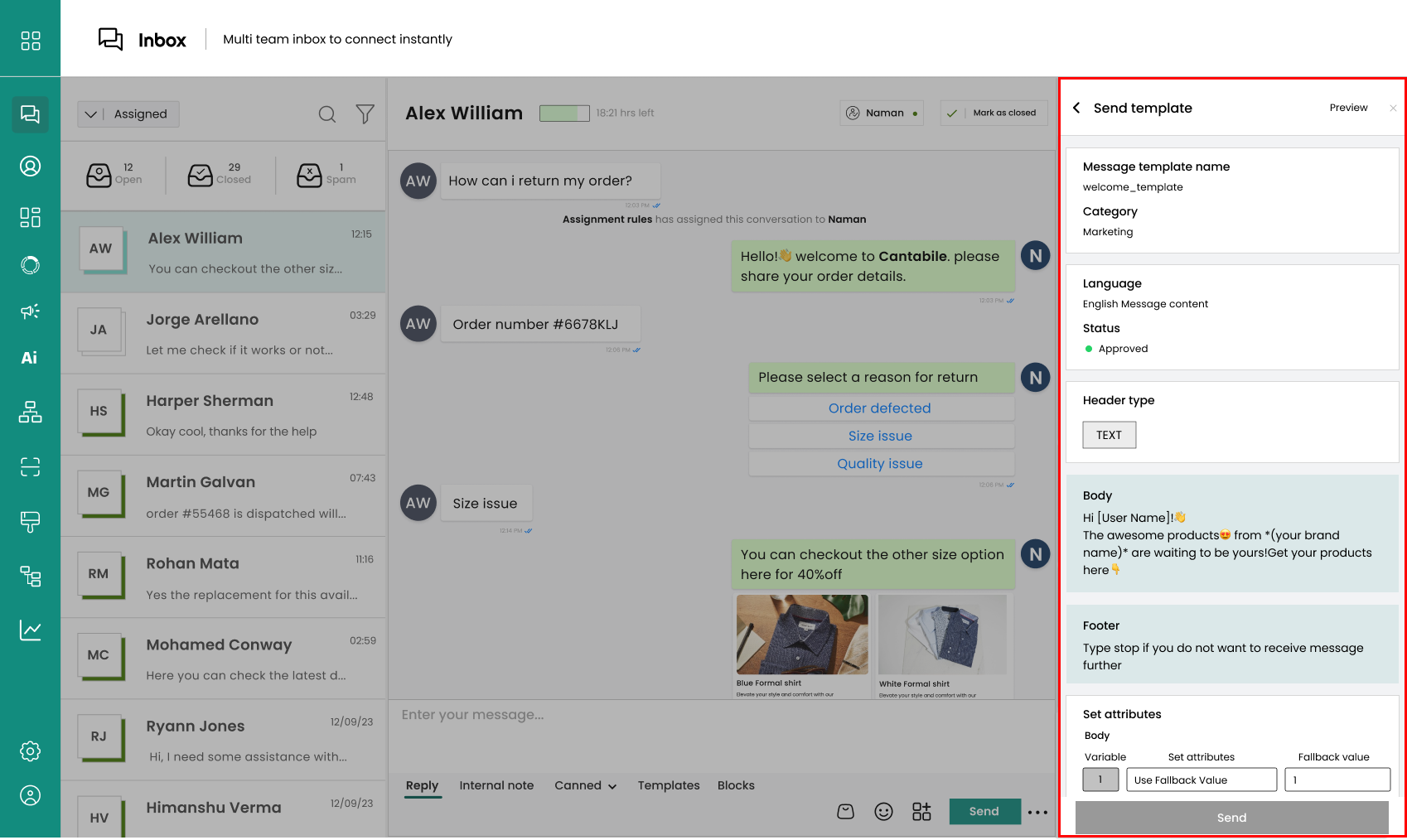
1. Click on **Templates**. The block will open for you to choose a template of your choice.
2. Tap the desired template. Let's select a welcome template to greet out customer.
{% hint style="info" %}
If you want to **create a new template** in the conversation box, click '[**create template**](/chatman-enterprise-whatsapp-platform/chatman-functions/templates/create-template).'
{% endhint %}
3. Template content will appear, tap '**send**'.
4. The template will be sent to the concerned customer.
insert
{% hint style="info" %}
**If you don't have a template, you can always create it from the template tab.**
{% endhint %}
{% content-ref url="/pages/iDTND0OMdOFPZzcnZhzb" %}
[Create Template](/chatman-enterprise-whatsapp-platform/chatman-functions/templates/create-template)
{% endcontent-ref %}
# Blocks
**Blocks messages** are messages that contain **interactive elements**, such as **buttons** or **lists**, that users can select to reply. They are helpful in several cases:
* They can reduce the number of messages exchanged, making the conversation more efficient and less cluttered.
* They can provide clear and easy options for the user to choose from, reducing the load and the risk of misunderstanding or confusion.
* They can increase the user’s engagement and satisfaction by offering a more interactive and dynamic experience.
### Using Blocks in Shared Team Inbox
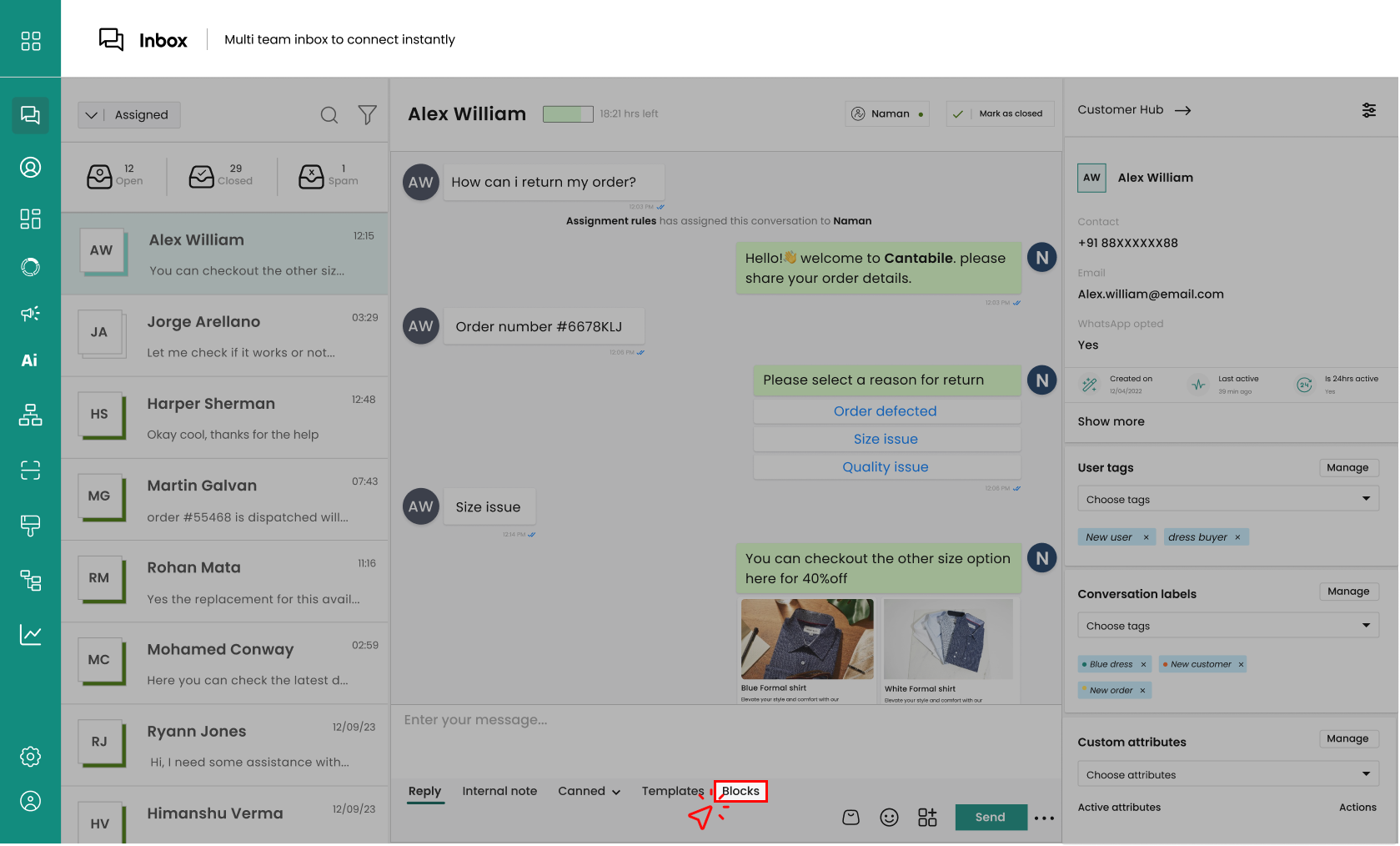
1. Head over to a chat box and tap '**blocks**'.
2. A drop-down menu will appear with '**List**', '**Reply**', and '**Flow**' messages.
insert
{% hint style="info" %}
[List messages](/chatman-enterprise-whatsapp-platform/chatman-functions/blocks/list-messages) are a type of block message that helps **convey information in a text-based list format to users.**\
\
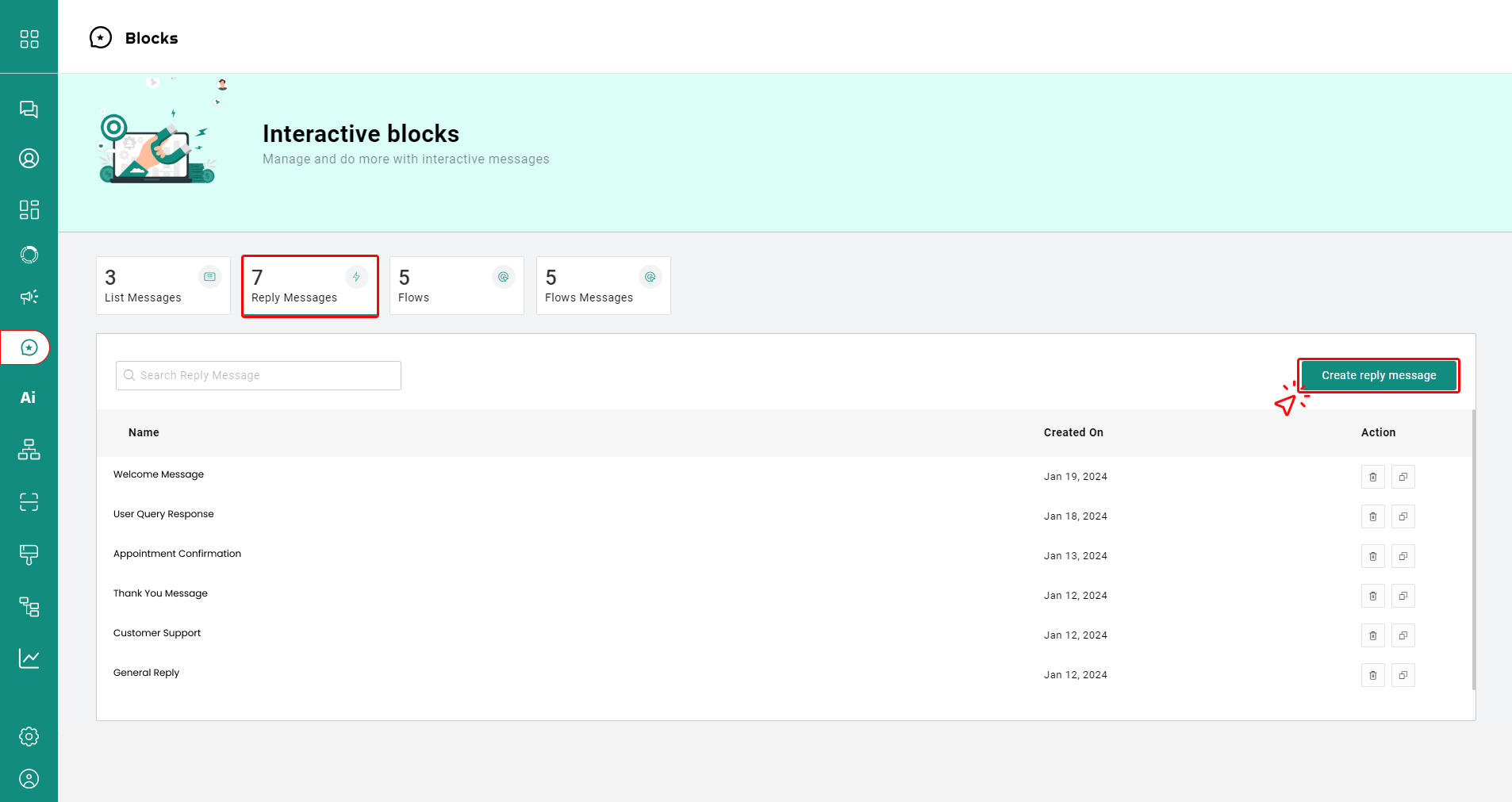
[Reply block messages ](/chatman-enterprise-whatsapp-platform/chatman-functions/blocks/reply-messages)expect a quick reply from the user. They can be **used to ask for information, feedback, confirmation**, or other inputs.
[Flow messages](/chatman-enterprise-whatsapp-platform/chatman-functions/blocks/flows-messages) **trigger a sequence of messages or actions based on the user’s input**. They can be used to create interactive experiences, such as surveys, quizzes, games, or forms.
{% endhint %}
{% hint style="info" %}
You can **create new blocks** by tapping '**Create Blocks**.'
{% endhint %}
{% content-ref url="/pages/CZjDh0s3RqJbl6CQVaI2" %}
[Blocks](/chatman-enterprise-whatsapp-platform/chatman-functions/blocks)
{% endcontent-ref %}
# Catalog
Next-Gen place for a Virtual Shop bringing you potential leads and sales.
Catalog is a powerful tool helping businesses to establish deeper connections with their customers and drive success in the ever-evolving world of e-commerce and customer support.
## **Send Catalog to Customers**
This catalog option allows you to send your **catalog**, a **single product**, or **multiple products** while engaging with your customers on chat.
### **Share Catalog**
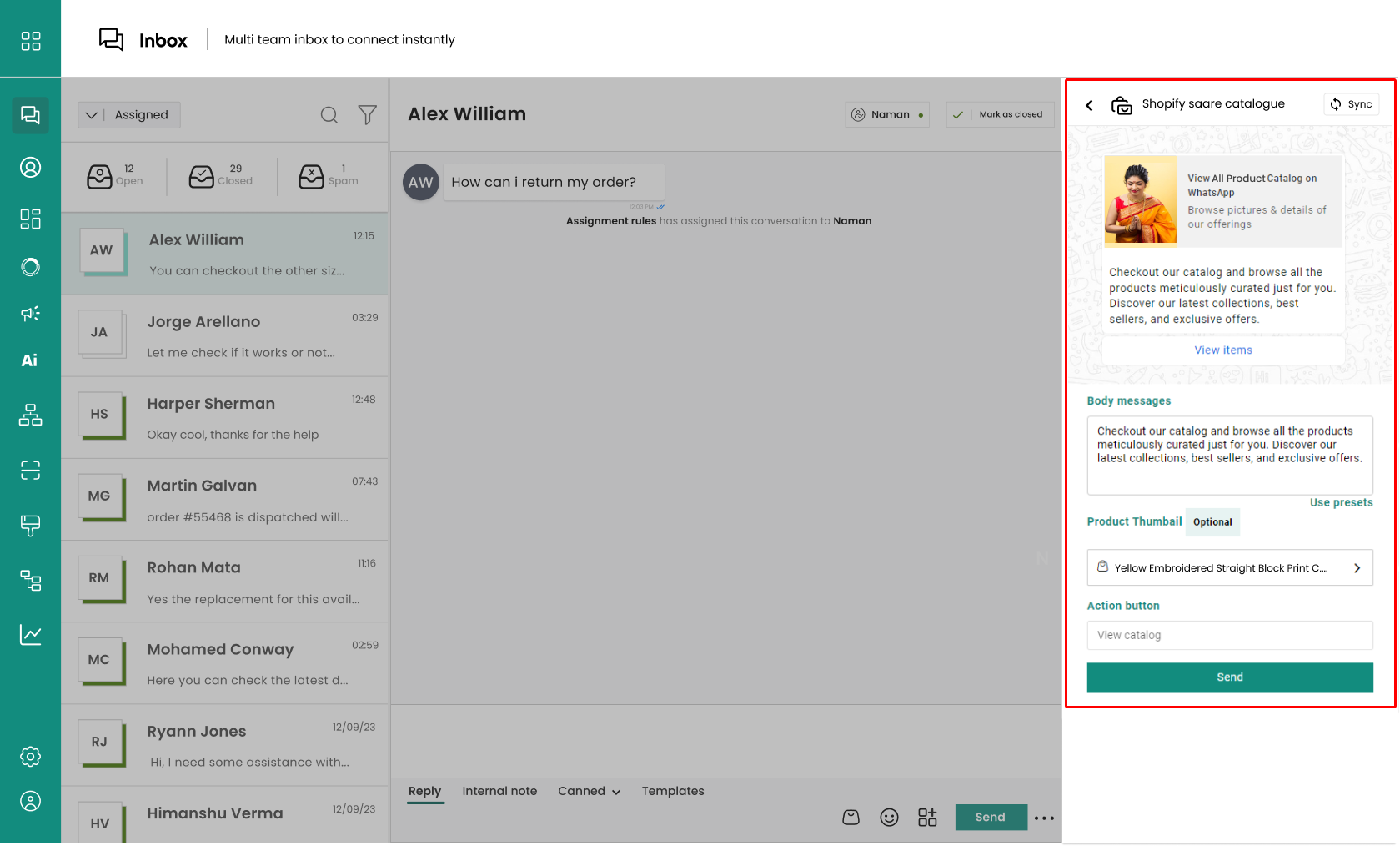
This provides your customers all the items available in your catalogue. To send your whole catalog follow the steps:
1. Tap on the catalog icon available as shown in the image below.
insert
2. Select Catalog.
insert
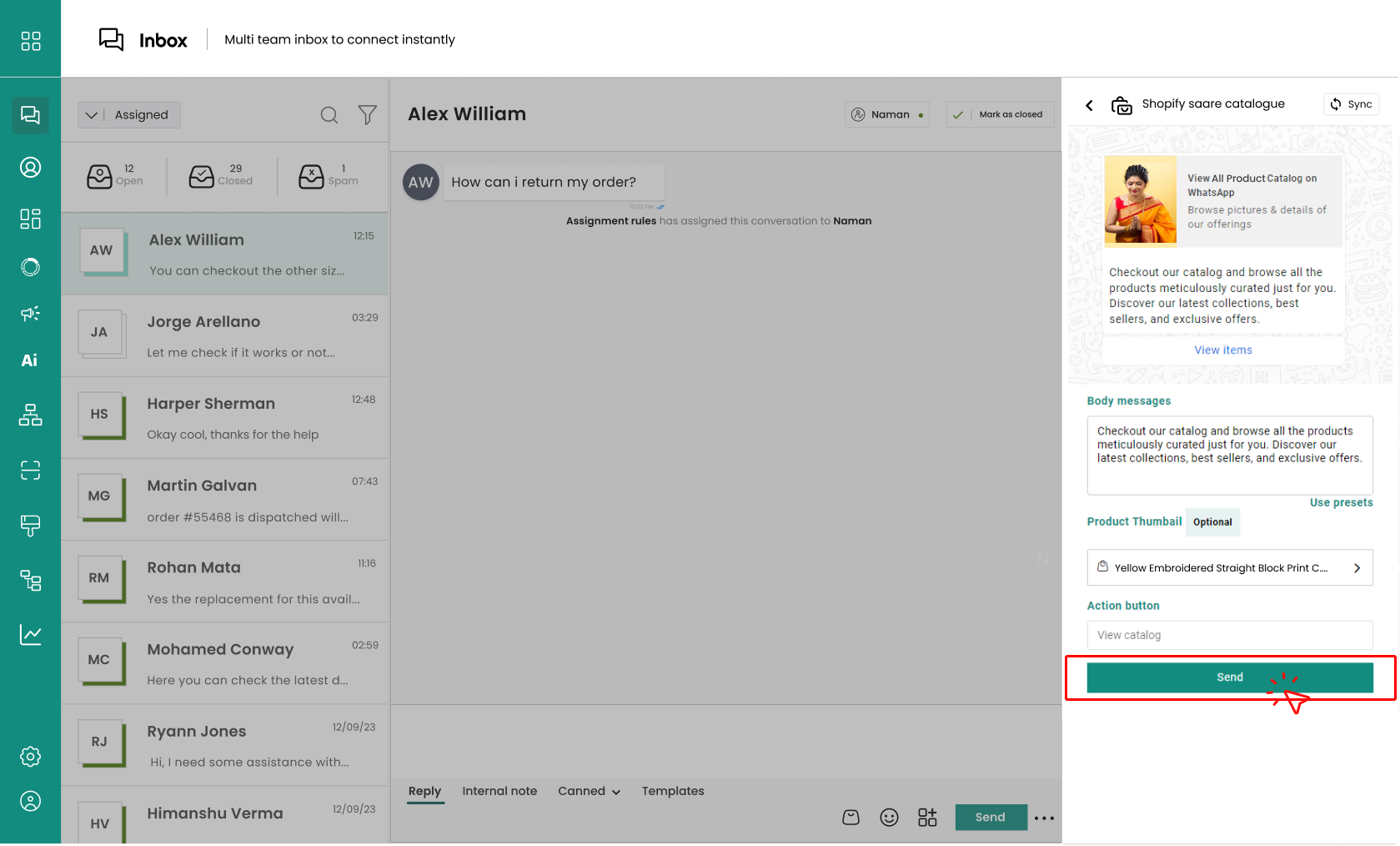
3. **Customize the 'body message'** for better engagement and customer experience. For eg:
> Checkout our catalog and browse all the products carefully selected just for you. Discover latest collections with exclusive offers.
4. Once customized tap '**send**' to deliver.
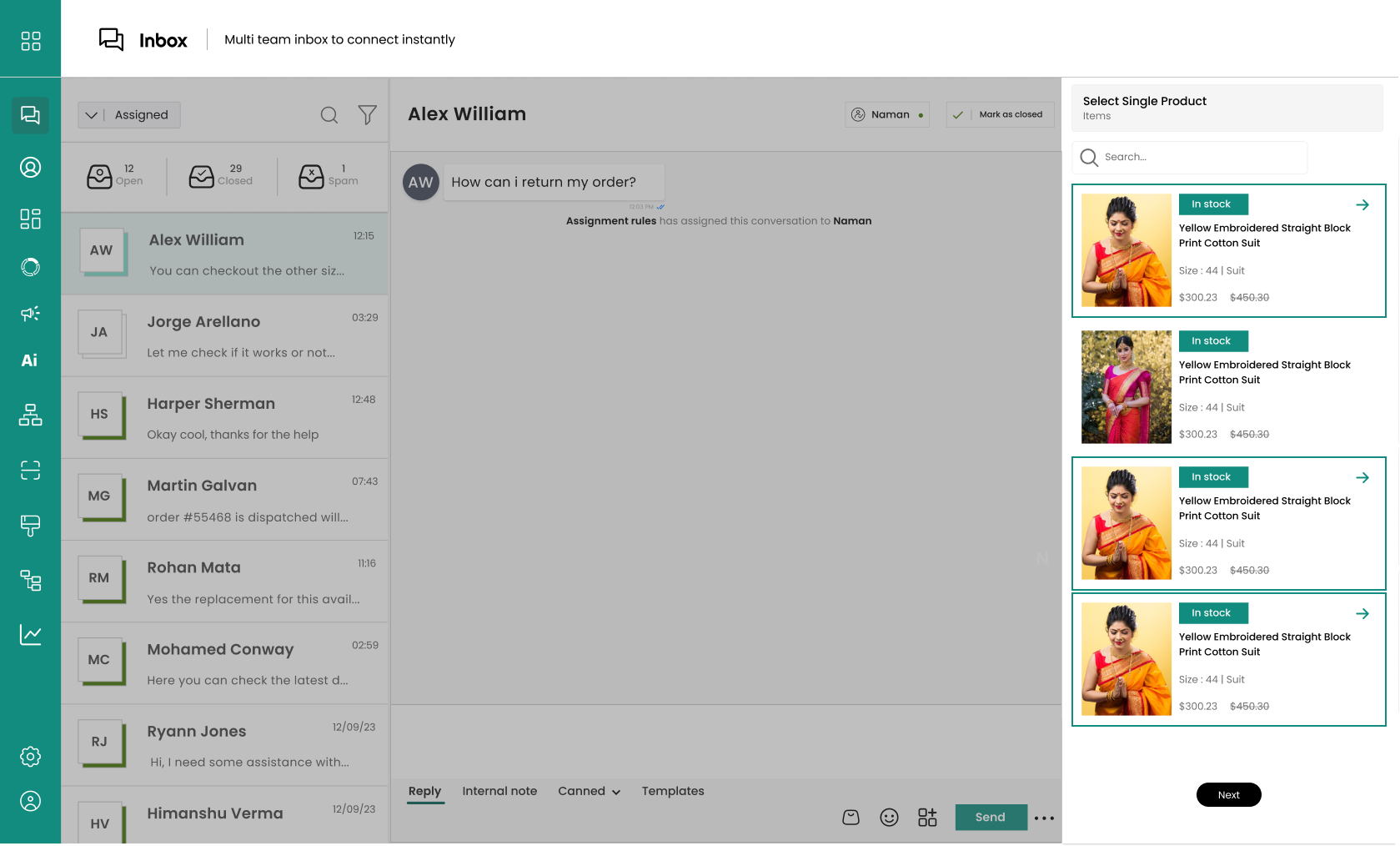
### **Share Single Product**
1. Tap on the catalog icon available as shown in the image below.
insert
2. Select Single Catalog.
insert
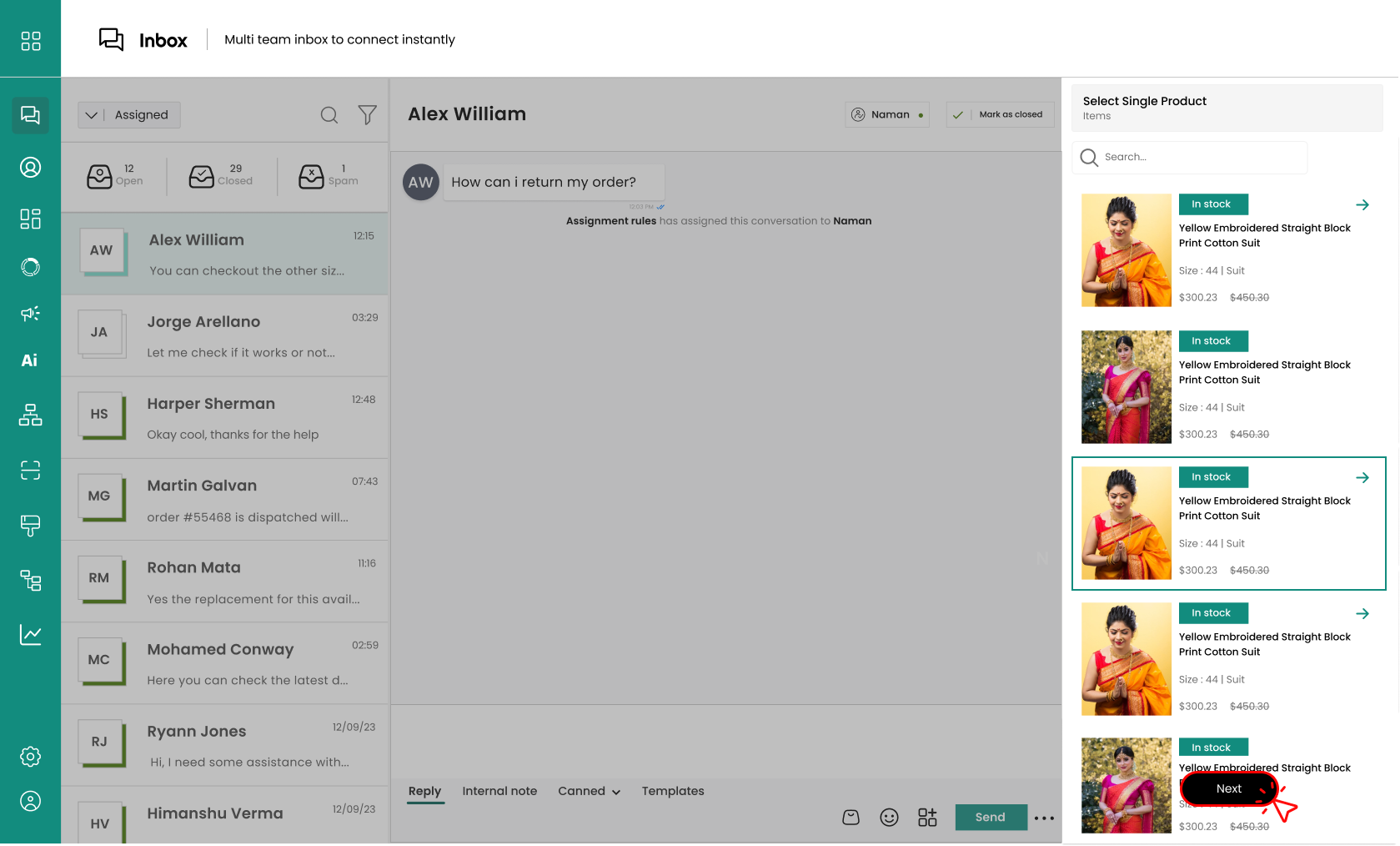
3. On the right-hand side, a list of product will appear tap to select and click 'next.
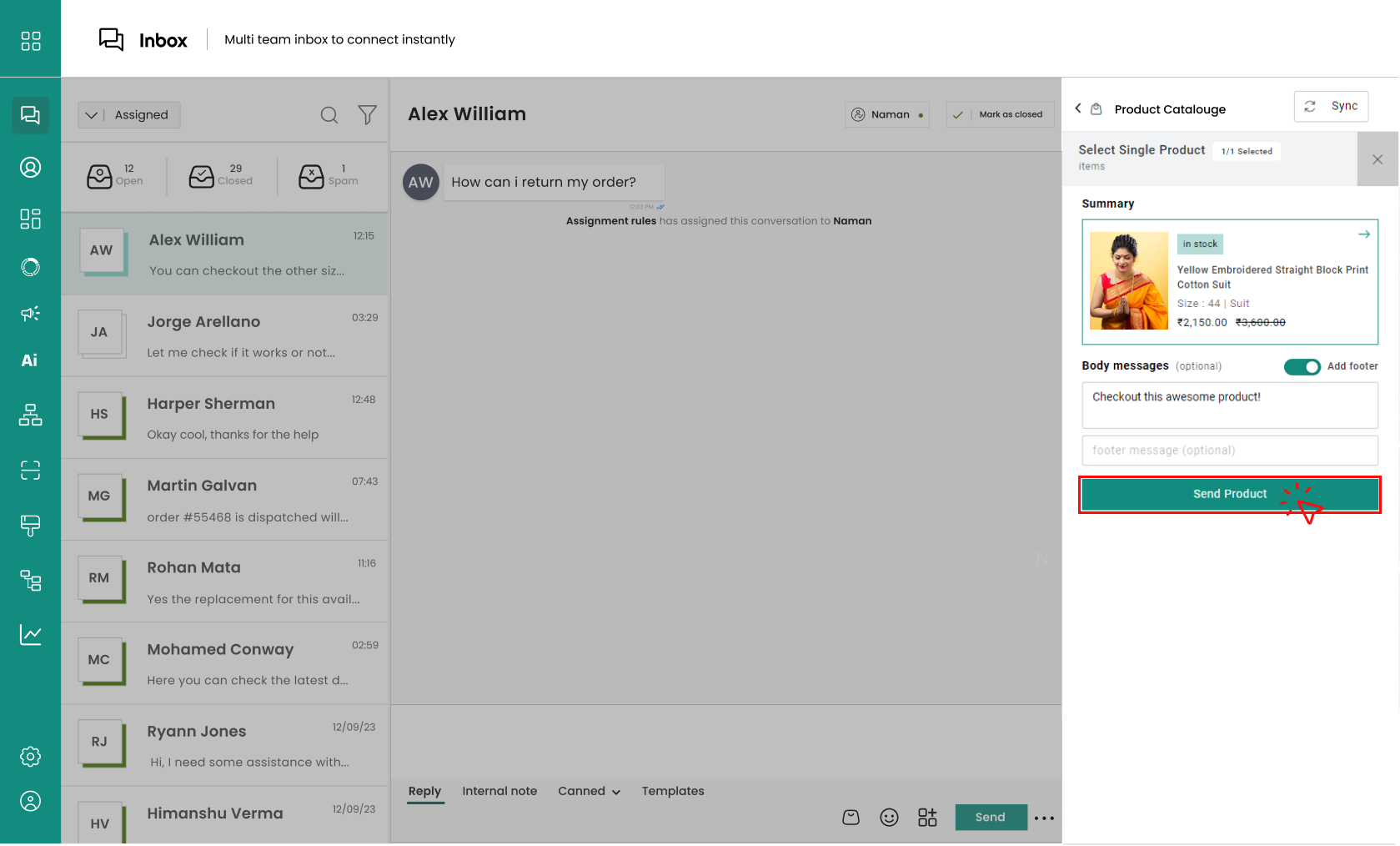
4. You can now add a '**body**' message for better engagement and customer experience. Once done tap '**send product**' to deliver. For eg:
> Checkout this awesome product!
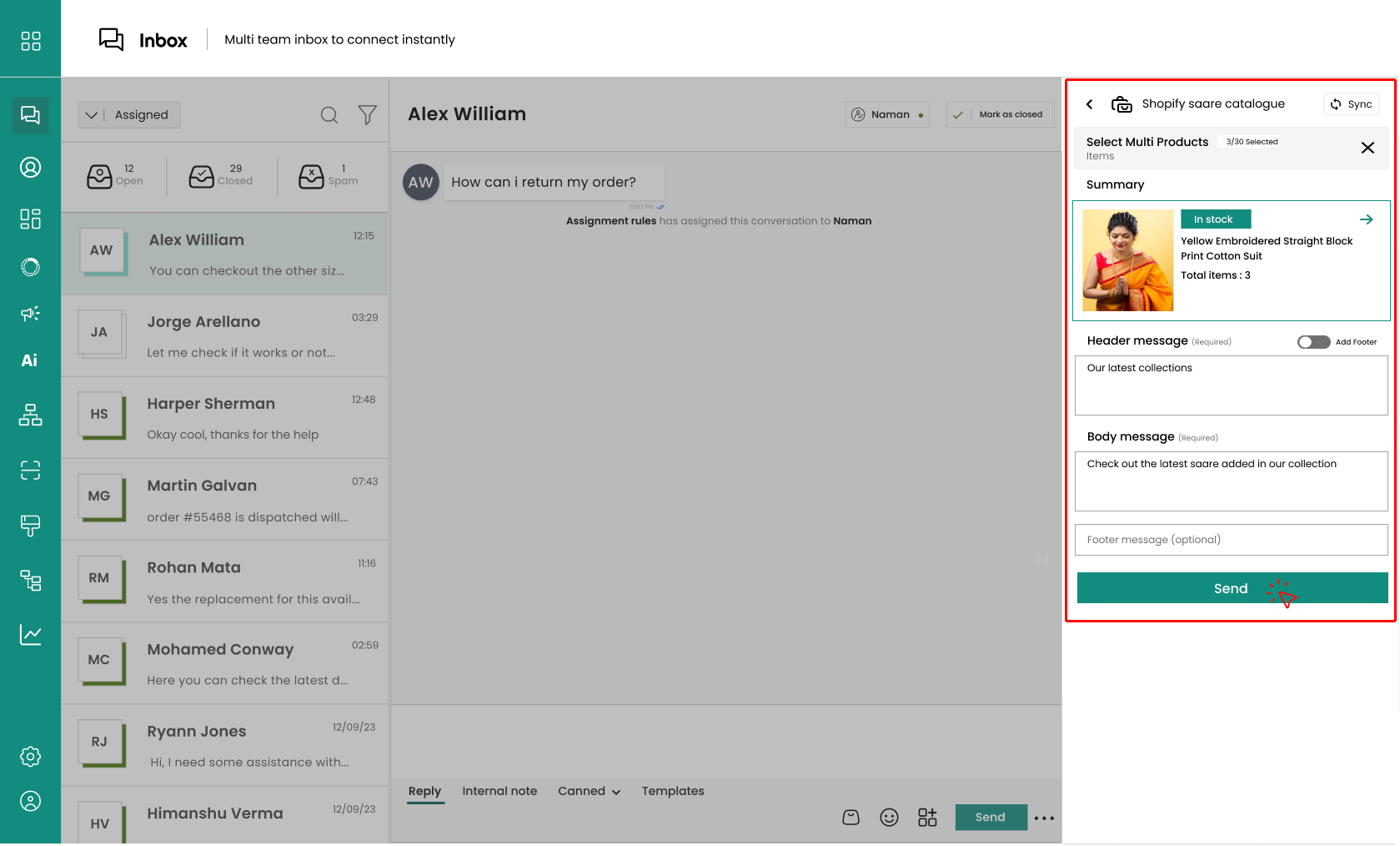
### **Share Multiple Products**
1. Tap on the catalog icon available as shown in the image below.
insert
2. Select Single Catalog.
insert
3. On the right-hand side, a list of product will appear tap to select and click 'next.
4. You can now **add a header and body messages** like 'Our latest collections' and 'Checkout this awesome product!' simultaneously. Tap '**send product**' to deliver.
{% hint style="info" %}
Access or create your catalog in [**WhatsApp Commerce**](/chatman-enterprise-whatsapp-platform/settings/external-protocols/applications/whatsapp-commerce)**.**
{% endhint %}
# Emojis
Emojis are a **great way to express different feelings and thoughts while adding a personal touch to your chats**.
With Chatman, you get a **range of emojis**, enhancing virtual interactions and building rapport with customers.
Use these expressive icons that speak beyond words, making your digital talks more colorful and lively with **Just a Click**.
# Multi-Media Messages
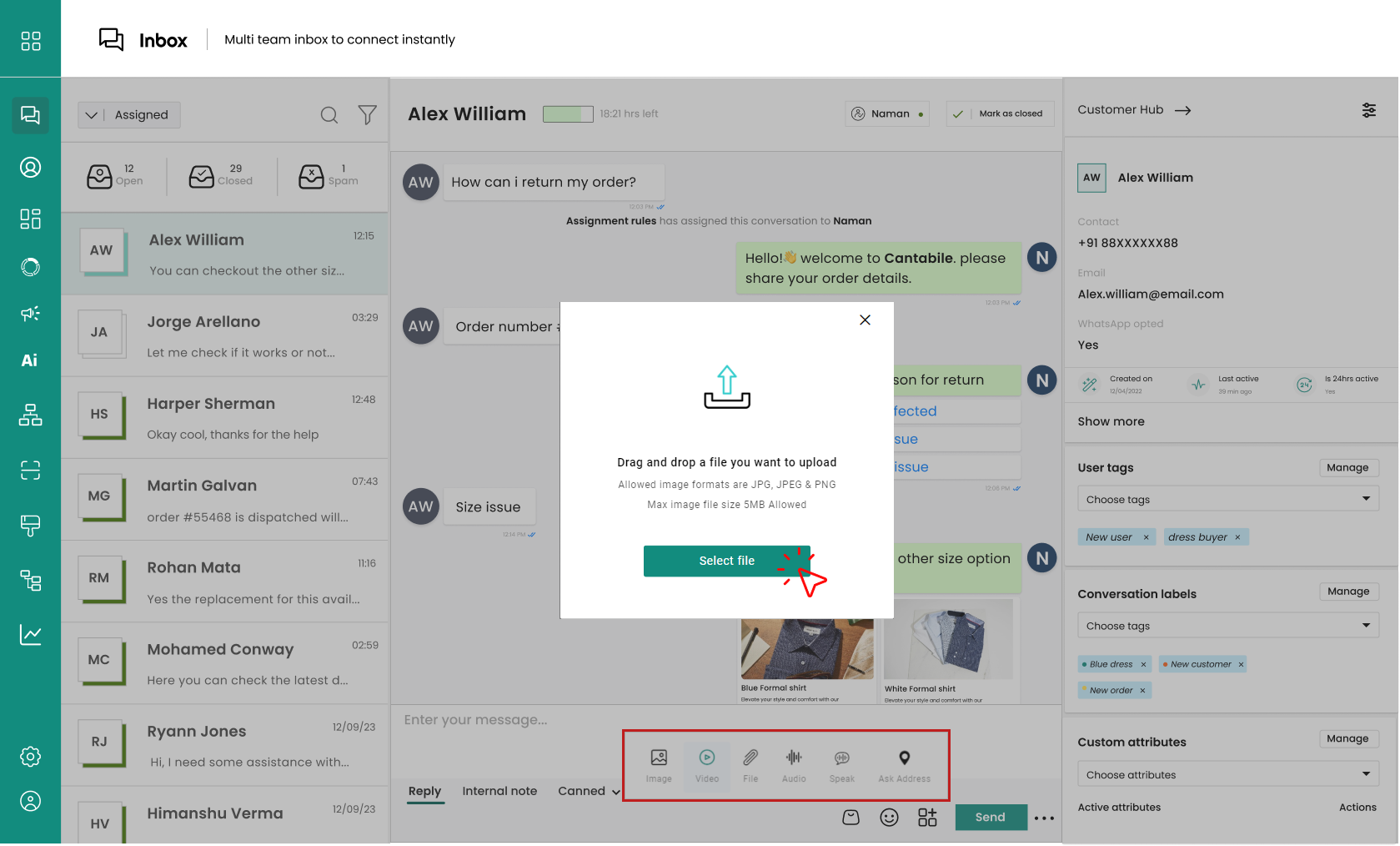
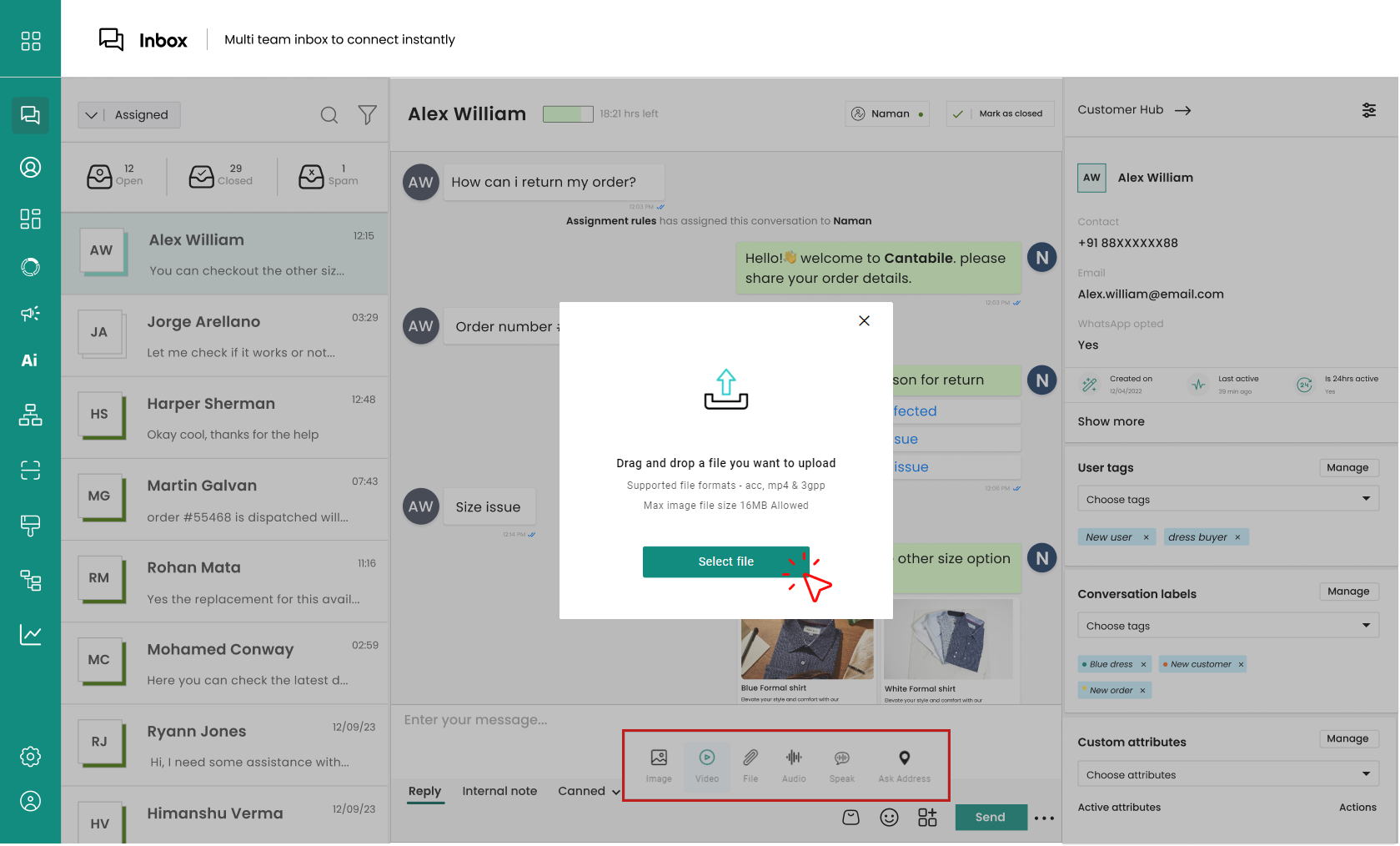
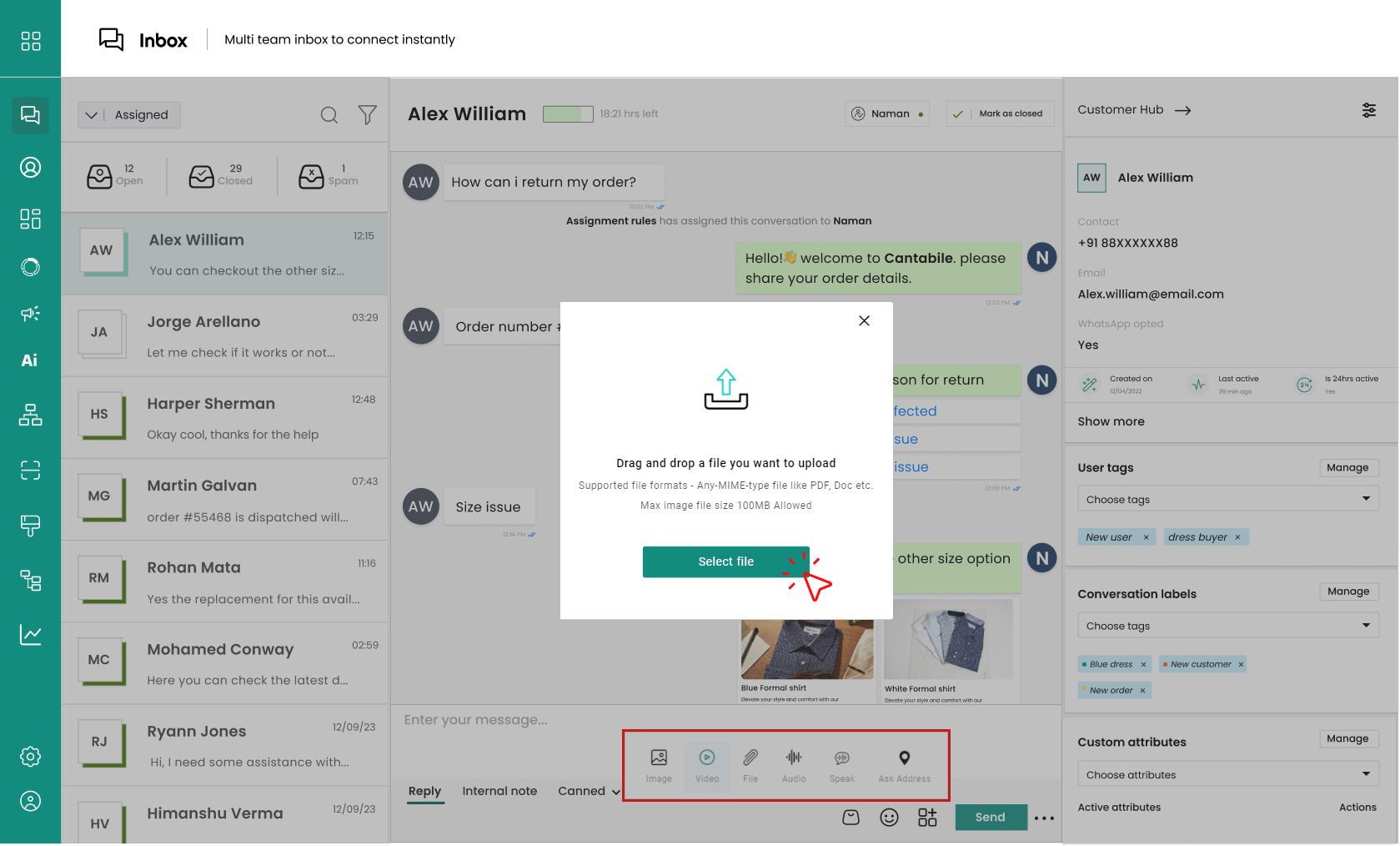
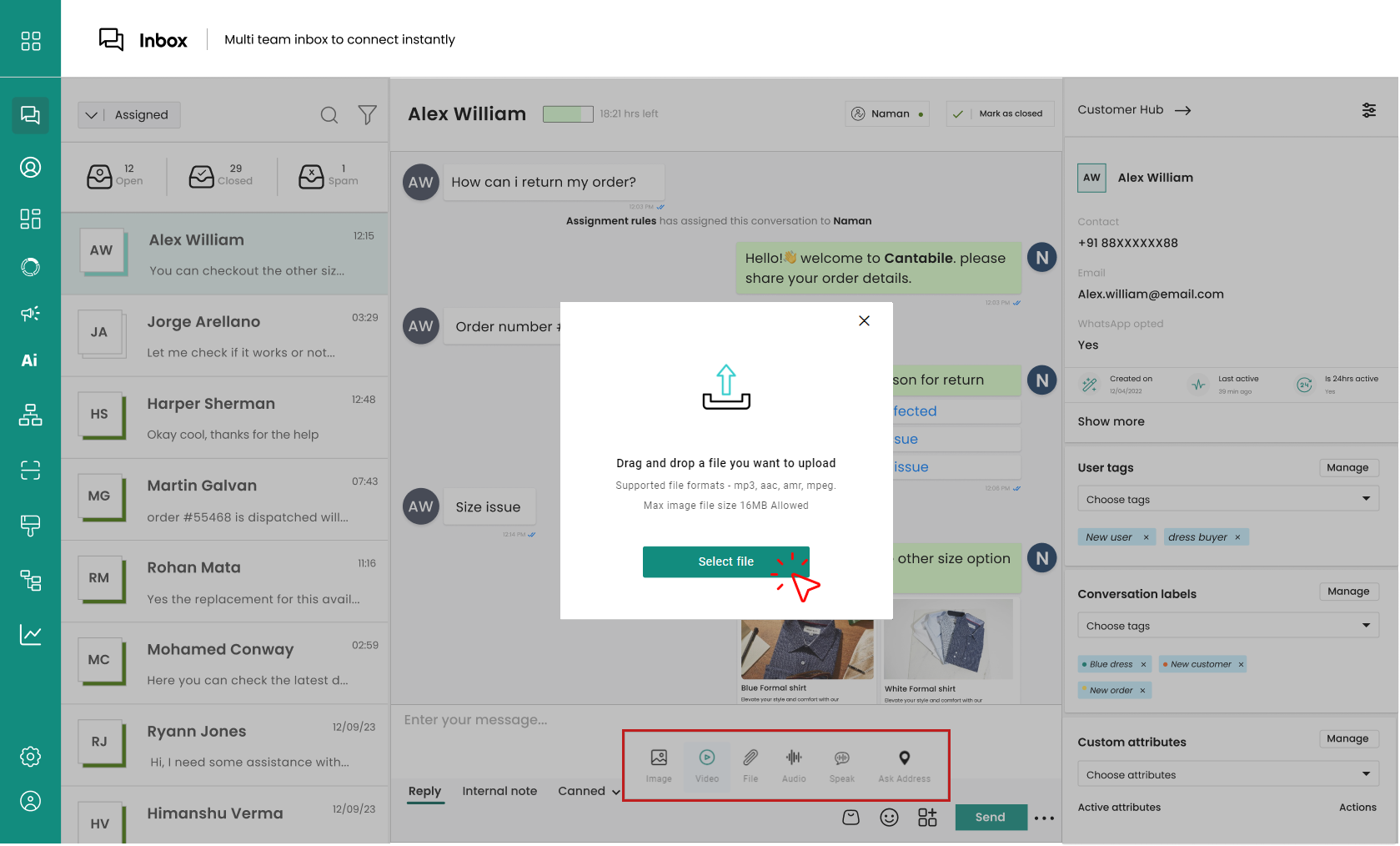
Click on the icon shown below to open a pop-up with options to send **images**, **videos**, **files**, **audio**, **speak (audio message)**, and **ask** **for an** **address**.
## Image
{% hint style="info" %}
Maximum image size allowed is **5 MB**.
{% endhint %}
## Video
{% hint style="info" %}
Maximum video size allowed is **16 MB**.
{% endhint %}
## File
{% hint style="info" %}
Maximum image size allowed is **100 MB**.
{% endhint %}
## Audio
{% hint style="info" %}
Maximum image size allowed is **5 MB**.
{% endhint %}
## Speak
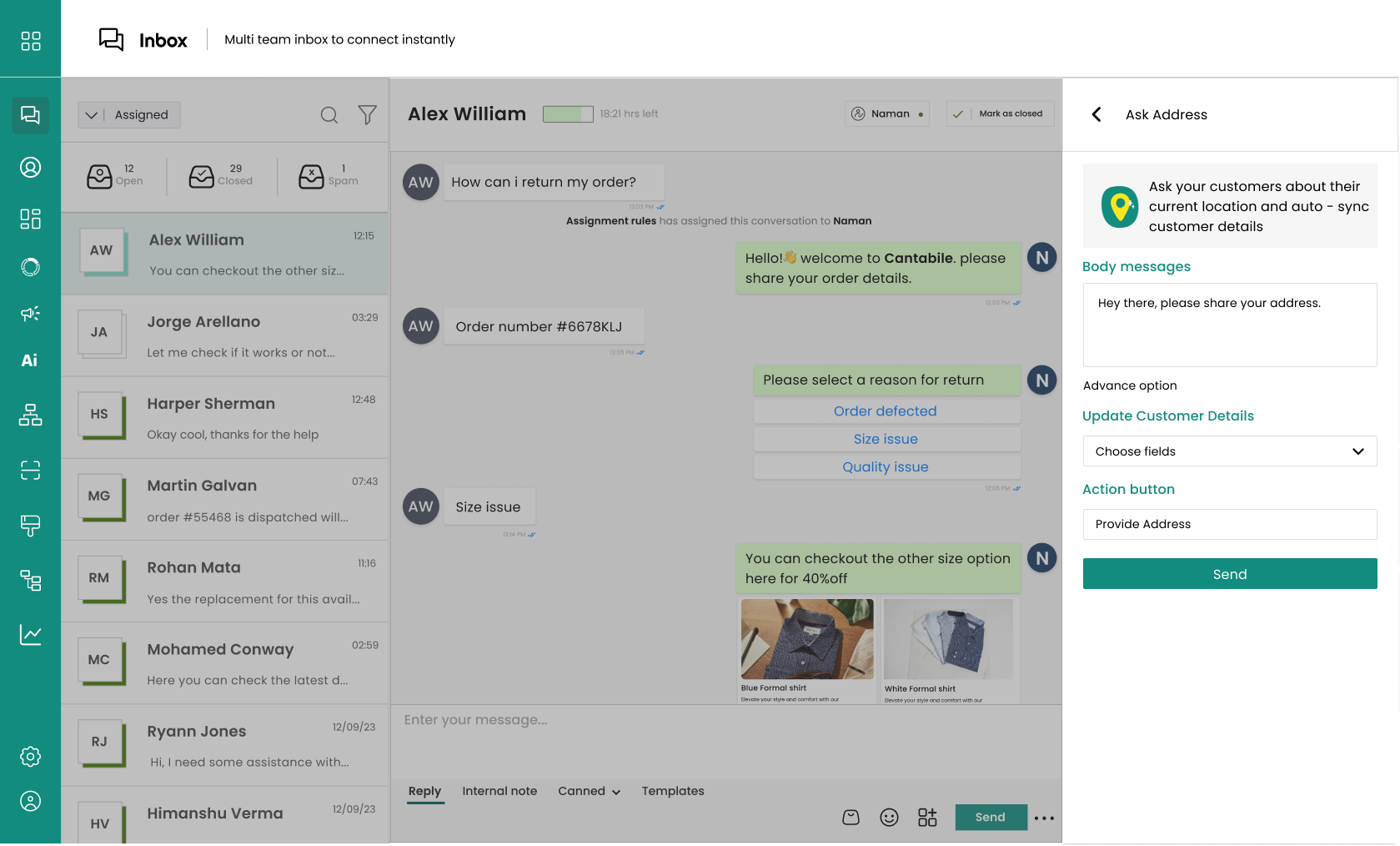
## Provide Address
{% hint style="info" %}
Utilize the advance option for better engagement.
{% endhint %}
# Customer Hub
A dedicated space to view and store interacted customer details.
A **customer panel** within a shared team inbox is an organized and centralized view that contains a wealth of **customer-related information, including:**
1. [**User Attributes**](#user-attributes)
2. [**Custom Attributes**](#custom-attributes)
3. [**User Tags**](#user-tags)
4. [**Conversation Labels**](#conversation-labels)
5. [**Notes**](#notes)
6. [**Event History**](#event-history)
7. [**Export Chat History**](#export-chat-history)
### **User Attributes**
It provides a **comprehensive snapshot of each individual customer**. This includes their contact information, such as **name**, **email**, **phone** **number**, and other relevant identifiers.
{% content-ref url="/pages/r4D65FJP91Xob6i9ieat" %}
[User Attributes](/chatman-enterprise-whatsapp-platform/chatman-functions/shared-team-inbox/customer-hub/user-attributes)
{% endcontent-ref %}
### **Custom attributes**
Custom attributes **refer to additional information or data attached to a user's profile while interacting** to enhance the chatbot's functionality and provide a more personalized experience.
{% content-ref url="/pages/7cRl5m4KPGhwCiibRyoS" %}
[Custom Attributes](/chatman-enterprise-whatsapp-platform/chatman-functions/shared-team-inbox/customer-hub/custom-attributes)
{% endcontent-ref %}
### **User tags**
User tags are **labels** **or categories you can** **assign** **to** **individual** **customers** within a system to help **organize**, **identify**, and **manage** them more effectively.
{% content-ref url="/pages/LOGe3s21JMJA6LqF9pjJ" %}
[User Tags](/chatman-enterprise-whatsapp-platform/chatman-functions/shared-team-inbox/customer-hub/user-tags)
{% endcontent-ref %}
### **Conversation Labels**
Conversation labels in a shared team inbox provide a way to **categorize and organize conversations** **based on specific criteria or status**.
{% content-ref url="/pages/nIQGO7innUAQr2P1oGKe" %}
[Conversation Labels](/chatman-enterprise-whatsapp-platform/chatman-functions/shared-team-inbox/customer-hub/conversation-labels)
{% endcontent-ref %}
### **Notes**
Notes are helpful in specific customer engagement because they allow businesses to **store and retrieve relevant information about their customers.**
{% content-ref url="/pages/f69T4TIYi6JDU5wyWtYM" %}
[Notes](/chatman-enterprise-whatsapp-platform/chatman-functions/shared-team-inbox/customer-hub/notes)
{% endcontent-ref %}
### **Event History**
The Event History **displays all the actions and changes** **made to a conversation** between the customer and the system.
{% content-ref url="/pages/cbXdfoCAc0KTjTzIwML8" %}
[Event History](/chatman-enterprise-whatsapp-platform/chatman-functions/shared-team-inbox/customer-hub/event-history)
{% endcontent-ref %}
### **Export Chat History**
The feature allows you to **receive the chat history** of a particular customer.
{% content-ref url="/pages/VtqzSbu9JVA86S8iBIOR" %}
[Export Chat History](/chatman-enterprise-whatsapp-platform/chatman-functions/shared-team-inbox/customer-hub/export-chat-history)
{% endcontent-ref %}
### **Mark The User Spam**
**Marking a user as spam for consistently sending unsolicited**, **irrelevant**, or **unwanted** **messages**.
{% content-ref url="/pages/1AZQzfjyb4YF25vMqiYW" %}
[Mark The User Spam](/chatman-enterprise-whatsapp-platform/chatman-functions/shared-team-inbox/customer-hub/mark-the-user-spam)
{% endcontent-ref %}
# User Attributes
A hub for accessing detailed customer information.
It provides a **comprehensive snapshot of each individual customer**. This includes their contact information, such as **name**, **email**, **phone** **number**, and other relevant identifiers. Some notable points:
* All details of individual customers.
* Name and contact details will be auto-stored.
* Manually add and edit details collected during live chat.
* Includes key metrics: Created on, last active, and is 24hrs active.
Click on **Show More** to see the comprehensive list of user details. The agent can manually fill in the details not captured automatically, if only he has collected them during the **Live** **Chat**.
{% hint style="success" %}
Basic information like **name**, **contact** **details**, and **email address** will be **stored automatically** when the customer initiates the conversation. However, editing and adding new details can be done by simply adding the details.
{% endhint %}
# Custom Attributes
Custom attributes **refer to additional information or data attached to a user's profile while interacting** to enhance the chatbot's functionality and provide a more personalized experience.
For eg: adding 'preferred product information' is a customer attribute. These are helpful in various cases:
* They allow you to store and retrieve information about the customers or the conversations, such as their **names**, **email**, **preferences**, **order history**, etc.
* They enable you to personalize the chatbot responses and tailor them to the customer’s needs and context.
* They help you segment and filter your customers based on their attributes and provide them with relevant offers, recommendations, or support.
Scenario:
A user named Alex interacts for assistance in **finding a new laptop**. The agent collects **custom attributes** during the conversation to enhance the user's experience.
1. **Custom Attribute: Preferred Budget** The system asks Alex about their preferred budget for the laptop. Alex responds that their budget is around $800.
2. **Custom Attribute: Laptop Usage** The system inquires about how Alex intends to use the laptop. Alex explains that they need it for graphic design and video editing.
3. **Custom Attribute: Brand Preference** The system asks if Alex has any preferred laptop brands. Alex mentions that they like the "TechFusion" brand.
4. **Custom Attribute: Previous Purchases** The system checks if Alex has previously purchased anything from the e-commerce website. Alex confirms they have bought a camera before.
## Add Custom Attributes
1. In the right-hand corner of the shared team inbox, there is a **Customer** **Panel** where you will find the option of **Custom** **attributes**.
insert
2. Click on the Custom Attributes option. You will see a list of existing attributes that you can choose from, such as ‘**Name**’, ‘**Email**’, ‘**Phone**’, etc.
insert
3. To create a new attribute, click on ‘**Manage Attributes**’. A pop-up window will appear where you can enter the name of your attribute.
{% tabs %}
{% tab title="Example" %}
If you want to segment your customers based on their location, you can type ‘Location’ in the assigned block and click on ‘**Create Attribute**’. You will see the new attribute added to the list of available attributes.
{% endtab %}
{% endtabs %}
insert
4. To assign the ‘**Location**’ attribute to a customer, click on their name in the Customer Panel. For example, if the customer is from New York, you can type ‘New York’ in the ‘Location’ field and click on ‘Save’.
insert
5. You can also edit or delete the attributes anytime by clicking on the ‘**Manage Attributes**’ option again.
insert
# User Tags
User tags are **labels** or categories you can **assign** **to** **individual** **customers** within a system to help **organize**, **identify**, and **manage** them more effectively.
Examples: Urgent, Pending, Query, conflict, refund, etc.
Scenario
A user named Kelly interacts for assistance in booking a hotel room. The system assigns user tags during the conversation to improve the user’s satisfaction.
1. **User Tag: Frequent Traveler**
The system detects that Kelly has booked hotel rooms more than five times in the past year through the website. The system assigns the user tag ‘Frequent Traveler’ to Kelly and offers them a loyalty discount on their next booking.
2. **User Tag: Family Trip**
The system asks Kelly about the purpose of their trip. Kelly responds that they are traveling with their spouse and two kids. The system assigns the user tag ‘Family Trip’ to Kelly and suggests family-friendly hotels with amenities such as a pool, a playground, or a kids’ club.
3. **User Tag: Eco-Friendly**
The system asks Kelly about their preferences for the hotel room. Kelly mentions they prefer eco-friendly hotels that use renewable energy sources, recycle waste, and provide organic toilets. The system assigns the user tag ‘Eco-Friendly’ to Kelly and filters the hotel options based on their environmental ratings.
## Add User Tags
1. In the **right-hand corner** of the shared team inbox, there is a **Customer Panel** where you will find the option for User Tags. Click on it.
insert
2. You will see a list of existing tags that you can choose from. If you want to **create your tag**, click on the **Manage Tags** option at the bottom of the list.
insert
3. A new window will open where you can **add**, **edit**, or **delete** **tags**. To add a new tag, type the name of the tag in the '**Add Your Tag** **Here**' block and click on **ADD.**
{% hint style="success" %}
For example, you can create a tag called “Europe” for customers who are interested in traveling to Europe.
{% endhint %}
insert
4. To **apply a tag** to a customer, **select the customer** from the **shared team inbox** and click on the **User Tags** option again. Then choose the tag you want to assign from the list and click on APPLY.
insert
# Conversation Labels
Conversation labels in a shared team inbox provide a way to **categorize and organize conversations** **based on specific criteria or status**. They enable teams to quickly identify and prioritize conversations, ensuring efficient management and resolution.
* Labels for sorting and managing chats.
* Helps in categorizing and finding conversations easily. For instance, in a support system, "Urgent," "Billing," or "Tech Issue" are conversational labels.
Example:
A customer support team may use conversation labels like **Urgent**, **Pending** **Resolution**, or indicate the status of each conversation. This helps team members easily identify critical issues, follow up on pending responses, or track conversations that require additional attention.
## **Add Conversation Labels**
Suppose you want to add a label called “**Feedback**” to categorize the conversations where the customers give feedback about your product or service.
1. In the **Customer Panel**, click on the **Conversation** **Label** option and then click on **Manage** **Labels**.
2. In the **Add** **Label** block, type “**Feedback**” and click on **ADD**. You will see the new label added to the list of labels.
insert
3. Now, go back to the conversation you want to label and click on the **Conversation** **Label** option again. You will see the **Choose Labels** option where you can select the labels you want to apply to the conversation.
insert
4. Select the “**Feedback**” label and click on **APPLY**. You will see the label attached to the conversation in the shared team inbox.
insert
# Notes
Notes are helpful in specific customer engagement because they allow businesses to **store** and **retrieve** relevant **information** about their **customers**, such as their **preferences**, **purchase** **history**, **feedback**, or **issues**.
* Add notes for internal communication.
* Notes are visible only to agents and not to customers.
* It can be used as supplemental information or explanation or to keep track of important details for future reference.
Use Case
Imagine you're an agent assisting customers. A customer named Emily contacted with a technical issue related to a software product. As you interact with Emily, you notice a few important details that could impact her situation:
1. She's in a different time zone, so response times might need adjustment.
2. She expresses frustration about a previously unresolved issue.
In the chatbot interface, you have the option to add notes to the conversation:
1. Another note mentions her time zone, helping you respond at appropriate times.
2. You also note her previous unresolved issue to provide context for resolving the current problem.
## **Add Notes**
1. In the **right-hand corner** of the **shared team inbox**, there is a **Customer Panel** where you will find the **Notes** option.
insert
2. Now click on the **Notes** option. You can Add or Edit notes from here.
insert
* To add a note, write it in the **Add Note** block and click on **Add.**
insert
* Once added you can see the it below. To Edit the note, click the **Edit Icon** next to it.
insert
* To Delete the note, click the **Delete Icon**.
# Event History
The Event History **displays all the actions and changes** **made to a conversation** between the customer and the system.
This includes **replies**, **assignments**, **status** **updates**, and any other modifications. This allows team members to track the progression of the conversation and review the sequence of events on task assignments.
### How To Filter Events?
1. Head over to **event history** under **customer hub**.
insert
2. Tap 'Show more' and then 'All' under filter events, a drop-down menu will appear.
insert
3. Choose your preference based on which you want the event history to be displayed. Here is the explanation of each of them:
Meaning of Different Events
* **User-initiated conversation:** This status indicates that the user has started a new conversation with the chatbot or the agent.
* **Custom attribute changed:** This status indicates that the chatbot or the agent has modified a custom attribute of the user or the conversation.
* **Segment subscription changed:** This status indicates that the user has been added or removed from a segment based on some criteria or action.
* **Template sent:** This status indicates that a predefined message template has been sent to the user by the chatbot or the agent.
* **Template read:** This status indicates that the user has opened and read the message template that was sent to them.
* **Template failed:** It that the message template could not be delivered to the user due to some error or issue.
* **Template replied:** This status indicates that the user has replied to the message template that was sent to them.
* **Conversation status change:** This status indicates that the conversation has changed its status from open to closed, or vice versa, or to some other state.
* **Campaign started:** This status indicates that a campaign, which is a series of messages or actions that are triggered based on some condition or schedule, has been started for the user.
* **Campaign completed:** This status indicates that the campaign has been completed for the user, meaning that all the messages or actions have been executed successfully.
* **Campaign replied:** This status indicates that the user has replied to one of the messages or actions that were part of the campaign.
* **Frequency capping:** This status indicates that the user has reached the limit of messages or actions that can be sent or performed for them in a given time period.
* **Insufficient balance:** This status indicates that the user does not have enough balance or credit to perform a certain action or receive a certain service that requires payment.
* **Custom event triggered:** This status indicates that a custom event, which is a user-defined event that can be used to trigger messages or actions, has been triggered by the user or the chatbot or the agent.
* **Shopify event triggered:** This status indicates that a Shopify event, which is an event that occurs on the Shopify platform, such as placing an order, updating a product, or creating a customer, has been triggered and can be used to trigger messages or actions.
* **Conversation Assigned:** This status indicates that the conversation has been assigned to a specific agent or transferred from one agent to another.
* **Added to DND:** This status indicates that the user has been added to the do not disturb list, meaning that they will not receive any messages or notifications until they are removed from the list.
* **Removed from DND:** This status indicates that the user has been removed from the do not disturb list, meaning that they will resume receiving messages and notifications.
* **Survey sent:** This status indicates that a survey, which is a set of questions used to collect user feedback or information, has been sent to the user.
* **Survey replied:** This status indicates that the user has replied to one or more questions of the survey sent to them.
* **Journey started:** This status indicates that a journey, which is a sequence of steps that guide the user through a specific goal or task, has been started.
* **Journey completed:** This status indicates that the journey has been completed for the user, meaning that they have successfully achieved the goal or completed the task that the journey was designed for.
* **Campaign sent:** This status indicates that a message or action that is part of a campaign has been sent or performed for the user.
insert
4. Say you opted for '**Journey started';** the event history will show when and how many times the journey has been started for the particular customer.
insert
{% hint style="info" %}
Use the **Filter option** in Event History to **display only user**-**initiated** **conversations**, **segment** **subscriptions**, **templates** **sent**, **campaigns started**, and many more.
{% endhint %}
# Export Chat History
The feature allows you to **receive the chat history** of a particular customer at the **registered email address**.
* Download a record of past conversations for easy storage, reference, or sharing.
## How To Export Chat History?
1. Open the customer chat in the '**Inbox**' whose message is to be exported. Head over to the '**customer** **panel**' and click on the **Export Chat History** option in the **customer panel** of the Inbox.
2. Click on **Confirm**, and the chat history will be **sent to the registered Email Address**.
{% hint style="info" %}
You can export all customer chat history at once: **Rules**>**Agent** **Assist**>**Export Chat** **History**.
{% endhint %}
{% content-ref url="/pages/T6vahSaGdzdmUTbK3zPt" %}
[Agent Assist](/chatman-enterprise-whatsapp-platform/settings/inbox-settings/agent-assist)
{% endcontent-ref %}
# Mark The User Spam
The Spam feature in Chatman’s shared team inbox allows businesses to **flag** and **filter out spam messages** received **from customers**.
Distinguish unwanted or irrelevant messages from genuine customer inquiries, ensuring that agents can focus on addressing valid customer needs promptly.
## **How To Mark A User Spam?**
1. Open the customer chat in the '**Inbox**' whose message is to be marked as spam. Head over to the "**customer panel**' and click on the '**Mark** **as spa**m'.
2. Click on ***Confirm***, and the user will be marked as spam.
{% hint style="info" %}
See the list of all the Spam Users in ***Settings>Inbox Settings>DND configuration.***
{% endhint %}
{% content-ref url="/pages/EyxaWZiBHT2tIhTo1lY3" %}
[DND Configuration](/chatman-enterprise-whatsapp-platform/settings/inbox-settings/dnd-configuration)
{% endcontent-ref %}
# Customer 360
**Consolidated 360-degree view of customers**. Access the '**Customer 360**' page by clicking on the arrow beside the '**customer hub**.'
insert
Get to know everything about a customer, from activity, attributes, and contact info to messages and media files that the user has sent. It also stores system and agent messages that they send to customers.
## Knowing Customer 360
It is divided into three panels: **Customer Details**, **Activity Log and Media**, and **Customer Attributes**.
### User Details
**Find all the details**, such as when the chat was created **when the customer was last active, contact info**, and **different contact fields**.
{% hint style="info" %}
**You can edit the contact fields by tapping the edit button.**
{% endhint %}
### Activity Log and Media
In the activity log,
* **Under use**r, you **get all the messages that the customers have sent.**
* **Under 'System**,' you **get both the messages received and sent by the system**.
* **Under 'Agents**,' you can **see all the messages sent by the agent**.
**On the media tab**, you can **see all the images, videos, gifs or any other media type** that the system has sent or received.
{% hint style="info" %}
**Click on the calendar and apply a date to view conversation for that particular period.**
{% endhint %}
### Customer Attributes
This **entails all the business added information related to customers including labels, tags, segment and Custom attributes**. It also has options of **block**, **export** or **delete** **user**.
#### **Custom attributes**
* Add additional pieces of information other than standard data.
* It helps create targeted and relevant communications, ensuring a more personalized user experience.
{% content-ref url="/pages/7cRl5m4KPGhwCiibRyoS" %}
[Custom Attributes](/chatman-enterprise-whatsapp-platform/chatman-functions/shared-team-inbox/customer-hub/custom-attributes)
{% endcontent-ref %}
#### **User tags**
* Add labels to organize, identify, and manage conversations more effectively.
* Examples: Urgent, Pending, Query, conflict, refund, etc.
{% content-ref url="/pages/LOGe3s21JMJA6LqF9pjJ" %}
[User Tags](/chatman-enterprise-whatsapp-platform/chatman-functions/shared-team-inbox/customer-hub/user-tags)
{% endcontent-ref %}
#### **Notes**
* Add notes for internal communication.
* Notes are visible only to agents and not to customers.
* It can be used as supplemental information or explanation or to keep track of important details for future reference.
{% content-ref url="/pages/f69T4TIYi6JDU5wyWtYM" %}
[Notes](/chatman-enterprise-whatsapp-platform/chatman-functions/shared-team-inbox/customer-hub/notes)
{% endcontent-ref %}
#### **Event History**
Access the entire conversation history.
{% content-ref url="/pages/cbXdfoCAc0KTjTzIwML8" %}
[Event History](/chatman-enterprise-whatsapp-platform/chatman-functions/shared-team-inbox/customer-hub/event-history)
{% endcontent-ref %}
#### **Export Chat History**
Download a record of past conversations for easy storage, reference, or sharing.
{% content-ref url="/pages/VtqzSbu9JVA86S8iBIOR" %}
[Export Chat History](/chatman-enterprise-whatsapp-platform/chatman-functions/shared-team-inbox/customer-hub/export-chat-history)
{% endcontent-ref %}
#### **Block User/Mark The User Spam**
**Marking a user as spam for consistently sending unsolicited, irrelevant, or unwanted messages**.
{% content-ref url="/pages/1AZQzfjyb4YF25vMqiYW" %}
[Mark The User Spam](/chatman-enterprise-whatsapp-platform/chatman-functions/shared-team-inbox/customer-hub/mark-the-user-spam)
{% endcontent-ref %}
#### **Conversation Labels**
* **Conversation labels are tags for sorting and managing chats.**
* Helps in categorizing and locating discussions easily. For instance, in a support system, "**Urgent**", "**Billing**" or "**Tech** **Issue**" are conversational labels.
{% content-ref url="/pages/nIQGO7innUAQr2P1oGKe" %}
[Conversation Labels](/chatman-enterprise-whatsapp-platform/chatman-functions/shared-team-inbox/customer-hub/conversation-labels)
{% endcontent-ref %}
# Audience
**Managing your audience** is what **matters the most** while **communicating** with a **large number of customers**, and **Chatman boasts** of a **centralized space for effective data management**, which is useful in various cases, such as:
* Managing your customer database.
* Allows for better data analysis and decision-making based on customer insights.
Chatman's audience page offers numerous options that help manage data in an efficient way. Let's understand each of them in detail.
## Create Contact
This is from where you can **add new audiences(contacts) to Chatman**, expanding your customer database. It has **two methods** by which you can **add audiences to the system**.
1. [**Manually Add Contact**](/chatman-enterprise-whatsapp-platform/chatman-functions/audience/create-contact#manually-add-contact)
It **allows for the manual addition of contacts,** which is helpful when you have one or two contacts to add to the system.
2. [**Bulk Upload (CSV)**](/chatman-enterprise-whatsapp-platform/chatman-functions/audience/create-contact#bulk-upload-csv)
This allows for the **addition of a large number of contacts** to the system at once, say, when you get customer data from a CRM and want to upload it in Chatman for communication.
{% content-ref url="/pages/K34u7qj8SWAdooAMQkqN" %}
[Create Contact](/chatman-enterprise-whatsapp-platform/chatman-functions/audience/create-contact)
{% endcontent-ref %}
## Audience Table
The only place where you can **find all your contacts**, whether it has been **added manually or through bulk upload**.
{% hint style="info" %}
**All the contacts added are visible in Audience tab.**
{% endhint %}
{% content-ref url="/pages/11ICCU6thlN9BzGYydvX" %}
[Audience Table](/chatman-enterprise-whatsapp-platform/chatman-functions/audience/audience-table)
{% endcontent-ref %}
## Search Contacts
It helps you to **quickly search for the customer you're looking for**. It goes far beyond searching just with a contact name.
{% content-ref url="/pages/KKCCEXC0kS0RFFpMnMgN" %}
[Search Contact](/chatman-enterprise-whatsapp-platform/chatman-functions/audience/search-contact)
{% endcontent-ref %}
## Filter Contacts
Filter Contacts backs for better data visibility in the Audience table. You can **narrow down your contact search based on different preferences**.
{% content-ref url="/pages/VMObLU1YGBuDPDUSlCiq" %}
[Filter Contact](/chatman-enterprise-whatsapp-platform/chatman-functions/audience/filter-contact)
{% endcontent-ref %}
# Create Contact
**Create a new contact to add to the Chatman**, which can be used for different purposes later on, say when creating a [business-initiated journey](/chatman-enterprise-whatsapp-platform/chatman-functions/journeys/business-initiated).
In Chatman contacts can be added via two methods:
1. [Manually Add Contacts](#manually-add-contact)
2. [Bulk Upload (CSV)](#bulk-upload-csv)
Let's explore the steps of how can you add contact through any of the above methods.
## Manually Add Contact
Use manual contacts when you have one or two contacts to add. Here is how you can do it:
1. Under **Audience**, tap '**Create** **Contact**' and select '**Manually Ad**d **Contact**' from the dropdown.
2. A **Create Contact form** will appear; enter all the details like **name**, **contact**, **email**, **city**, **zip** **code**, and more of the contact you want to add.
{% hint style="success" %}
It is necessary to enter a **valid contact name and number for contact creation.** Filling other fields isn't necessary for creating the same.
{% endhint %}
{% hint style="success" %}
If you **don't have the contact name**, you can simply **put the contact number in the name box for creating the contact**.
{% endhint %}
3. Tap on the '**Create**' to add the contact.
The **contact created** will now be **visible in the Audience Table**.
## Bulk Upload (CSV)
Bulk upload option is very helpful when you want to **add a large number of contact** say 10 or more. The option **works properly only when you have created the CSV file in the specified format**.
{% hint style="success" %}
**Only a CSV file in a specified format is acceptable.**
{% endhint %}
Here are the other prerequisites that you need to adhere to:
### Prerequisite of Bulk Upload CSV file
* The file size should **not exceed 10 MB**.
* The file should have at least two columns for **Phone Number and Country Code**.
* The file can have **up to 50,000 contacts**.
* If the **file has duplicate phone numbers**, **only one contact will be added** for each number.
* If the file has phone numbers that already exist in your account, the existing contacts will be updated with the new information from the file.
You can download a sample CSV file for better understanding.
### Download Sample CSV file
1. Under **Audience**, tap '**Create** **Contact**' and select '**Bulk Upload (csv)**' from the dropdown.
2. A bulk upload page will appear, **tap download sample CSV** to download the file. You can also download the file from below. Here is an overview of the file:
{% file src="/files/EfWsB42KzAzPQOJHioTA" %}
insert
Once you know the prerequisites and the pattern of the CSV file, here is how you can upload the file.
### Bulk Upload Contact
1. Click on the **Create** Contact option available on the **Audience** **Page**.
2. From the drop-down that appeared, tap on '**Bulk Upload** (**csv**)'.
3. A **bulk** **upload** page will open up.
3. Tap on 'Upload file' button.
4. Simply **drag-drop** or **browse** the **CSV file** on your system whose contents need to be imported.
{% hint style="warning" %}
While uploading, ensure that the CSV file has the[ specified format](#download-sample-csv-file) and fulfills the [conditions for uploading](#prerequisite-of-bulk-upload-csv-file).
{% endhint %}
insert
5. The list of contacts your CSV file entailed will now be visible in the audience table with all the inserted data.
# Audience Table
A central hub for managing all your customers, including:
* All the contacts added through [manual add](/chatman-enterprise-whatsapp-platform/chatman-functions/audience/create-contact#manually-add-contact) or [bulk uploads](/chatman-enterprise-whatsapp-platform/chatman-functions/audience/create-contact#bulk-upload-contact).
* All the customers who message you first. The table automatically gets updated with details like the customer's name and contact number.
## Heading
The audience table shows every detail of the contacts added like:
* **Name**: The column includes the name of the contact as added or captured (when a customer messages first), such as John Smith or Priya Sharma.
* **Contact Number**: This shows the phone number of the contact, such as +91 1234567890 or +1 9876543210.
* **Email**: The column includes email address of the contact, such as or .
* **WhatsApp opted**: The column shows a yes/no depending on whether the contact has opted to receive messages on WhatsApp or not.
* **Last Active**: This shows the date and time when the contact last interacted with Chatman, such as Jan 31, 2024, 12:28 PM or Jan 29, 2024, 02:36 PM.
* **Gender**: Shows he gender of the contact, male or female.
* **Customer Id**: This column shows a unique identifier for the contact, such as 45193c76-d853-4d13-9aee-0e14fdeb0abf or 77fff6a6-ee43-4086-8696-ef6022e4248a.
* **Profile link**: This includes a URL that leads to the contact’s profile page.
These are a lot of options, but you can customize the table as per your preferences to narrow down the contact data for better visibility and understanding.
### Table Customization
1. **Click on the icon** on the **right side** of the **create contact button**.
2. Simply, **select or deselect the options** from the drop-down that appears.
* Selecting the particular attribute will add it to the table.
* De-selecting will eliminate it from the table displaying only what you want to see.
### Using Table Customization
Table customization isn't useful directly but back for **better visibility**, like while [creating a segment](/chatman-enterprise-whatsapp-platform/chatman-functions/segment/add-segment/static-segment).
Say you want to create a segment for all your contacts who were active in last 7 days. **All the other columns in the table may confuse and result in inappropriate selection.**
1. You can simply tick out all the options and see the table on the basis of name and last active.
2. Now opt for the **filter option last active** under user attribute.
{% hint style="success" %}
Utilize different [filter options](/chatman-enterprise-whatsapp-platform/chatman-functions/audience/filter-contact#different-filter-options) for seeing contacts based on your preferences or creating segments as per your need.
{% endhint %}
3. Next select **Less than x days ago** and **enter the value as 7**.
{% hint style="success" %}
You can set different conditional logic as you want. Say you want to add customers whom you interacted after a particular date. Select 'After' and choose the date, month and year and tap apply.
{% endhint %}
4. Select all the customers by **ticking out the check box** on the left side of the table.
5. Once selected, head over to **More** on the top center of the table.
6. From the drop-down, select **Create Segment**.
{% hint style="info" %}
If you want to **divide the selected customers in multiple segments** tap [**Create Batch**](#create-batch).
{% endhint %}
7. A pop-up '**create new segment**' appears; **enter the segment name** and tap **Create**.
8. A **new segment with selected contacts** will be **added to the segment tab**.
{% hint style="success" %}
Segments created through **audience tab** are always [**static segment**](/chatman-enterprise-whatsapp-platform/chatman-functions/segment/add-segment/static-segment).
{% endhint %}
### More
The More option is **accessible only** **when you select one or more contacts** **from the Audience table**.
insert
It has three options:
1. [Export Users](#export-users)
2. [Create Segment](#create-segment)
3. [Create Batch](#create-batch)
#### Export Users
The option **allows you to export contacts with the added details** to the email account. Follow two simple steps to export contacts from audience tab.
1. Select the contacts you want to export and tap More.
2. Now tap **Export Users.** All the **selected users** **with their added details** will be **sent to the email address** concerned.
{% hint style="info" %}
enter the email change
{% endhint %}
#### Create Segment
The option **allows you to create segments with the contacts selected.** Below are the steps to create segment via audience tab.
1. Select the contacts you want to create a segment with and tap More.
2. Now tap **Create Segment.**
3. A popup **Create Segment** appears; enter the segment name and tap '**Create.'**
4. The **segment with selected contact will be created** and you see under the **segment tab**.
{% hint style="success" %}
Segments created through audience tab are always [static segment](/chatman-enterprise-whatsapp-platform/chatman-functions/segment/add-segment/static-segment).
{% endhint %}
#### Create Batch
The option **allows you to create multiple segments batchwise with the contacts selected.**
Scenario where batches are helpful.
Below are the steps to create batch.
1. Select the contacts you want to create batch with and tap More.
1. Now tap **Create Batch.**
3. A popup **Create Batch** appears. Under the Batch logic create logic to create batches. It is of two types:
* **Percentage**: Choosing percentage allows you to create batches based on a percentage of the total audience size.
> For example, if you have 1000 contacts in your audience and you choose 10% as the percentage, then you will create 10 batches of 100 contacts each.
* **Number**: This option allows you to create batches based on a fixed number of contacts per batch.
> For example, if you have 1000 contacts in your audience and you choose 50 as the number, then you will create 20 batches of 50 contacts each.
**Segment with the selected contact will be created** and you can see it under the **segment tab**.
4. Enter the segment name. Select whether you want to add a suffix or prefix to add to your segment name.
* Suffix: Adds a word or phrase of a maximum of 25 chars after the segment name.
> Say you want to remember that you created a segment in January; you can add a suffix as January to the segment name. E.g., if your segment name is Customer, then the final name will be Customer\_Journey.
* Prefix: Adds a word or phrase of a maximum of 25 chars before the segment name.
> Say you want to remember that you created a segment in January; you can add a prefix as January to the segment name. E.g., if your segment name is Customer, then the final name will be Journey\_Customer.
5. Enter the suffix or prefix and tap create to make the batch.
6. The multiple segments (batch) created will now be visible in the segment tab.
{% hint style="success" %}
Batch (multiple segments) created through audience tab are always a static.
{% endhint %}
# Search Contact
You can use the search bar in the audience tab when you want to find a particular contact from the list of customers available in the audience table.
Chatman search bar goes beyond the traditional search bar, which only accepts names for searching. Here is how you can search audiences with different information.
## Searching With Text Input
### Name
Say you are looking for the customer with the name **Shubham**. Type the name in the search bar and tap enter or the search icon in the dialogue box.
### Last Name
If don't have the name and you remember only the **title (last name) you can enter the contact title** and tap enter. The **relevant results will be displayed**.
### Email
Email is also a text input if you want to search for a contact with email. Enter the mail id in the search bar and tap enter.
{% hint style="danger" %}
You cannot use **WhatsApp opted option Yes/No or Gender male/female to search a contact**.
{% endhint %}
## Searching With Number Input
### Contact Number
If you have or remember a contact number type it in the **search box and tap enter**, relevant results will be displayed.
{% hint style="success" %}
Pertinent results are displayed even if you remember some digits of contacts, say three or four digits.
insert
{% endhint %}
### Customer ID
You can also utilize the search feature if you have a customer ID. Paste in the customer ID in the search bar and tap enter to see the results.
{% hint style="success" %}
Pertinent results are displayed even if you paste or type some digits of **Customer ID**, say three or four.
insert
{% endhint %}
{% hint style="success" %}
**Use search and filter option together for more relevant results.**
{% endhint %}
Scenario For Using Search and Filter Option Together
Suppose you're looking for a contact named Sahil. On searching, you see that a list of contacts appears with the name Sahil.
How do you find your one?
Suddenly, you remember that you contacted him 3 days ago. So, you utilize filter options to omit the unnecessary 'Sahil' in the table.
For the same, you choose last active under user attributes.
insert
Select less than X days ago, enter the value as 3.
insert
The table will now show the 'Sahil' you're looking for.
insert
```
// Use multiple filter to further narrow down your search.
```
# Filter Contact
**Use filter options to narrow down your search for preferred contacts**, say, **based on** **first** **name**, **last** **name**, **city**, **zip** **code**, or **customer** **attributes**.
These are only a few; **Chatman offers a lot of filter options** **along with** **various conditional logic** to search the preferred audience. Here is a list of the same.
## Different Filter Options
### **User attributes**
These are the basic information about the user, such as **name**, **email**, **phone** **number**, **location**, **customer** **id**, etc. You can use this filter to find users who match certain criteria, such as those from a specific city or country.
First Name
Suppose you have a database of contacts and you want to segment them based on their first names, for example, to send personalized emails or offers. You can use the filter option '**first name**’ to do that. Here are some examples of **how you can apply different conditional logic** to this filter:
* **Is**: This option allows you to **match the exact first name of the customers**.
For example, if you select ‘Is’ and enter ‘John’, you will get a list of all customers whose first name is John.
* **Is not**: This option allows you to **exclude the customers who have a specific first name**.
For example, if you select ‘Is not’ and enter ‘John’, you will get a list of all customers whose first name is not John.
* **Contains**: This option allows you to **match the customers who have a first name that contains a certain substring**.
For example, if you select ‘Contains’ and enter ‘an’, you will get a list of all customers whose first name contains ‘an’, such as Anil, Rani, Manish, etc.
* **Not contains**: This option allows you to **exclude the customers who have a first name that contains a certain substring**.
For example, if you select ‘Not contains’ and enter ‘an’, you will get a list of all customers whose first name does not contain ‘an’, such as Raj, Priya, Amit, etc.
* **Starts with**: This option allows you to **match the customers who have a first name that starts with a certain letter or letters**. **It is case-sensitive, so use accordingly.**
For example, if you select ‘Starts with’ and enter ‘A’, you will get a list of all customers whose first name starts with ‘A’, such as Abhishek, Aarti, Arjun, etc.
Last Name
Suppose for a particular occasion of Punjabis you want to create a segment and interact with them for lucrative offerings. Since last name often helps identify the religion it can help you while creating a segment. Here are some examples of **how you can apply different conditional logic to this filter**:
* **Is**: This option allows you to match the exact last name of the customers.
For example, if you select ‘Is’ and enter ‘Singh’, you will get a list of all customers whose last name is Singh.
* **Is not**: This option allows you to exclude the customers who have a specific last name.
For example, if you select ‘Is not’ and enter ‘Kumar' you will get a list of all customers whose last name is not Kumar.
* **Contains**: This option allows you to match the customers who have a last name that contains a certain substring.
For example, if you select ‘Contains’ and enter ‘pat’, you will get a list of all customers whose last name contains ‘pat’, such as Patel, Patil, Patnaik, etc.
* **Not contains**: This option allows you to exclude the customers who have a last name that contains a certain substring.
For example, if you select ‘Not contains’ and enter ‘pat’, you will get a list of all customers whose last name does not contain ‘pat’, such as Sharma, Singh, Khan, Gupta, etc.
* **Starts with**: This option allows you to match the customers who have a last name that starts with a certain letter or letter. **It is case-sensitive, so use it accordingly.**
For example, if you select ‘Starts with’ and enter ‘K’, you will get a list of all customers whose last name starts with ‘K’, such as Kumar, Kapoor, Khan, etc.
Customer ID
Suppose you have a database, and each customer has a unique ID that are random alphanumeric given by the system. You want to segment your customers based on their IDs. Here are some examples of **how you can use different conditional logic** to filter your customers:
* **Is:** This option **allows you to filter customers who have a specific ID**. **Use this option only if you have the full customer ID**.
For example, if you select ‘Is’ and enter ‘77fff6a6-ee43-4086-8696-ef6022e4248a’, you will get only the customer who has the ID 77fff6a6-ee43-4086-8696-ef6022e4248a.
* **Is not:** This option **allows you to filter customers who do not have a specific ID**. **It works only when you provide the full customer ID**.
For example, if you select ‘Is not’ and enter ‘13f09074-00ee-430e-87ae-d0d074589f09’, you will get all the customers except the one who has the ID 13f09074-00ee-430e-87ae-d0d074589f09.
* **Contains:** This option **allows you to filter customers who have an ID that contains a certain alphanumeric characters**.
For example, if you select ‘Contains’ and enter ‘77fff’, you will get all the customers who have an ID that contains ‘77fff.'
* **Not contains:** This option **allows you to filter customers who have an ID that does not contain a certain** **alphanumeric characters**.
For example, if you select ‘Not contains’ and enter ‘5f5’, you will get all the customers who have an ID that does not contain ‘5f5.'
* **Starts with:** This option **allows you to filter customers who have an ID that starts with a certain prefix**. **It is case sensitive so always use small letters while searching for customer ID**.
For example, if you select ‘Starts with’ and enter ‘451’, you will get all the customers who have an ID that starts with '451.'.
External ID
Suppose you want to search for a particular customer who was referred from HubSpot. You don't have the name or any information but the external ID. So you can filter the contacts on the basis of external ID to find your contact. Here are some examples of applying the same with different conditional logic:
* **Is:** This option allows you to **filter the contacts with a specific external ID**.
For example, if you select ‘Is’ and enter ‘1251’, you will get the user who has the external ID 1251.
insert
* **Is not:** This option allows you to filter the users who do not have a specific external ID.
For example, if you select ‘Is not’ and enter ‘7053745783095’, you will get all the users who do not have the external ID 7053745783095.
insert
* **Contains:** This option allows you to filter the users who have an external ID that contains a certain digit or sequence of digits.
For example, if you select ‘Contains’ and enter ‘537’, you will get all the users who have an external ID that contains 537.
insert
* **Not contains:** This option allows you to filter the users who have an external ID that does not contain a certain digit or sequence of digits.
For example, if you select ‘Not contains’ and enter ‘34’, you will get all the users who have an external ID that does not contain 34, such as 5678, 9012, or 8765.
insert
* **Starts with:** This option allows you to filter the users who have an external ID that starts with a certain digit or sequence of digits.
For example, if you select ‘Starts with’ and enter ‘70’, you will get all the users who have an external ID that starts with 70.
insert
Contact
Imagine you're managing a social app, and you want to send event notifications to users based on their phone numbers. Here's how you might use the different conditional logics for the "contacts (phone numbers)" attribute filter:
1. **Is**: You have a special event for users with phone numbers ending in "1234." You set the filter to "Phone number is 1234," ensuring that only users with this specific ending in their phone numbers receive an invitation to the event.
2. **Is not**: However, for a different event, you want to exclude users with phone numbers starting with "987." You set the filter to "Phone number is not 987," making sure that users with these numbers are not notified about this specific event.
3. **Contains**: Now, you're organizing a city-wide meetup, and you want to invite users from a specific area. You set the filter to "Phone number contains 555," including users with phone numbers containing the sequence "555" in the event notification.
4. **Not contains**: Yet, for a private gathering, you want to exclude users with phone numbers containing "000." You set the filter to "Phone number not contains 000," ensuring that users with these numbers are not informed about this private event.
5. **Starts with**: You're planning a surprise event for your earliest users, and their phone numbers start with "800." You set the filter to "Phone number starts with 800," ensuring that users with phone numbers like "800-XXX-XXXX" are notified about the special surprise event.
Email
Suppose you have a database of users who have signed up for your online service. You want to filter the users based on their email addresses. You can use the filter option ‘user attribute- email’ to do that. Here are some examples of how you can use different conditional logic:
* **Is:** This option allows you to filter the users who have an exact match with the email address you specify.
For example, if you want to find the user who has the email address ‘’, you can use the filter ‘user attribute- email is '’.
* **Is not:** This option allows you to filter the users who do not have an exact match with the email address you specify.
For example, if you want to exclude the user who has the email address ‘’, you can use the filter ‘user attribute- email - is not '’.
* **Contains:** This option **allows you to filter the users who have an email address that contains a certain substring**.
For example, if you want to find the users who have a Gmail address, you can use the filter ‘user attribute- email, contains Gmail’.
insert
* **Not contains:** This option **allows you to filter the users who have an email address that does not contain a certain substring**.
For example, if you want to exclude the users who have an email address that contains ‘Gmail’, you can use the filter ‘user attribute- email, not contains Gmail.
* **Starts with**: This option **allows you to filter the users who have an email address that starts with a certain prefix.**
For example, if you want to find the users who have an email address that starts with ‘a’, you can use the filter ‘user attribute- email starts with a’.
Country
Imagine you're managing a global newsletter for an online community, and you want to customize content based on users' countries. Here's how you might use the different conditional logics for the "country" attribute filter:
1. **Is**: You have a special announcement for users in India. You set the filter to "Country is India," ensuring that only users located in India receive this particular newsletter with exclusive information relevant to them.
2. **Is not**: However, you want to exclude users from the United States for this specific update. You set the filter to "Country is not USA," making sure that users from the United States are not included in this particular newsletter.
3. **Contains**: Now, you have a global event that you want to promote to users across Asia. You set the filter to "Country contains Asia," including users from various countries within the Asian continent for this event newsletter.
4. **Not contains**: Yet, for a different newsletter, you want to exclude users from Europe. You set the filter to "Country not contains Europe," ensuring that users from European countries are not part of this specific communication.
5. **Starts with**: You're launching a series of articles specifically for countries starting with "C." You set the filter to "Country starts with C," including users from Canada and China in the distribution list for this content series.
City
Imagine you're organizing a big event in India, and you want to invite specific people based on their cities. Here's how you might use the different conditional logics for the "city" attribute filter:
1. **Is**: You want to invite people only from Delhi. So, you set the filter to "City is Delhi." This ensures that only users with their city listed as Delhi will receive the invitation.
2. **Is not**: Now, let's say you have sponsors who are supporting your event, but you don't want to invite them. You set the filter to "City is not Mumbai," making sure that anyone from Mumbai won't get the invitation.
3. **Contains**: Maybe your event is happening in multiple cities, and you want to invite people from all over Maharashtra. You use the "City contains Maharashtra" filter to include users from cities within Maharashtra.
4. **Not contains**: However, you don't want anyone from Bangalore to receive the invitation. So, you set the filter to "City not contains Bangalore," ensuring that users from Bangalore are excluded.
5. **Starts with**: Finally, you want to invite people specifically from cities starting with "K." You set the filter to "City starts with K," including cities like Kolkata and Kochi.
State
Imagine you run an online store, and you want to create targeted promotions for customers based on their locations. Here's how you might use the different conditional logics for the "city" attribute filter:
1. **Is**: You have a special promotion for customers in Karnataka, maybe a discount on traditional Mysore silk. You set the filter to "City is Bengaluru," ensuring that only users in Bengaluru receive this specific promotion.
2. **Is not**: However, you don't want to include customers from Tamil Nadu for this particular offer. You set the filter to "City is not Chennai," making sure that customers from Chennai are excluded.
3. **Contains**: Now, you have a generic discount for customers in South India. You set the filter to "City contains Tamil Nadu," including users from various cities in Tamil Nadu for the promotion.
4. **Not contains**: Yet, you want to exclude customers from Uttar Pradesh. So, you set the filter to "City not contains Lucknow," ensuring that customers from Lucknow are not part of this promotion.
5. **Starts with**: You have a new product that you want to promote specifically to cities starting with "H." You set the filter to "City starts with H," including places like Hyderabad and Hubli in the promotion.
Zip Code
Suppose you're managing an online marketplace, and you want to provide special offers to users based on their zip codes. Here's how you might use the different conditional logics for the "zipcode" attribute filter:
1. **Is**: You have a limited-time discount for users in a specific neighborhood with the zip code "110011." You set the filter to "Zipcode is 110011," ensuring that only users residing in that particular area receive this exclusive discount.
2. **Is not**: However, for a different promotion, you want to exclude users from a particular region with the zip code "456789." You set the filter to "Zipcode is not 456789," making sure that users from this specific area do not receive this particular offer.
3. **Contains**: Now, you're running a city-wide sale and want to include users from different neighborhoods. You set the filter to "Zipcode contains 600," including users with zip codes like "6000XX" in the promotion.
4. **Not contains**: Yet, for a clearance sale, you want to exclude users from a certain district with the zip code "789." You set the filter to "Zipcode not contains 789," ensuring that users from this district are not part of the clearance sale promotion.
5. **Starts with**: You're launching a new product and want to give a special preview to users in a specific area. You set the filter to "Zipcode starts with 123," including users with zip codes like "1230XX" in the exclusive preview offer.
Last Active
Imagine you operate an online store and want to run a re-engagement campaign to bring back customers who haven't interacted with you recently. Here's how you might use the different conditional logics for the "last active" attribute filter:
1. **More than x days ago**: You want to target customers who haven't interacted with you in the last 30 days. You set the filter to "Last active more than 30 days ago," ensuring that you reach out to users who haven't engaged for a longer duration.
2. **Less than x days ago**: For a different promotion, you decide to offer a discount to customers who have been active within the last 7 days. You set the filter to "Last active less than 7 days ago," ensuring that you focus on customers who have recently interacted with your platform.
3. **After**: You're launching a flash sale and want to notify users who have been active after a specific date, perhaps to reward loyal customers. You set the filter to "Last active after January 1, 2024," ensuring that only users who have engaged since that date receive the flash sale notification.
4. **Before**: However, for a clearance event, you want to target users who were last active before a certain date to reach out to those who haven't shopped recently. You set the filter to "Last active before December 1, 2023," focusing on users who were active before that specific date.
5. **Exact**: You're launching a special event exclusively for customers who have been active within the last 24 hours. You set the filter to "Last active exact 24 hours ago," ensuring that users who have engaged precisely within the specified time frame receive an invitation to the event.
Created On
Imagine you're managing an online store and you want to welcome new customers with special offers based on when they created their accounts. Here's how you might use the different conditional logics for the "created on" attribute filter:
1. **More than x days ago**: You want to offer a discount to customers whose accounts were created more than 30 days ago to encourage repeat purchases. You set the filter to "Created more than 30 days ago," ensuring that customers who have been with your platform for a longer duration receive the offer.
2. **Less than x days ago**: For a different promotion, you decide to provide a special welcome gift to brand new customers who joined in the last 7 days. You set the filter to "Created less than 7 days ago," focusing on users who recently signed up to your online store.
3. **After**: You're launching a loyalty program and want to invite customers who created their accounts after a certain date to reward newer members. You set the filter to "Created after January 1, 2024," ensuring that only users who joined after that date receive the loyalty program invitation.
4. **Before**: However, for a clearance sale, you want to target customers who signed up before a specific date to include those who have been with your platform for a longer period. You set the filter to "Created before December 1, 2023," focusing on users who joined before that specific date.
5. **Exact**: You're celebrating your online store's anniversary and want to give a special thank-you offer to customers who created their accounts exactly one year ago. You set the filter to exact and select 1 year ago date, say 1 dec, 2022, ensuring that users who joined precisely one year ago receive the anniversary offer.
6. **Not Exact**: Additionally, you want to include users who joined around the anniversary date but not exactly on the day. You set the filter to exact and select any near about date, expanding the reach of your anniversary offer to a broader time frame.
7. **Has Any Value**: You want to send a general welcome email to all users, regardless of their account creation date. You set the filter to "has any value," ensuring that users with any account creation date receive the general welcome email.
8. **Has Not Any Value**: For a special reactivation campaign, you want to target users who haven't provided their account creation date. You set the filter to "has not any value," reaching out specifically to users whose account creation date is not available.
Created On
Imagine you manage an EdTech platform, and you want to reward students based on the anniversary of their enrollment. Here's how you might use the different conditional logics for the "created on" attribute filter, including the new filter options:
1. **More than x days ago**: You decide to acknowledge the loyalty of students who enrolled more than 365 days ago by offering them an exclusive course extension. You set the filter to "Enrolled more than 365 days ago," ensuring that students who have been with your platform for over a year receive this special offer.
2. **Less than x days ago**: For a different promotion, you want to welcome and encourage new students who recently joined. You set the filter to "Enrolled less than 30 days ago," focusing on students who have enrolled in the last month for a special welcome webinar.
3. **After**: You're launching an advanced course, and you want to notify students who joined after a specific date to offer them early access. You set the date as January 1, 2024," ensuring that only students who joined after that date receive the early access invitation.
4. **Before**: However, for a scholarship application, you want to target students who enrolled before a specific date to include those who have been part of your platform for a longer period. You set the date to September 1, 2022," focusing on students who joined before this specific date for the scholarship opportunity.
5. **Exact**: You want to celebrate the anniversary of the launch of your platform by offering a special discount to students who enrolled exactly two years ago. You set the date to two years ago say 1st January 2022, ensuring that students who joined precisely two years ago receive the anniversary discount.
6. **Not Exact**: Additionally, you want to extend the anniversary offer to students who joined around the same time but not exactly on the day. You set the date to 1st January 2022 ," broadening the reach of your anniversary offer to a broader time frame.
7. **Has Any Value**: You want to send a general appreciation email to all students, regardless of their enrollment date. You set the filter to "Enrolled has any value," ensuring that students with any enrollment date receive the general appreciation email.
8. **Has Not Any Value**: For a special onboarding campaign, you want to target students who haven't provided their enrollment date. You set the filter to "Enrolled has not any value," reaching out specifically to students whose enrollment date is not available.
WhatsApp Opted
Suppose you are managing a business that uses Chatman to communicate with customers. You want to filter users based on their WhatsApp opt-in status for targeted messaging. Here's how you might use the different conditional logic for the "WhatsApp opted" attribute filter:
1. **Is (True)**: You have a special promotion for users who have opted in to receive WhatsApp messages. You set the filter to "WhatsApp opted is True," ensuring that only users who have agreed to receive messages on WhatsApp will receive this specific promotion.
2. **Is (False)**: However, you want to run a separate campaign to encourage users who have not yet opted in to do so. You set the filter to "WhatsApp opted is False," targeting users who have not yet opted in to receive WhatsApp messages with a persuasive message about the benefits.
3. **Is not (True)**: For a general announcement, you want to include all users except those who have already opted in to avoid redundant messages. You set the filter to "WhatsApp opted is not True," ensuring that users who have not yet opted in, as well as those who haven't provided a preference, receive the announcement.
4. **Is not (False)**: In another scenario, you want to remind users who have not opted in that they are missing out on important updates. You set the filter to "WhatsApp opted is not False," targeting users who either have already opted in or haven't made a choice yet, to encourage them to opt in.
Referred
1. **In (Select Values)**: This option allows you to filter contacts based on the specific sources they were referred from. For instance, you might choose "Referred in Direct" to target users who were directly referred to Chatman, who clicked on an ad. It's a way to segment users based on their referral source.
2. **Is not (Select Values)**: This allows you to filter out users based on specific sources. For example, you might choose "Referred - is not - HubSpot" to exclude users who were referred from HubSpot.
3. **Has any value**: This option filters users who have any value recorded for the "referred" attribute. If a user has any referral source mentioned, they will be included.
4. **Has not any value**: This option filters users who do not have any value recorded for the "referred" attribute.
### **Conversation attributes**
These are the information about the user’s conversations with the agents, such as status, rating, etc. You can use this filter to find users with different conversation attributes, such as users who gave a positive rating or who had a long conversation.
Conversation Status
Say you want to filter users for creating a segment based on their conversation status for a follow-up campaign. Here's how you might use the different conditional logics for the "Conversation Attribute - Conversation Status" filter:
1. **In (Select Values)**: You want to send a satisfaction survey to users whose conversations are marked as "closed" to gather feedback. You set the filter to "Conversation Status in (closed)," ensuring that only users with closed conversations receive the survey on creating the segment.
2. **Is not (Select Values)**: However, for a separate initiative, you want to reach out to users who are still waiting for assistance and have conversations with a status other than "closed." You set the filter to "Conversation Status is not in (closed)," targeting users with open conversations when segment is created.
3. **Has any value**: You want to acknowledge and express gratitude to users who have engaged in conversations with your support agents, regardless of the specific status. You set the filter to "Conversation Status - has any value," ensuring that users who have had any conversation, whether open or closed are displayed on the audience table.
4. **Has not any value**: For a campaign, you want to target users who have not engaged in any conversation or have not received assistance yet. You set the filter to "Conversation Status has not any value," reaching out specifically to users who haven't had any recorded conversations.
Is 24hr_active
Suppose you want to create a segment with users who have been actively interacting within the last 24 hours. Here's how you might use the different conditional logics for the "Conversation Attribute - Is 24 hr active" filter:
1. **Is (True)**: You want to offer a quick response or a special promotion to users who have recently interacted with your support agents. You set the filter to "Is 24 hr active is True," ensuring that only users who have been active within the last 24 hours are displayed in the audience table for creating a segment.
2. **Is not (True)**: For a separate communication, you decide to send a follow-up message to users who haven't been active in the last 24 hours, aiming to re-engage them. You set the filter to "Is 24 hr active is not True," are displayed in the audience table for creating a segment.
3. **Is (False)**: You want to extend a special offer to users who have not been active within the last 24 hours. You set the filter to "Is 24 hr active is False," ensuring that users who have not interacted recently are displayed in the audience table for creating a segment.
4. **Is not (False)**: However, for a different scenario, you decide to send a thank-you message to users who have been active within the last 24 hours, expressing appreciation for their continued engagement. You set the filter to "Is 24 hr active is not False," ensuring that only users who have recently interacted are displayed in the audience table for creating a segment.
### **Custom attributes**
These are the information you can define and assign to the users, such as age, gender, interests, preferences, etc. You can use this filter to find users with specific custom attributes, such as users who are interested in a specific product or who have a particular preference.
Scenario
Suppose you have run a website that sells books and you want to segment your users based on their reading preferences. You can create a custom attribute called ‘Favorite genre’ and assign it to each user based on interaction or purchasing on Chatman. For example, if a user has bought or asked for mostly science fiction books, you can assign them the value ‘Science fiction’ for the ‘Favorite genre’ attribute.
Now, you can use the filter option ‘Custom attribute’ to find users who match certain criteria based on their favorite genre. For example, you can use the following conditional logic:
* **Is:** This will find users who have the exact value for the custom attribute. For example, if you select ‘Favorite genre’ is ‘Fantasy’, this will find users who have ‘Fantasy’ as their favorite genre.
* **Is not:** This will find users who do not have the exact value for the custom attribute. For example, if you select ‘Favorite genre’ is not ‘Romance’, this will find users who have any genre other than ‘Romance’ as their favorite genre.
* **Contains:** This will find users who have a value that contains the specified text for the custom attribute. For example, if you select ‘Favorite genre’ contains ‘Fiction’, this will find users who have any genre that includes the word ‘Fiction’, such as ‘Science fiction’, ‘Historical fiction’, ‘Fiction’, etc.
* **Not contains:** This will find users who have a value that does not contain the specified text for the custom attribute. For example, if you select ‘Favorite genre’ not contains ‘Non-fiction’, this will find users who have any genre that does not include the word ‘Non-fiction’, such as ‘Fantasy’, ‘Mystery’, ‘Horror’, etc.
* **Starts with:** This will find users who have a value that starts with the specified text for the custom attribute. For example, if you select ‘Favorite genre’ starts with ‘Bio’, this will find users who have any genre that begins with the word ‘Bio’, such as ‘Biography’, ‘Biological thriller’, ‘Biochemistry’, etc.
### **Shiprocket attributes**
These are the information about the user’s orders and shipments, such as order ID, order status, tracking ID, courier name, etc. You can use this filter to find users with specific order or shipment details, such as users who have pending orders or who have shipped orders.
### **Shopify attributes**
These are the information about the user’s purchases and products, such as product ID, product name, product price, purchase date, etc. You can use this filter to find users who have purchased certain products or have specific purchase details, such as those who have bought a specific product or who have spent a certain amount.
### **Survey attributes**
These are the information about the user’s responses to the surveys, such as survey ID, survey name, survey question, survey answer, etc. You can use this filter to find users who have answered specific surveys or have given certain responses, such as those who have completed a specific survey or who have given positive feedback.
### **User tags**
These are the labels that you can assign to the users, such as VIP, loyal, new, etc. You can use this filter to find users who have certain tags, such as users who are VIPs or users who are new.
### **Conversation labels**
These are the labels you can assign to the conversations, such as resolved, escalated, follow-up, etc. You can use this filter to find users who have conversations with specific labels, such as those who have resolved or escalated conversations.
### **Segment**
These are the groups of users you can create based on specific criteria, such as users who have purchased more than 10 times, who have given a negative rating, etc. You can use this filter to find users belonging to specific segments, such as loyal or dissatisfied customers.
Scenario
Say you want to filter contacts on the audience table based on the segment they belong to. The segment name are such as ‘High-Value’, ‘Medium-Value’, ‘Low-Value’, ‘New’, ‘Returning’, etc. You can use the filter option ‘Segment’ to apply different criteria to the segment column. For example:
* If you want to see only the customers who are in the ‘High-Value’ segment, you can use the conditional logic ‘Is’ and select ‘High-Value’ from the drop-down list.
* If you want to see all the customers except those who are in the ‘Low-Value’ segment, you can use the conditional logic ‘Is not’ and select ‘Low-Value’ from the drop-down list.
* If you want to see the customers who are in any segment that contains the word ‘Value’, you can use the conditional logic ‘Contains’ and type ‘Value’ in the text box.
* If you want to see the customers who are in any segment that does not contain the word ‘Value’, you can use the conditional logic ‘Not contains’ and type ‘Value’ in the text box.
* If you want to see the customers who are in any segment that starts with the letter ‘N’, you can use the conditional logic ‘Starts with’ and type ‘N’ in the text box.
* If you want to see the customers who are in any segment that ends with the letter ‘G’, you can use the conditional logic ‘Ends with’ and type ‘G’ in the text box.
## And OR Options
The **AND** and **OR** filters are used to combine multiple conditions in filters. They can help you narrow down or broaden your audience based on your criteria.
* The **AND** filter returns only the results that match **all** of the specified conditions.
For example, If you want to see the customers with first name as Shubham and last name as Sharma, you can use the **AND** filter to see the relevant result.
{% hint style="info" %}
If a contact has 'Shubham' in their first name and 'Singh' in their last name, they will not be displayed as result. AND displays results when the contacts fulfils all the filters applied.
{% endhint %}
* The **OR** filter returns the results that match **any** of the specified conditions.
For example, If you want to see the customers with first name as Shubham and last name as Sharma, you can use the **OR** filter to see the relevant result.
{% hint style="info" %}
If a contact has 'Shubham' in their first name and 'Singh' in their last name, they will be displayed as a result. OR displays results when the contacts fulfil any one of the filters applied.
{% endhint %}
## Using Filter Options
1. Click on the **Add Filter** option available on the **Audience Page**.
2. Add a filter based on which you want the customer details to be displayed. A list of[ filter options](#different-filter-options) appears from the drop-down. Choose that best suit your needs.
For eg: say you want to search for contact name with 'Vikas' as first name. So you select User attributes>First name.
3. Once you have selected a filter option, a drop-down appears with different conditions.
For searching the name 'Vikas,' you should use 'Is' and then enter the values as 'Vikas.'
4. You can **add multiple filters** by repeating steps 2 & 3.
{% hint style="warning" %}
While using multiple filters, carefully use [AND OR options](#and-or-in-filters) for relevant results.
{% endhint %}
5. Once done, click '**Apply**', and the filtered data will be displayed in the audience table.
{% hint style="success" %}
**By combining multiple filters, you can perform highly targeted searches and retrieve specific sets of contacts that meet precise criteria.**
{% endhint %}
## Search and Filter Options
Use search and filter options together to utilize the feature to full potential. Here is how you can use this:
Scenario For Using Search and Filter Option Together
Suppose you're looking for a contact named Sahil. On searching, you see that a list of contacts appears with the name Sahil.
How do you find your one?
Suddenly, you remember that you contacted him 3 days ago. So, you utilize filter options to omit the unnecessary 'Sahil' in the table.
For the same, you choose last active under user attributes.
insert
Select less than X days ago, enter the value as 3.
insert
The table will now show the 'Sahil' you're looking for.
insert
```
// Use multiple filter to further narrow down your search.
```
## Using Multiple Filters
Combine multiple filters to see contacts that fulfils or matches with all your conditions. Here is an example where multiple filters can be used:
Scenario For Using Search and Filter Option Together
Suppose you want to [create a segment](/chatman-enterprise-whatsapp-platform/chatman-functions/audience/audience-table#create-segment) for contacts who are:
* From India
* Have opted in for WhatsApp messages
* Have not been active for more than 30 days
* Have a birthday in February
* Were referred by Google sheet
To filter these contacts, you can use the following user attributes and conditional logic options:
# Templates
Centralized hub to create templates to **share notifications and promotional content with ease**. The Chatman template tab is divided into three main sections: [**active**](#active-templates)**,** [**archive** ](#archived-templates)and [**library**](#template-library).
## Create Template
**Create templates based on different categories and languages** that align perfectly with your ultimate goal, say welcoming a new user etc.
{% content-ref url="/pages/iDTND0OMdOFPZzcnZhzb" %}
[Create Template](/chatman-enterprise-whatsapp-platform/chatman-functions/templates/create-template)
{% endcontent-ref %}
insert
## Active
Once you have **created a template,** **on approval by WhatsApp, it'll will be visible here**.
{% hint style="warning" %}
These are not a kind of template but rather a category that a template falls under.
{% endhint %}
{% content-ref url="/pages/RSCPUGX6JaANYwyNuc2d" %}
[Active](/chatman-enterprise-whatsapp-platform/chatman-functions/templates/active)
{% endcontent-ref %}
## Archive
All the **created templates will be visible here irrespective of approved**, **pending**, or **rejected**, reflecting their respective approval status on WhatsApp.
{% hint style="warning" %}
These are not a kind of template but rather a category that a template falls under.
{% endhint %}
{% content-ref url="/pages/RbM2Tb9u9wGajsxiRBxS" %}
[Archive](/chatman-enterprise-whatsapp-platform/chatman-functions/templates/archive)
{% endcontent-ref %}
## Template Library
A **centralized repository** of **pre-made templates organized in different categories as selected during creation.**
{% content-ref url="/pages/h0A6GmQO2NXKYG60R9LQ" %}
[Library](/chatman-enterprise-whatsapp-platform/chatman-functions/templates/library)
{% endcontent-ref %}
# Create Template
Build and Design user-friendly Template
This is where you can **create templates which can be used in promotional and notification** [**campaigns**](/chatman-enterprise-whatsapp-platform/chatman-functions/campaign) **or to initiate** [**journeys**](/chatman-enterprise-whatsapp-platform/chatman-functions/journeys)**.**
**Create Template** option is accessible from the **Active, Archive, or Template Library section**, available in the **Template Tab**.
{% hint style="warning" %}
Follow WhatsApp [template guidelines](/chatman-enterprise-whatsapp-platform/chatman-functions/templates/create-template/template-making-guidelines) while making templates.
{% endhint %}
{% content-ref url="/pages/QO5gpHUN8RTsQIBag5Ar" %}
[Template Making Guidelines](/chatman-enterprise-whatsapp-platform/chatman-functions/templates/create-template/template-making-guidelines)
{% endcontent-ref %}
Before we head on to how to create a template, it's best to know the **kind of templates** for better categorization during creation. Chatman allows three types of template creation:
1. [**Utility Template**](#utility-templates)
2. [**Authentication Template**](#authentication-templates)
3. [**Marketing Template**](#marketing-templates)
## Types of Templates
### **Utility Template**
These are **pre-designed messages in WhatsApp Business API that serve practical purposes**, like **sending order updates**, **shipping information**, or **transaction receipts**.
When To Use Utility Templates
Use utility templates **when you want to automate and streamline communication** related to essential business functions, such as **order confirmations or delivery updates**.
| Use Case | Example Message |
| ---------------------------------- | ---------------------------------------------------------------------------------------------------------------------------------------------------------------------------------------------------- |
| **1. Account Verification** | Hi {{user\_name}}, to ensure the security of your account, please enter the verification code: {{verification\_code}}. Thanks for choosing {{business\_name}}! 🔐 |
| **2. Appointment Reminders** | Hello {{customer\_name}}! Just a friendly reminder about your upcoming appointment with {{business\_name}} on {{appointment\_date}} at {{appointment\_time}}. See you soon! 📅 |
| **3. Bill Payment Confirmation** | Hi {{customer\_name}}! Your payment of {{amount}} for {{service\_type}} has been received. Thank you for choosing {{business\_name}}. Let us know if you need any assistance! 💸 |
| **4. Service Status Updates** | Hey {{customer\_name}}, great news! Your {{service\_type}} is now completed. If you have any feedback or questions, feel free to reach out. We value your satisfaction! 😊 |
| **5. Subscription Renewal Notice** | Hi {{customer\_name}}, we appreciate your continued subscription with {{business\_name}}. Your plan is set to renew on {{renewal\_date}}. Let us know if you have any changes in mind. Thank you! 🔄 |
{% hint style="warning" %}
**Note:**
If a template has **both utility and marketing aspect**s, it is **categorized as marketing and utility**. For eg:
"Hi {{Customer Name}}! Your recent purchase of {{Product}} is on its way (utility), and guess what? As a token of appreciation, here's a special 10% discount on your next purchase! Just use code: THANKYOU10 (marketing).
{% endhint %}
### **Authentication Template**
These **templates are for verifying a user's identity or confirming an action**, often through a **one-time code** or **link sent** via chat.
When To Use Authentication Template
Use authentication templates **when you need to validate user accounts**, or **confirm specific transactions**, like **logging** in or **making changes to an account**.
| Use Case | Example Message |
| -------------------------------------- | ------------------------------------------------------------------------------------------------------------------------------------------------------------------------------------------------------ |
| **1. Account Registration** | Hi {{user\_name}}, welcome to {{business\_name}}! 🌟 To complete your registration, please click on the link: {{registration\_link}}. We're excited to have you on board! 🚀 |
| **2. Password Reset** | Oops! 😬 It happens to the best of us. To reset your password for {{business\_name}}, click here: {{reset\_link}}. Let us know if you need any assistance! 🔐 |
| **3. Two-Factor Authentication (2FA)** | Hey {{user\_name}}, to add an extra layer of security, please enter the verification code sent to your registered number: {{verification\_code}}. Thanks for keeping your account safe! 🛡️ |
| **4. Email Verification** | Hi {{user\_name}}, we just need to confirm your email address. Please click on the link: {{verification\_link}}. Your trust means a lot to us! 📧 |
| **5. Device Authorization** | Hello {{user\_name}}, to ensure the security of your account, approve the login request on device {{device\_name}}. If it wasn't you, please contact us immediately. Thanks for staying vigilant! 📱🔒 |
### **Marketing Template**
Marketing templates are **messages tailored for promotional purposes**, helping businesses share **offers, product launches,** or **engaging content** with their customers.
When To Use Marketing Templates
Utilize marketing templates when you want to **create awareness about your products** or **services, run promotions,** or establish a more **personalized connection** with your audience.
| Use Case | Example Message |
| ----------------------------------------- | ---------------------------------------------------------------------------------------------------------------------------------------------------------------------------- |
| **1. Welcome Series for New Subscribers** |
Hey {{Subscriber Name}}!
🌟 Welcome to our community! We're thrilled to have you on board. Get ready for exclusive content, offers, and surprises! 🎉
|
| **2. Abandoned Cart Reminder** | Hi {{Customer's Name}}, noticed you left something in your cart. Did life get in the way? Complete your purchase now, and enjoy your chosen items! 🛍️ |
| **3. Special Occasion Discounts** | Happy Birthday, {{Customer's Name}}! 🎂🎉 As a token of our appreciation, here's a special 20% off coupon just for you. Treat yourself to something fabulous! 🎁 |
| **4. Product Recommendations** | Hi {{Customer's Name}}! 👋 We thought you might love these items based on your recent purchases. Explore our latest arrivals tailored just for you! 🛍️✨ |
| **5. Feedback and Review Request** | Hi {{Customer's Name}}! Your opinion matters to us. Share your thoughts on your recent purchase and receive a special thank-you discount for your next order! 🌟🤗 |
{% hint style="info" %}
All the templates that doesn't fall under utility and authentication are categorized as marketing template.
{% endhint %}
### Steps To Create A Template
1. Let's suppose you want to make a '**welcome back**' template for greeting users. To make it, you head over to the '**Template**' **tab** and **tap** '**Create Templates**' available under the **Active, Archive, or Library tab.**
2. Decide on what name you want to give to your template. The welcome template we're working on belongs specifically to those who visit again (not for first-time customers). So a relevant name could be '**welcome\_back**.'
{% hint style="info" %}
It is **advisable** to **give a category name** along with a specification (if applicable) for seamless future access.
{% endhint %}
3. Now you need to **select the category** for which you want to create the template. It is of three types: utility, authentication and marketing.
The template we're creating is a marketing content so we select marketing.
4. **Choose** **the** **language** from the drop-down and tap '**create a template**.'
Let's say we want to create the template in English. We simply search and select.
5. A page as displayed below will appear.
* **On the left-hand side**, you can edit the previously added details like **template** **name**, **category**, and **language** and **get** **options f**or the **template** **header**.
* **In the middle**, the **body, foote**r and **buttons** for the **templates** to be **added**.
* **On the right-hand side**, you can see the **template preview** simultaneously as you make modifications.
6. Let's say you want to **add a header** for your '**welcome\_back**' template. On the **left-hand side**, you get a lot of header options. Choose the one that meets your needs.
Here, we only need a text header with the message: **Welcome back {{name}}**!
Different Header Widgets
* **Text**: Text header allows you to add text header to your template. Text can convey information, instructions, or messages to your audience.
* **Image**: This feature allows you to add images to your template, such as photos, icons, logos, etc. Images can illustrate concepts, show examples, or create interest for your audience. Supported file format (png, jpeg, webp)
* **Video**: This feature allows you to add videos to your template, such as clips, animations, recordings, etc. Videos can also be played, paused, muted, or looped to control the viewing experience. Supported file format (mp4, 3gpp)
* **Document**: This feature allows you to add documents to your template (only pdf files). Documents can provide detailed information, data, or analysis for your audience. Documents can also be downloaded or viewed by your audience.
* **Location**: This feature allows you to add locations to your template, such as maps, addresses, directions, etc. Locations can help your audience find your business, event, or destination.
* **Catalog**: This feature allows you to add catalogs to your template, such as product lists, menus, portfolios, etc. Catalogs can display your offerings, prices, or features for your audience.
* **Carousal**: This feature allows you to add carousels to your template, such as slideshows, galleries, testimonials, etc. Carousels can also be scrolled, swiped, or clicked by your audience.
* **MPM**: This feature allows you to add multi-part messages to your template, such as quizzes, surveys, forms, etc. MPMs can collect feedback, input, or responses from your audience. MPMs can also be validated, scored, or submitted by your audience.
7. **Add variables** to your **header** in the middle tab for dynamics based on set attributes.
You might want to call your customer with name for a personalized communication; this is how you can do that.
Simply add {{ }} and in between what you want to fill, here we want name so our final header is : **Welcome back {{name}}** !
8. Add a **relevant body message**. You can **bold**, **italicize**, **strikethrough** and **monospace** the body text by **selecting the content** and **tapping the buttons simultaneously**.
Just as above, you can add dynamic fields to your body to better connect with your audience. For our template we can use a body like
> It's great to see you {{**name**}} back onboard. Since you were our **loyal customers**, we offer you a 20% discount on your next purchase.
9. **Add footer** option like, type '**STOP**' to if you want to receive no updates.
{% hint style="info" %}
Adding a footer enhances customer experience allowing them to opt-out for notifications and updates when they want to.
{% endhint %}
10. **Add buttons** according to the template needs and aim. The different buttons available are:
Different Button Types
* **Quick reply**: This button allows you to add predefined options or answers to your message, such as yes/no, agree/disagree, etc.
* **Visit website**: This button allows you to add a link to your website or any other web page to your message, such as your homepage, blog, landing page, etc.
* **Call phone number**: This button allows you to add a phone number to your message, such as your customer service, sales, or support number.
* **Copy offer code**: This button allows you to add a promotional or discount code to your message, such as a coupon, voucher, or gift card code.
* **WhatsApp flow**: This button allows you to add a link to a WhatsApp chatbot or flow to your message, such as a survey, quiz, or game.
The best button that suits our 'welcome\_back' template need is copy offer code, so we select that.
11. Preview the template on the right hand side for identifying errors.
12. Tap 'Save for later' to add to private collection and submit to sent it for approval.
Say we want to save for later.
13. A popup 'add to private collection' appears. Choose type Industry or application.
Our templates is a Application one hence we select application.
14. Now select a application. The template we're working on is a marketing one so we select marketing.
15. Finally, tap Confirm to publish it to the private collection.
{% hint style="success" %}
The **submitted template** will be **added to the** [**Active** ](/chatman-enterprise-whatsapp-platform/chatman-functions/templates/active)in the Template Tab.
{% endhint %}
{% hint style="warning" %}
**The template will be saved in its relevant category if you have the admin rights otherwise it will be stored in the Private collection.**
A **Private Collection** can hold 50 templates.
{% endhint %}
Now that you know the steps to create a template, play around while you create different templates such as, product marketing template (create guide) and more.
# Template Making Guidelines
Navigating the world of WhatsApp templates requires a keen understanding of the do’s and don’ts to ensure approval and compliance.
Let’s explore the best practices businesses should follow while crafting WhatsApp message templates, along with the pitfalls to avoid, maximizing the impact of your WhatsApp communication and driving success in the digital realm.
{% content-ref url="/pages/iDTND0OMdOFPZzcnZhzb" %}
[Create Template](/chatman-enterprise-whatsapp-platform/chatman-functions/templates/create-template)
{% endcontent-ref %}
## **Best Practices for Business WhatsApp Message Templates to Get Approved**
* Craft concise templates to convey the information effectively.
* Eliminate grammar and spelling errors through proofreading.
* Ensure proper variable formatting ({{1}}, {{2}}).
* Template variables should be in sequential order and cannot be right next to each other. Dear {{1}}, {{2}}, your order with order number {{3}} is out for delivery.
* Templates with Media Headers: Include a sample with your submission.
* Choose lowercase alphanumeric names (Ex. order\_confirmed)
* Match message and template language (Ex. English template, English language)
* Accurately tag templates with Category and Language.
## **Things to Avoid When Making a WhatsApp Business Template**
* Avoid starting and ending your template with variables.
* Avoid writing the word Survey; instead, write Feedback.
* Don't use abusive or threatening content.
* Templates should have Text headers: No emojis, asterisks, or formatting markup.
By diligently adhering to these guidelines, businesses can ensure the creation of WhatsApp templates that fully comply with the platform's requirements, reducing the risk of rejection and enabling effective communication with customers.
\
# Active
Enhance engagement, streamline interactions and make relevant communications with template under Active tab.
All the templates **created, irrespective of their status: approved, pending** or **rejected** are visible here. Chatman's active tab offers a lot of features:
1. [**Create template**](#create-template)
2. [**Search and Filter Option**](#search-and-filter-option)
3. [**Send template**](#send-template)
4. [**Copy template**](#copy-template)
5. [**Archive template**](#archive-templates)
{% hint style="warning" %}
These are not a kind of template but a category that templates falls under.
{% endhint %}
## Create Template
This is where you **create a template to use later in running** [**campaigns**](/chatman-enterprise-whatsapp-platform/chatman-functions/campaign) **or** [**journeys**](/chatman-enterprise-whatsapp-platform/chatman-functions/journeys) or to **send directly to customers from the** [**shared team inbox**](/chatman-enterprise-whatsapp-platform/chatman-functions/shared-team-inbox). Tap the below link to learn how to make a template.
{% content-ref url="/pages/iDTND0OMdOFPZzcnZhzb" %}
[Create Template](/chatman-enterprise-whatsapp-platform/chatman-functions/templates/create-template)
{% endcontent-ref %}
## Search And Filter Option
The **Search** option in the '**Active**' section of the Template tab helps **narrow down your search** and **quickly find the templates** you're looking for.
Say you want to customize a welcome template to send to a special customer. It's tedious to search for a specific one, scrolling down and down, and find the one you're looking for.
So a better way is to utilize the search option. Here are the steps for the same:
### Search
1. Head over to the '**Search**' bar.
2. Greeting includes words like "**hello**", "**hi**", and "**welcome**" in them. Put in the word of your choice, say '**welcome**'.
3. Now all the templates with the '**welcome**' word appear with **status**: **approved**, **pending** and **rejected**.
However, only '**approved**' **templates can be used**, so to further narrow down your search for the '**approved**' templates you use the filter option.
### Filter
4. Tap on the **filter icon** on the right side of the search bar.
5. Select the status as approved to see all the templates that has got WhatsApp approval.
6. Pertinent result will now be displayed in the table.
## Action Buttons
The **Action** **buttons** include options to perform actions such as:
1. [**Send template**](#send-template)
2. [**Copy template**](#copy-template)
3. [**Archive Template**](#archive-templates)
This enables you to efficiently manage and utilize the available templates in the system according to your specific requirements and objectives.
The **action button** in the templates table **helps** you quickly **archive** the **rarely** **used messages**, **eliminate the unnecessary ones**, or **directly send** the required **template** to the **concerned customer** or **segment**.
### Send Template
It allows you to **send** the **template**s quickly to a **range of audiences or segments** (if only you have made one previously).
Say you want to send a welcome message to check for active customers to a segment named as active\_customers. How can you do that?
1. Utilize the [**search and filter**](#search-and-filter-option) option to **search for the welcome template**. Click on the '**send**' **icon** available in the right-hand corner of the same template.
2. A page will appear highlighting the template information, such as **header** **type**, **body**, **footer**, and more.
{% hint style="warning" %}
You get a list of options based on the template header type and how the template body. For, e.g., You will get options for setting attributes if you have dynamic fields in the body of the template selected.
{% endhint %}
3. Tap on '**preview**' in the upper right-hand corner if you want to check what your template will look like upon sending it to the customer.
4. If you don't want a **preview**, scroll down and tap '**Select** **audience**.'
5. Click on '**Search** **Users**' and select '**Segment**' to send the template to all those people in the segment you desire.
{% hint style="warning" %}
Select user if you want to send templates to specific contacts.
{% endhint %}
6. Tick out the segment and tap '**send**' **to** **deliver**.
### Copy Template
It **allows** for **quick template copying** without actually opening or accessing its elements. You can later paste the template on the customer inbox, make modifications to tailor it to specific customers' needs, and send it. Just tap on the '**copy**' **icon** as shown below.
### Archive Templates
Say you want to **see** only the **approved templates in the active tab** for better visibility. Simply move the **pending and rejected** ones to the [**archive tab**](/chatman-enterprise-whatsapp-platform/chatman-functions/templates/archive).
To archive a template, follow these simple steps:
* Decide on which template you want to archive. Head over to the '**archive**' **icon** on the right-hand corner of the same template. Click as shown below.
* A popup appears with a warning, as shown below. Tap '**confirm**' if you want to send the template to the [**archive tab**](/chatman-enterprise-whatsapp-platform/chatman-functions/templates/archive), or click '**cancel**' in case you have changed your mind.
# Archive
Track and monitor template approval from WhatsApp
Just another section like the [**active tab**](/chatman-enterprise-whatsapp-platform/chatman-functions/templates/active) for storing the templates irrespective of the status: **approved**, **pending** and **rejected**.
The main purpose of the section is to **store all the pending and rejected templates**, **filtering the active tab for better visibility**. You can also move the unnecessary or rarely used templates to the archive tab.
{% hint style="warning" %}
**After creating a template, it is visible in the active tab only.**
{% endhint %}
{% hint style="warning" %}
**You need to move the templates from the active to the archive tab; this is a manual task.**
{% endhint %}
## Search And Filter Option
The **search option** in Archived templates **allows users to find templates** **with specific keywords**, enabling efficient restoring and access to required template.
Say you want to check **why templates were rejected by WhatsApp**, for this purpose you choose feedback templates.
So how do you search for rejected feedback templates?
### Search
1. Head over to the '**Search**' bar.
2. Since you're looking for feedback templates, **type keywords in search bar** that your body might have like feedback, testimonial etc.
For e.g.: let's choose feedback.
3. Now all the templates with the '**feedback**' word appear with **status**: **approved**, **pending** and **rejected**.
However, you wanted to see only '**rejected**' **templates,** so to further narrow down your search for the desired templates you use the filter option.
### Filter
4. Tap on the **filter icon** on the right side of the search bar.
5. Select the status as rejected to see all the templates rejected by WhatsApp.
6. Pertinent result will now be displayed in the table.
## Action Buttons
Action buttons in archive tab allows you to **get templates** **back** **to** **the** '**Active** **Templates**' section or **permanently** **delete** them from the system. it comprise of two buttons:
1. [Restore](#restore)
2. [Delete](#delete)
### Restore
This helps you to restore the template back to the active tab.
How do you do that?
Decide on the template you want to **restore** from the templates table. Move to the **right-hand corner** of the same template and tap the icon (as shown below) to restore.
{% hint style="success" %}
**Templates archived** in the '**Active**' **tab** are **displayed** **here** and **can be restored follo**wing the **same steps**.
{% endhint %}
### Delete
This will **delete the template from the system**.
{% hint style="danger" %}
Templates are **permanently deleted** from the **Archive tab** and **can't be restored** in any case.
{% endhint %}
How do you delete a template?
* Decide which template to delete and head toward the right-hand corner. Tap the '**delete**' icon as shown below.
* A pop will appear with a **warning** that **deleted templates can't be restored**. Click on '**confirm**' if you still want the same.
# Library
A **centralized, organized repository of pre-designed templates.** It has two notable features:
1. [**Search** ](#search-tab)
2. [**Preference Tab**](#preference-tab)
### **Search Tab**
Utilize the "**Search Here"** feature to quickly **navigate** to the desired **industry** or **application** **section**, where you can **access** a comprehensive **collection of pre-built templates** specifically tailored to that particular use case.
1. Say, you want to **check** all the **templates** **under** the '**sales**' category. Simply, head over to the search bar; type '**Sales**', and the inbox will be displayed.
2. Tap the **inbox** to access all the **templates** **under** **sales**.
### **Preference Tab**
Allows the user to **specify how the templates will be displayed**, i.e. based on **Industry** or the **Applications**.
How do you that?
1. If you want to change the '**preference**', tap the **filter icon** as shown below. A drop-down with **Industry** and **Application** will be displayed.
2. Head over to the three lines on the left of each specification and drag. If you want the template to be **displayed based on Applications, drag applications to the top** and vice versa.
# Segment
Dividing audience based on traits and attributes for targeted campaigns.
Create segments to **divide your audience based on common characteristics**, **user** **tags**, **conversational** **labels** and more for the **purpose of running campaigns**.
The segment tab consists of two main options:
1. [**Add Segment**](#add-segment)
2. [**Search and Filter** ](#search-and-filter-segment)
## **Add Segment**
This allows you to create various groups, each with numerous audiences based on specific criteria. Segment can be based on two types:
1. [**Static Segment** ](/chatman-enterprise-whatsapp-platform/chatman-functions/segment/add-segment/static-segment)
A static segment is a **predefined group of audience that you manually create based on specific criteria, such as demographics, location, behavior** and more.
2. [**Live Segment**](/chatman-enterprise-whatsapp-platform/chatman-functions/segment/add-segment/live-segment)
A live segment is a **dynamic group that automatically updates based on real-time conditions** or criteria.
{% content-ref url="/pages/8FkWeOcYGdsxmEqwRMSf" %}
[Add Segment](/chatman-enterprise-whatsapp-platform/chatman-functions/segment/add-segment)
{% endcontent-ref %}
### **Search And Filter Segment**
The search and filter option in the segment tab helps you **quickly find the segment you're looking for for different purposes**, say for **adding an audience** **in the case of the** **static segment**.
{% content-ref url="/pages/66rPzakHH7Daz0vZjOYe" %}
[Search And Filter Segment](/chatman-enterprise-whatsapp-platform/chatman-functions/segment/search-and-filter-segment)
{% endcontent-ref %}
# Add Segment
This is where you give the name to your segment and choose from the two segment type:
1. **Static Segment**
2. **Live Segment**
## **Static Segment**
Static segments are typically **created to categorize individuals who share common traits**. These segments **help organizations target their marketing efforts** more effectively by **tailoring messages and campaigns to the specific interests and needs of each group**.
{% content-ref url="/pages/2IXyJ9ssHGrOeZtR9eTJ" %}
[Static Segment](/chatman-enterprise-whatsapp-platform/chatman-functions/segment/add-segment/static-segment)
{% endcontent-ref %}
## **Live Segment**
Live segments are **created and updated automatically based on triggers** such as **conversation labels**, **user tags**, **attributes,** and more.
{% content-ref url="/pages/IlrQXuFsQZyTxQNmG42W" %}
[Live Segment](/chatman-enterprise-whatsapp-platform/chatman-functions/segment/add-segment/live-segment)
{% endcontent-ref %}
# Static Segment
A static segment is a **predefined group of WhatsApp users that you manually create** based on specific criteria, such as **demographics**, **location**, or **behavior**. Some notable points of the static segment are:
* You set the criteria for the segment once, and the **members remain fixed until you decide to modify the segment manually**.
* **Use static segments when you have a defined group of users/contacts that won't change frequently** and you want to send targeted messages to this stable audience.
Example
**Segment: "VIP Customers"**
* ***Criteria:*** Users who have made a purchase of $100 or more in the past.
* ***How to Create:*** Manually select and add customers to the "VIP Customers" segment based on their historical purchase data.
* ***Use Case:*** You might send exclusive promotions, early access to sales, or special offers specifically to this group of high-value customers.
Before we move on to the steps to create a static segment, note that static segment can be via two tabs:
1. [**Via Segment Tab**](#create-static-segment-via-segment-tab)
2. [**Via Audience Tab**](#create-static-segment-via-audience-tab)
## Create Static Segment Via Segment Tab
Suppose you want to **create a segment based on user tags 'VIP '** signifying all those contacts who made purchase of over 10k in the last month.
How do you that? Here are the steps:
1. Head over to the **Segment Tab** on the **left-hand corner** of the **Dashboard**.
1. To create a segment, click on **Add Segment**.
3. Type a name for your new segment in the '**Segment Name**' box, as shown below. Select Static segment.
{% hint style="info" %}
**Enter a relevant segment name for remembrance**, like here we have given 'VIP customers' to denote audiences who made over 10k purchase in the last month.
{% endhint %}
4. Tap on the '**Add Filter**' option. A drop-down appears with list on what basis you want to filter and select audience.
Choose that best select your desired audience. The example for which we were creating the segment was for user tags, so we selected user tags.
5. Now, select on what grounds you have selected that particular attribute.
Like we want all the contacts with user tag as 'VIP', so we select in and enter the value as 'VIP.'
6. If you want to add more filters, click the '**Add Filter**' option again and **repeat step 4 & 5**.
Suppose you only want to add those contacts who were active in the last 30 days along with the tag VIP. So we again select user attributes and then 'less than X days ago' and enter value as 30.
Finally, we select AND so that all the contacts that fulfils both the criteria are added to the contacts.
{% hint style="info" %}
Choose 'AND', 'OR' between filter accordingly. '**AND' means unless all the filters aren't true** for a particular audience, he/she won't be added. If you select **'OR', the audience fulfilling one filter will get added**, even if he/she doesn't meet the requirement of the other filters.
{% endhint %}
{% hint style="success" %}
You can **add numerous filters following the same procedure**.
{% endhint %}
7. Once done, tap '**Create Segment'**.
8. The segment will be **created with all the contacts who have a user tag as 'VIP**' and **were active in the last 30 days**. It will now be available in the '**Segment**' table.
## Create Static Segment Via Audience Tab
Just an another way to create a static segment with a different procedure. Tap [here](/chatman-enterprise-whatsapp-platform/chatman-functions/audience/audience-table#create-segment) to explore the steps for the same.
{% hint style="warning" %}
**Live segments cannot be made via the audience tab.**
{% endhint %}
# Live Segment
A live segment is a **dynamic group of WhatsApp users that automatically updates based on real-time conditions** or criteria. Some notable points of the live segment are:
* The **segment continuously updates contacts based on the changing criteria**, **characteristics** or **attributes**.
* **Use live segments when you want to target users based on dynamic or changing conditions**, ensuring that your messages reach the most relevant audience at any given time.
Example
**Segment: "Recent Shooppers"**
* ***Criteria:*** Users who have made a purchase within the last 7 days.
* ***How to Create:*** Set up an automated rule that adds users to the "Recent Shoppers" segment if they make a purchase in the last 7 days.
* ***Use Case:*** You can use this segment to send follow-up messages, gather feedback on their recent purchase, or offer complementary products or discounts to encourage repeat purchases.
Before we dive into the steps for creating a live segment, let's look out at filter options. Chatman provides a list of filter options along with numerous conditional logic to exactly select the audience you desire.
## Different Filter Options
### **User attributes**
These are characteristics of the user, such as their name, email, language, etc. Filtering based on user attributes helps to personalize communication and target specific user demographics.
First name, Last name, Customer Id, External Id, Contact, Email, Country, City, State, Zip code
**Conditions:** Is, Is not, Contains, Not contains, Starts with, Ends with, Has any value.
* Is: Includes users whose first name exactly matches the specified value.
* Is not: Excludes users whose first name exactly matches the specified value.
* Contains: Includes users whose first name contains the specified value.
* Not contains: Excludes users whose first name contains the specified value.
* Starts with: Includes users whose first name starts with the specified value.
* Ends with: Includes users whose first name ends with the specified value.
* Has any value: Includes users whose first name has any value.
**Explanation:** These filters help you narrow down users based on their personal information, allowing you to target specific individuals or exclude others.
Last active
**Conditions:** More than x days ago, Less than x days ago, After, Before, Exact, Not exact, Has any value.
* More than x days ago: Includes users who were last active more than x days ago.
* Less than x days ago: Includes users who were last active less than x days ago.
* After: Includes users who were last active after the specified date.
* Before: Includes users who were last active before the specified date.
* Exact: Includes users who were last active exactly on the specified date.
* Not exact: Excludes users who were last active exactly on the specified date.
* Has any value: Includes users who have any last active value.
**Explanation:** Useful for targeting users based on their activity within a specified time frame. For instance, you can target those who have been active in the last 30 days.
Created on
**Conditions:** More than x days ago, Less than x days ago, After, Before, Exact, Not exact, Has any value.
* More than x days ago: Includes users whose account was created more than x days ago.
* Less than x days ago: Includes users whose account was created less than x days ago.
* After: Includes users whose account was created after the specified date.
* Before: Includes users whose account was created before the specified date.
* Exact: Includes users whose account was created exactly on the specified date.
* Not exact: Excludes users whose account was created exactly on the specified date.
* Has any value: Includes users whose account creation date has any value.
**Explanation:** Allows segmentation based on when the user account was created, helping you target new or long-time users.
Date of birth
**Conditions:** After, Before, Exact, Not exact, Has any value.
* After: Includes users whose date of birth is after the specified date.
* Before: Includes users whose date of birth is before the specified date.
* Exact: Includes users whose date of birth is exactly on the specified date.
* Not exact: Excludes users whose date of birth is exactly on the specified date.
* Has any value: Includes users whose date of birth has any value.
**Explanation:** Useful for creating segments based on users' birthdays or age groups.
WhatsApp opted
**Conditions:** Is (True, False), Is not (True, False).
* Is (True): Includes users who have opted in for WhatsApp communication.
* Is (False): Includes users who have not opted in for WhatsApp communication.
* Is not (True): Excludes users who have opted in for WhatsApp communication.
* Is not (False): Excludes users who have not opted in for WhatsApp communication.
**Explanation:** Enables segmentation based on whether users have opted in or out for WhatsApp communication.
Referred
**Conditions:** In (Select Values - Manual, Contact API, Imported, Message link, Direct, Ad Click, Shopify, Pabbly, Odoo, Google sheet, Salesforce, Zapier, Woocommerce, Zoho, Hubspot),
Is not (Select Values - Manual, Contact API, Imported, Message link, Direct, Ad Click, Shopify, Pabbly, Odoo, Google sheet, Salesforce, Zapier, Woocommerce, Zoho, Hubspot),
Has any value, Has not any value.
* In (Select Values): Includes users who have been referred through the specified sources.
* Is not (In the same list): Excludes users who have been referred through the specified sources.
* Has any value: Includes users who have any referral source.
* Has not any value: Excludes users who do not have any referral source.
**Explanation:** Allows segmentation based on various referral sources, helping you target users from specific channels.
### **Conversation attributes:**
Information related to the conversation, like conversation ID, channel, and status. This is useful when you want to target users based on their interaction history or the channel they used to communicate.
Conversation Status
`in (Select Values - open, closed, spam)`: This condition could be used to filter conversations based on their status. For example, you might want to segment conversations that are currently open, closed, or marked as spam.
`Is not (Select Values - open, closed, spam)`: This would be the opposite of the previous condition, selecting conversations that are not in the specified statuses.
Is24hr_active
`Is (True, False)`: This condition could be applied to filter conversations based on whether they are within the 24-hour window for free-form communication. The business can initiate conversations within the 24-hour window without additional restrictions.
`Is not (True, False)`: This would select conversations that are not within the 24-hour window.
### **Custom attributes**
These are additional user attributes that you can define and set according to your application's needs. It provides flexibility in segmenting users based on specific custom parameters relevant to your business.
### **Shiprocket attributes**
If your application is integrated with Shiprocket, you can filter users based on shipping-related attributes. This is useful for targeting users who have specific shipping preferences or patterns.
### **Shopify attributes**
Similar to Shiprocket attributes, if integrated with Shopify, you can filter users based on their shopping behavior, order history, or any other attributes related to the Shopify platform.
### **Survey attributes**
If you have conducted surveys, this allows you to target users based on their responses. For example, you can create segments of users who have given positive feedback or participated in a specific survey.
### **User tags**
**T**ags are labels applied to users, allowing for easy categorization. You can create segments of users with specific tags to target or monitor users with similar characteristics or behavior.
### **Conversation labels**
Similar to user tags, labels are applied to conversations. You can create segments based on labeled conversations, helping you target or analyze specific types of interactions.
### **Campaigns**
This allows you to filter users based on their participation in specific marketing campaigns. You can target users who have engaged with particular campaigns or have not participated yet.
### **Campaign replied**
Filters users based on their response to previous campaigns. It helps in targeting users who have or have not responded to specific marketing initiatives.
### **System events**
These are events at the system level, providing insights into user behavior or interactions not directly related to user attributes or conversation data. This might include system upgrades, downtimes, or other global events.
## Create Live Segment
Suppose you have an online bookstore, and a segment of customers who have bought at least one book in the last month have shown interest in the mystery genre. Here is how you'll use live segmentation:
1. Head over to the segment page and tap '**Add segment**'.
1. Type a relevant segment name and opt for '**Live Segmentation**'. Say we want to increase sales for 'Mystery' genre books, so an aligning name could be 'genre\_mystery'.
3. Click on '**create**' to make a live segment with the name added.
4. Tap "**add filter**' and a drop-down appears with a list of filter options. For the sake of example, select attribute, conversation label.
Different Filter Options
* **User attributes:** These are the basic information about the user, such as name, email, phone number, location, language, etc. You can use this filter to find users who match certain criteria, such as those from a specific country or who speak a particular language.
* **Conversation attributes:** These are the information about the user’s conversations with the agents, such as status, rating, etc. You can use this filter to find users with different conversation attributes, such as users who gave a positive rating or who had a long conversation.
* **Custom attributes:** These are the information you can define and assign to the users, such as age, gender, interests, preferences, etc. You can use this filter to find users with specific custom attributes, such as users who are interested in a specific product or who have a particular preference.
* **Shiprocket attributes:** These are the information about the user’s orders and shipments, such as order ID, order status, tracking ID, courier name, etc. You can use this filter to find users with specific order or shipment details, such as users who have pending orders or who have shipped orders.
* **Shopify attributes:** These are the information about the user’s purchases and products, such as product ID, product name, product price, purchase date, etc. You can use this filter to find users who have purchased certain products or have specific purchase details, such as those who have bought a specific product or who have spent a certain amount.
* **Survey attributes:** These are the information about the user’s responses to the surveys, such as survey ID, survey name, survey question, survey answer, etc. You can use this filter to find users who have answered specific surveys or have given certain responses, such as those who have completed a specific survey or who have given positive feedback.
* **User tags:** These are the labels that you can assign to the users, such as VIP, loyal, new, etc. You can use this filter to find users who have certain tags, such as users who are VIPs or users who are new.
* **Conversation labels:** These are the labels you can assign to the conversations, such as resolved, escalated, follow-up, etc. You can use this filter to find users who have conversations with specific labels, such as those who have resolved or escalated conversations.
* **Segment:** These are the groups of users you can create based on specific criteria, such as users who have purchased more than 10 times, who have given a negative rating, etc. You can use this filter to find users belonging to specific segments, such as loyal or dissatisfied customers.
5. For all those **audiences who made a purchase last month and are interested in the mystery genre**, you **provided them with a 'conversation label' as** '**purchase made**'. So, select '**In**' and add value as **'purchase made'**.
Different Conditions In Filters
* Is: This filter is used when you want to include only records that exactly match a specific value. For example, if you want to display audiences where the age is exactly 25, you would use "Is" and enter 25 as the value.
* Is not: This filter is the opposite of "Is." It is used to exclude records that match a specific value. If you want to display audiences with an age other than 25, you would use "Is not" and enter 25 as the value.
* Contains: This filter is useful when you want to include records that contain a particular substring or set of characters. For example, if you want to display audiences whose names contain the word "Marketing," you would use "Contains" and enter "Marketing" as the value.
* Not contains: Similar to "Contains," this filter excludes records containing a specific substring or set of characters. If you want to display audiences whose names do not contain "Sales," you would use "Not contains" and enter "Sales" as the value.
* Starts with: This filter is employed when you want to include records that start with a particular set of characters. For instance, if you want to display audiences whose email addresses start with "info," you would use "Starts with" and enter "info" as the value.
* Ends with: Similar to "Starts with," this filter includes records that end with a specific set of characters. If you want to display audiences whose phone numbers end with "555," you would use "Ends with" and enter "555" as the value.
* Has any value: This filter is useful when you want to include records with any value (not null) in a particular field. For example, if you want to display audiences with an email address entered, you would use "Has any value" for the email field.
* Has not any value: This filter is the opposite of "Has any value." It includes records where a specific field is empty or null. If you want to display audiences that do not have a phone number entered, you would use "Has not any value" for the phone number field.
6. Let's say you want to **ensure that all customers being added are from 'India**'. Tap **Add filter**>**user attributes**>**Country**.
7. Now select '**Is**' and enter the value as '**India**.' Remember to change '**OR**' to '**AND**'.
{% hint style="info" %}
**'AND' means a customer will be added if both the filters are 'true' for him, and 'OR' means he would be added to the segment even if a single filter satisfies.**
{% endhint %}
8. On the right-hand side, you can **see the total number of contacts being added to the segment**. Tap '**create segment**' to confirm.
9. The segment will now be visible in the segment table.
10. Now, **if any customer from 'India' (added as a user attribute) begins a conversation** and the **agent assigns a conversation label 'purchase made'**, he/she will be **automatically added to the segment.**
# Search And Filter Segment
## Search Segment
Type in the keyword for the segment and press enter to get the relevant result.
## Filter
Click on **Apply filter** and select how you want to see the segment list whether on the basis of Live segment or Static segment.
# Blocks
Blocks messages, also called as highly structured messages are interactive messages that are sent for various purposes:
* **To initiate a conversation with a user based on intents or manually.**
* **To send a notification or update.**
* **To boost customer engagement, sell product via catalogs and more.**
Block messages brings along a lot of benefits, here are few of them:
### Benefits of Block Messages
* They can be sent at any time, even outside the 24-hour window of a customer service session.
* They can include interactive elements such as buttons, images, documents, or location sharing.
* They can be personalized with variables such as name, date, or order number.
* They can be approved by WhatsApp and translated into different languages.
Block messages are mainly of four type and Chatman entails all of them:
1. [**List Message**](#list-messages)
2. [**Reply Message**](#reply-messages)
3. [**Flows**](#flows)
4. [**Flow Message**](#flows-messages)
### List Messages
List messages refer to messages that present information in a structured list format without including images. These messages are based on text-based elements organized in a list, allowing businesses to convey information, options, or choices to users.
{% content-ref url="/pages/RXWGsL1QR4s8F6heEVBR" %}
[List Messages](/chatman-enterprise-whatsapp-platform/chatman-functions/blocks/list-messages)
{% endcontent-ref %}
### Reply messages
Reply messages are messages that businesses can send as responses to user queries or interactions. These messages are typically used to reply to incoming messages from users and can contain text, media, or other content to address the user's queries or provide relevant information. They can be used to ask for information, feedback, confirmation, or other inputs.
{% content-ref url="/pages/i1kWgGVQpuStR3PeIC59" %}
[Reply Messages](/chatman-enterprise-whatsapp-platform/chatman-functions/blocks/reply-messages)
{% endcontent-ref %}
### Flows
These are messages that trigger a sequence of messages or actions based on the user’s input or behavior. They can be used to create interactive experiences, such as surveys, quizzes, games, or forms.
{% content-ref url="/pages/4GOtmxHfaRIINqnoR1b5" %}
[Flows](/chatman-enterprise-whatsapp-platform/chatman-functions/blocks/flows)
{% endcontent-ref %}
### Flow Messages
Flow messages refer to messages designed to guide users through predefined conversational flows. These messages are structured to lead users through a series of interactions, often involving options, buttons, and dynamic content.
{% content-ref url="/pages/kQ28VryZXM3zG7V7wptd" %}
[Flows Messages](/chatman-enterprise-whatsapp-platform/chatman-functions/blocks/flows-messages)
{% endcontent-ref %}
# List Messages
List messages are a type of block message that helps **convey information in a text-based list format to users**.
* Each list message consists of text elements arranged in a list that include a **title**, **rows**, and **rows description**.
* List messages includes **CTAs to interact users to make selections or trigger specific actions**.
When Can List Message Be Used?
Any industry can **utilize list messages to provide a structured list of frequently asked questions (FAQs) along with corresponding answers**.
Users can **easily find information on common queries and use buttons to access more detailed explanations or contact customer support**.
Making a list message with Chatman is easy; just you need to imagine the scenario for which you're creating the list message.
Suppose you're a in a Tech field and want that all your customer queries are answered promptly. How list message are useful here?
You can create a list of FAQs along with relevant answers.
Let's create the steps for our above imagination!
### Creating List Messages
1. **Name the List Message:**
* Choose a **meaningful name for your list message**. This helps you **easily identify and manage your messages later**.
The best name that suits our scenario is 'Frequently Asked Questions.'
insert
2. **Body Messages:**
* Compose the **main content of your list**. This could be a brief introduction or instructions related to the list.
Like for our scenario we can add a message like:
> Hy {{First Name}}! Sorry for the inconvenience faced, here are the list of FAQs that might help resolve your problem.
{% hint style="info" %}
For **adding dynamic variable simple type two brace {{ in the body messages and you'll get a list of attributes to replace from**. Here we wanted customer first name so we opt user attributes>first name to replace the variable.
{% endhint %}
insert
3. **Advanced Options:**
* Optionally, **include a header and/or footer message to provide additional context** or information.
A relevant header for our scenario could be "Frequently Asked Questions" and footer can be "If you have more questions, feel free to ask."
insert
4. **Sections:**
* **Create sections within your list**, each with a **title**, **row** **title**, **row description**. You can create more rows and hence the rows description.
For our scenario, we need FAQs. Let's say we have a set of FAQs related to '**Software Installation and Compatibility Issues.'** We give same name to the title so user understand quickly.
Now in row title we can enter the question let's say :
> **Why is the software not installing on my computer?**
insert
Accordingly we answer the question in row description, for the above we can enter:
> If the software installation fails, it could be due to incompatible hardware, insufficient system requirements, or interference from antivirus software. Ensure your system meets the requirements, disable antivirus temporarily, and try reinstalling.
insert
{% hint style="info" %}
Tap on Add row to add more FAQs and enter questions in row title and simultaneously answers in row description.
{% endhint %}
{% hint style="info" %}
**Total row count cannot exceed 10.** This means here you cannot add more than 10 FAQ to a particular section.
{% endhint %}
5. **Add Another Section (if required):**
* If your list **requires multiple sections, tap Add another section** and **repeat the section creation process** as needed.
Like here we can create a more section that includes FAQs related to '**Networking and Connectivity Troubleshooting.'**
{% hint style="info" %}
Add question in row title and row description once you tap add another section just as we did in step 4.
{% endhint %}
{% hint style="info" %}
**Total section count cannot exceed 10**. For the scenario this simply means that you can add maximum of 10 categories of FAQs.
{% endhint %}
insert
6. **Action Button**
* Include an action button for users to take a specific action, like for the scenario we can add a CTA with name 'Assist More' which redirects users to the website where they can explore a list of FAQs.
insert
7. **Save Attributes**
Now it's time to save the response that customer replies with. For this we add a Custom Attribute with name as Save.
{% hint style="info" %}
This saves users' response helping you to know your customer better and tailor your offerings accordingly.
{% endhint %}
insert
8. **Create**
* Review and click on the "**Create**" button to save and activate your list message.
insert
The list message will be created and is visible in the table.
insert
Each list message in the table has two options:
1. [**Delete**](#delete)
2. [**Copy**](#copy)
### Delete
If you want to delete your list message, follow the simple steps below:
1. Decide on which list message you want to delete, head on its right most and tap the delete icon.
insert
2. A pop appears with Cancel and Confirm options, tap confirm if you still want to delete.
insert
{% hint style="info" %}
**List Message once deleted cannot be retrieved in any case.**
{% endhint %}
### Copy
text
{% hint style="info" %}
**List messages are directly accessible in the conversation box**. Open a customer chat and, tap **Block**>**List messages**, and choose the desired list message to send.
{% endhint %}
### Using List Message
Add how to send directly through inbox and through intents
# Reply Messages
Reply messages are a type of block messages that allows businesses to **respond to specific messages sent by customers**. The **respond message may include elements text**, **image**, **video** or **document along with CTAs or quick replies**.
Use Cases of Reply Messages
1. **E-commerce:** When a customer sends message 'I need help', the agent or the bot with set intent can quickly revert back with reply messages
Sure we would love to assist you! What can we help you with?
Buttons: “View more products”, “Track my order”, or “Contact customer service”.
2. **Automobile:** When a customer sends message 'I'm interested in learning more about your models', the agent or the bot with set intent can quickly revert back with reply messages
Sure, we'd love to assist you! What specific information are you looking for?"
Buttons: “Schedule a test drive”, “Get a price estimate”, or “Learn more about our models”.
3. **Banking:** When a customer sends the message 'I need help with a transaction issue, the agent or the bot with set intent can quickly revert back with reply messages
Certainly! We're here to assist you. What kind of transaction-related help do you need?
Buttons: “Check balance”, “Transfer money”, or “Speak to an agent”.
4. **Health:** When a customer sends the message 'I'd like to schedule a medical consultation, the agent or the bot with set intent can quickly revert back with reply messages
Of course! We're here to help with your medical needs. What type of consultation are you looking for?"
Buttons: “Schedule a consultation”, “View my test results”, or “Get advice on healthy living”.
5. **Food:** When a customer sends the message 'I want to order food for delivery', the agent or the bot with set intent can quickly revert back with reply messages
Great! We're here to assist with your food order. What would you like to do?
Buttons: “Order now”, “Change my order”, or “Give feedback”.
Making a reply message with Chatman is easy; you just need to imagine the scenario for which you're creating it.
Suppose you're in an e-commerce business. Many times, customers might send you messages like 'I need help,' 'Can you help me?' and more.
You can create reply messages to quickly respond back with relevant messages.
Let's create the steps for our above imagination!
## Create Reply Messages
1. **Visit the 'Blocks' Page**
* Visit the '**Blocks**' page on the dashboard, click '**Reply Messages'** and tap '**Create Reply Messages'**.
2. **Name Your Reply Message**
* **Choose a relevant name for your reply message**. This will help you easily identify when sending it customers in their inbox.
For the above scenario we can name our reply message as '**Help**.'
insert
3. **Select Message Type**
* **Choose the appropriate message type based on the content you want to send**.
For the scenario we only need a text message to address user concern. So we select text.
insert
4. **Body Message**
* Here you **enter the body text of your message**. You can **add dynamic variables for creating personal connection with users**.
To reply the customers for the above scenario, we can add a message like:
> Hy {{first name}} we would love to assist you! What can we help you with?
{% hint style="info" %}
You can **add different attributes based on the situation you're creating the reply message for**. Simply **type {{ and the list will appear; select the required attribute**.
{% endhint %}
5. **Advanced Options (Footer Message):**
* Optionally, **include a footer message to provide additional information**, such as contact details or disclaimers.
Here we can add a footer with message like:
> Visit website for more!
6. **Button Type:**
* **Choose the button type based on the interaction you want to enable**. Options include:
* Quick Reply (add button)
* Call to Action (CTA) URL (button text, website URL)
For now 'Quick reply' suits best with options like: “View more products”, “Track my order”, or “Contact customer service.”
{% hint style="success" %}
**You can add up to a maximum of three Quick replies.**
{% endhint %}
{% hint style="info" %}
If you choose CTA URL; simply enter the text (in button text box) and the link (in website URL box) that you want to link along with.
{% endhint %}
7. **Create**
* Finally, review for modifications and **click on the "Create" button to save and activate** your reply message.
The reply message will now be visible in the table.
insert
Each reply message in the table has two options:
1. [**Delete**](#delete)
2. [**Copy**](#copy)
### Delete
If you want to delete your list message, follow the simple steps below:
1. Decide on which reply message you want to delete, head on its right most and **tap the delete icon**.
insert
2. A **popup appears with Cancel and Confirm options**, tap confirm if you still want to delete.
insert
{% hint style="info" %}
**Reply Message once deleted cannot be retrieved in any case.**
{% endhint %}
### Copy
text
{% hint style="info" %}
**Reply messages are directly accessible in the conversation box**. Open a customer chat and tap **Block**>**Reply** **messages**, choose the desired reply message to send..
{% endhint %}
### Using Reply Message
Add how to send directly through inbox and through intents
# Flows
A **Flow is a sequence of screens that guide the user through a task or a conversation**, such as **booking a service, filling a survey, or providing feedback**.
{% hint style="info" %}
Flow and Flow messages are the two different thing. [**Flow messages**](/chatman-enterprise-whatsapp-platform/chatman-functions/blocks/flows-messages) **have a call to action button that triggers the Flow when the user taps on it.**
{% endhint %}
### Create Flows
1. **Categories**
* Start by selecting one or more applicable categories for your chatbot flow. Choose from options like Sign\_up, Sign\_in, Appointment\_booking, Lead\_generation, Contact\_us, Customer\_support, Survey, or Other.
Example: Let's choose the category as SIGN\_UP.
2. **Templates**
* Optionally, you can select a template to kickstart your form-building process. Choose from templates like Register for an Event, Complete our Quiz, Complete signup, Update Preferences, or Custom Form.
Example: If you selected SIGN\_UP, you might choose the "Complete sign up" template to create a user registration flow.
3. **CTA Button:**
* Add a Call-to-Action (CTA) button that prompts users to take a specific action within the flow. Enter a button value that represents the action you want users to perform.
Example: If you are creating a SIGN\_UP flow, your CTA button value could be "Sign Up Now" or "Register."
4. **Create:**
* Review your selected category, template (if any), and CTA button value. Once you are satisfied, click on the "Create" button to complete the flow creation.
Example: After setting up the category, template, and CTA button, click on "Create" to start building your SIGN\_UP flow.
{% hint style="info" %}
Flow made are listed under Blocks>Flows
{% endhint %}
# Flows Messages
Flow block messages are a **type of interactive messages that allow businesses to send a Flow to their customers**. Some notable points to understand flow message are:
* A **Flow is a sequence of screens that guide the user through a task or a conversation**, such as **booking a service**, **filling a survey**, or p**roviding feedback**.
* **Flow messages have a call to action button that triggers the Flow when the user taps on it**.
{% hint style="info" %}
Flow and Flow messages are the two different thing. [**Flows**](/chatman-enterprise-whatsapp-platform/chatman-functions/blocks/flows) **are triggered when the user taps the CTA on the flow message sent to the user.**
{% endhint %}
Use Cases of Flows Messages
* E-commerce: Flow block messages can help businesses showcase their products, offer discounts, collect customer information, and confirm orders.
For example, a grocery store can send a flow block message with a gallery of items and a button to start the checkout process.
* Automobile: Flow block messages can help businesses provide information about their vehicles, schedule test drives, send reminders, and collect feedback.
For example, a car dealership can send a flow block message with a video of a new model and a button to book a test drive.
* Banking: Flow block messages can help businesses offer financial services, verify identity, send alerts, and provide support.
For example, a bank can send a flow block message with a message template and a button to start a verification process.
* Health: Flow block messages can help businesses provide health advice, book appointments, send reminders, and collect data.
For example, a clinic can send a flow block message with a message template and a button to start a symptom checker.
* Food: Flow block messages can help businesses promote their menus, take orders, send updates, and request ratings.
For example, a restaurant can send a flow block message with a message template and a button to start an order.
## Different Flows Messages
Flows messages can be based on different elements depending upon the scenario is it being designed for. Let's explore what all element we can use to create flow message along with some use case.
1. **Text Based Flows Messages**
**Plain text messages that can be used to convey information or prompt user interaction.**
Example
These are **mostly used when direct actions are included** say, while when you want the flow message to trigger a survey to be filled by users.
2. **Image Based Flows Messages**
Allows businesses to send image-based flow messages along with text to users. Image based flow messages have the most use cases.
Example
Say a customer ask to a restaurant business 'Can I book a table?' The business can quickly respond with a image along with a body message and CTA that triggers the flow to 'book a table.'
3. **Video Based Flows Messages**
Enables businesses to send videos to users.
Example
These can be used in taking product feedbacks like you may attach a previous customer feedback video and add a text message and CTA that persuade the new customer to provide a feedback via the flow.
4. **Document Based Flows Messages**
Allows businesses to send documents to users, such as PDFs.
Example
Document-based flow message might be used while creating, say, a small lucky draw.
You can attach the terms & conditions pdf along with a body message describing the quiz and a CTA that leads to flow entailing quiz questions.
Now that we know the different elements used in creating a flow message, let's create a flow message.
Suppose we create a flow for booking a table at a restaurant and to set it in action we need a flow message that triggers the created flow.
Let's create steps for the same!
## Create Flow Message
1. **Name Flow Message**
* Start by giving a **descriptive name** to your flow message. This helps you identify and manage your messages easily.
For our case, a relevant name can be '**Book Table**.'
2. **Select Message Type**
* **Choose the message type based on the content you want to deliver**. There are different options, choose the best that suits your need.
For the above case we create a image based flow message that entice customers and guides through the flow.
3. **Body Message**
* This is where we **compose the content of your message** that provides customers information what the message is about or persuade them to take specific actions.
For our case, we can create a body message like
> Discover our neighborhood {{restaurant name}}, classic cocktails and local flavors!
4. **Advanced Options**
* Optionally, **include a footer message to provide additional information or context**.
For our case, we don't need a header, so we simply toggle it off.
5. **Choose Flow**
* **Pick a published WhatsApp flow from the drop-down that best suits your message**. If you want to create a new flow, tap '**Create Flow**.'
We have created the flow '**Table Booking**' for the case, so we simply select that.
**6. Button Name**
* **Add a button with a name that prompts users to take a specific action within the flow**.
To trigger the flow, we need a button, and as per the case above, we can name our button as 'Book Now.'
**7. Create**
* Review for modifications, including the message type, content, flow selected, and button name. **Click on the "Create" button to save and activate your flow message**.
A flow message will now be created and is visible in the table.
insert
Each flow message in the table has two options:
1. [**Delete**](#delete)
2. [**Copy**](#copy)
### Delete
If you want to delete your flow message, follow the simple steps below:
1. Decide on which flow message you want to delete, head on its right most and **tap the delete icon**.
insert
2. A **pop appears with Cancel and Confirm options**, tap confirm if you still want to delete.
insert
{% hint style="info" %}
**Flow Message once deleted cannot be retrieved in any case.**
{% endhint %}
### Copy
text
{% hint style="info" %}
**Flows messages are directly accessible in the conversation box**. Open a customer chat and tap **Block**>**Flows** **messages**, choose the desired flow message to send..
{% endhint %}
### Using Flow Message
Add how to send directly through inbox and through intents
# Campaign
A campaign is a **structured way to communicate with your target audience**. It **involves sending messages or content to a specific group of users with a particular goal in mind**.
You can use campaigns to **engage with customers**, **promote products or services**, and **deliver important information**.
## Types of Campaigns
With Chatman, you enjoy four different types of campaigns for better targeting, engagement and conversion.
1. [One Time Campaign](#one-time-campaign)
2. [Triggered Campaign](#triggered-campaign)
3. [Recurring Campaign](#recurring-campaign)
4. [Drip Campaign](#drip-campaigns)
### One-Time Campaign
A one-time campaign refers to sending a promotional message or communication to your audience only once say for a particular event.
{% content-ref url="/pages/wmfj6QEJCzFZ8xHLOPh0" %}
[One Time Campaign](/chatman-enterprise-whatsapp-platform/chatman-functions/campaign/one-time-campaign)
{% endcontent-ref %}
### Triggered Campaign
Triggered Campaign are those that initiates/triggers with a customer's specific intent (message). These campaign automate marketing on the basis of the user's action.
{% content-ref url="/pages/QJJiWoIvpbnoEgHLHSzQ" %}
[Triggered Campaign](/chatman-enterprise-whatsapp-platform/chatman-functions/campaign/triggered-campaign)
{% endcontent-ref %}
### Recurring Campaign
Campaigns that run at regular intervals. The interval can be one day, 15 days, a month or even a year.
{% content-ref url="/pages/Mj4nLOLsZ24m2hyJQdLZ" %}
[Recurring Campaign](/chatman-enterprise-whatsapp-platform/chatman-functions/campaign/recurring-campaign)
{% endcontent-ref %}
### Drip Campaigns
A drip campaign involves a series of campaigns sent over time to your audience at different intervals.
{% content-ref url="/pages/v2PvKwPt0Ism2khNamwj" %}
[Drip Campaign](/chatman-enterprise-whatsapp-platform/chatman-functions/campaign/drip-campaign)
{% endcontent-ref %}
***
The two other main components of Campaign tab are the post-campaign trigger and the track campaign.
### Post-Campaign Trigger
Triggers that update attributes, manage segments & implement DND policy based on the selected event condition.
{% content-ref url="/pages/oUAN7bdGZ0x5JkvcGawe" %}
[Post Campaign Trigger](/chatman-enterprise-whatsapp-platform/chatman-functions/campaign/post-campaign-trigger)
{% endcontent-ref %}
### Track Campaign Performance
Statistics and complete reports to track your campaign performance.
{% content-ref url="/pages/CGh2fHpqq21zqW8zegIZ" %}
[Campaign Report](/chatman-enterprise-whatsapp-platform/chatman-functions/campaign/campaign-report)
{% endcontent-ref %}
# One Time Campaign
Targeted marketing effort centered around a specific event.
One time campaign are **one-shot effort to reach your customers with a specific message, offer, or announcement**. **Use it for time-sensitive promotions or important updates**.
Use Case
1. Announce the launch of a new product or promote a limited-time offer.
2. Send invitations for special events, product launches, or exclusive gatherings.
3. Notify customers about flash sales or exclusive discounts available for a limited period.
4. Gather customer feedback through one-time campaigns by sending out surveys or feedback forms.
5. Send appointment reminders for services like consultations, reservations, or appointments.
Before we start with the steps to create a one-time campaign; two notable points are:
1. You need to have a set of audience, i.e. a created segment to whom you want to target. In case you don't, create a segment [here](/chatman-enterprise-whatsapp-platform/chatman-functions/segment/add-segment).
{% hint style="success" %}
Campaign can run with any segment whether static or live.
{% endhint %}
2. An approved template tailored to your targeted audience and the campaign goal. If you don't have, create a template [here](/chatman-enterprise-whatsapp-platform/chatman-functions/templates/create-template#steps-to-create-a-template).
{% hint style="warning" %}
If you have a template and it is not approved, you will not find it while selecting templates in the below procedure.
{% endhint %}
### **Create a One-time Campaign**
We know one-time campaign are meant for time-sensitive promotions. Keeping that in mind suppose you're in a e-commerce business and want to notify your customers about the flash sale that begins tonight at 8 p.m.
How do you that?
1. **Create Campaign**
* Head over to the **Campaign tab** and click '**Create Campaign**.'
2. **Select One-Time Campaign**
* Start by **giving a relevant name** to your **campaign**. This helps in identifying and tracking different campaigns easily.
For the scenario above we can name our campaign 'Flash Sale.'
{% hint style="info" %}
Add date as a postfix to differentiate from other flash sale. It also allows quick access when you want to track.
{% endhint %}
* Choose the type of campaign as "**One-Time Campaign**." This implies that the campaign will be sent out only once and not on a recurring basis.
* [x] Campaign dashboard will appear, scroll down to delivery time.
3. **Delivery Time**
* Decide when to deliver your campaign. It'll have two options:
Immediately
Choose **immediately** when you want to start the campaign as soon as you launch it.
Custom Date
Choose custom date when you want the campaign to get in action at a specific date.
* Specify the date you want the message to be delivered.
* Choose a specific time for the delivery.
**Timezone**
Select whether to deliver the message in the user's time zone or the project's time zone.
* **User's Time Zone:** The campaign gets launched as per the user's time zone. Say you have a customer from the USA, you have set the campaign launch date and time as 12:00 pm, 03.02.24 . So, the customer will receive the campaign when in the USA the time reaches as specified and not as per your location.
* **Project's Time Zone:** The campaign launch date and time will depend on your location.
For the above scenario we choose custom date with date 03.02.24, time 08:00 pm and in user's project's timezone.
**4. Select Audience**
* Target a specific audience or combine several segments as the target audience. Choose from a dropdown list of pre-made segments. You can add multiple segments by clicking on '+' button.
We already created a segment called 'Sale enthusiast,' we select that.
**5. Choose Message Template**
* Select the message template that your recipients will receive. Choose from a dropdown list of pre-made templates.
Set Attributes
**Header:** There are two options in the header: static and dynamic. A static header remains fixed in its position on a webpage, while a dynamic header can change or adapt based on user interactions.
**Fallback Image:** Upload a Fallback image to save you when your intended image fails to load or is unavailable.
**Buttons:** Configure the phone number and website details.
{% hint style="warning" %}
The Set attribute option is available only when the selected template has dynamic variables in it.
{% endhint %}
We created a template called 'flash sale,' so we select it and set the attributes as first name for both the header and body.
**6. Post Campaign Trigger (Optional)**
* Optionally, set up post-campaign triggers to update attributes, manage segments, and implement a "Do Not Disturb" (DND) policy based on the selected event. Use conditional logic based on events such as sent, delivered, read, failed, or replied.
Select Filter
1. **Notification Send**
* **Sent:** Trigger the action when the notification is sent to the user.
* **Delivered:** Trigger the action when the notification is successfully delivered to the user's device.
* **Read:** Trigger the action when the user has read the notification.
* **Failed:** Trigger the action when the delivery of the notification fails.
2. **Notification Replied**
* **Button Reply:** Trigger the action when the user replies using predefined buttons (buttons in template are entered as value).
* **Text Reply:** Trigger the action when the user replies with free-text input.
{% content-ref url="/pages/oUAN7bdGZ0x5JkvcGawe" %}
[Post Campaign Trigger](/chatman-enterprise-whatsapp-platform/chatman-functions/campaign/post-campaign-trigger)
{% endcontent-ref %}
Let's say we want to assign tag 'flash sale enthusiast' to all the customers who tap 'Interested' button in the template.
So we select Notification reply>Button reply and enter the value as Interested.
{% hint style="info" %}
You can add maximum two filter, one from each notification send and notification reply.
{% endhint %}
{% hint style="info" %}
You can add multiple 'Post campaign trigger' by clicking 'add another event' and repeating the steps to create the 'post campaign trigger.'
{% endhint %}
insert
**7. WhatsApp Optin**
* Choose to send the campaign only to customers whose "WhatsApp Opted" status is true. This is a recommended practice. Toggle it on.
insert
**8. Send Once**
* Choose to send the campaign only to new customers who haven't received this template before. This helps in avoiding redundancy.
We toggle it off as we created a new template.
insert
**9. Campaign Summary**
* A summary of your campaign details will be displayed on the right-hand side, including the campaign name, type, schedule, chosen audience, and selected template.
insert
**10. Launch**
* Review the campaign details and click on "Launch Campaign" to launch the one-time campaign.
insert
{% hint style="success" %}
You can access the detailed **Report** of the campaign in the **Action Column** of the Campaign Page.
{% endhint %}
{% content-ref url="/pages/CGh2fHpqq21zqW8zegIZ" %}
[Campaign Report](/chatman-enterprise-whatsapp-platform/chatman-functions/campaign/campaign-report)
{% endcontent-ref %}
# Triggered Campaign
Campaign that speaks to your audience at the occurrence of a particular event.
In a triggered campaign, messages are automatically sent based on specific user actions or predefined events. Instead of sending messages to all users at the same time, a triggered campaign responds to individual user behavior's or events, triggering the delivery of targeted and personalized content.
Use Case
Imagine a user was added to Hubspot. He/she receives an **automatic Welcome message, offering a discount on the first purchase**.
This message was triggered by the action of user being created in Hubspot. (Event)
That's a triggered campaign – a message sent responding to a specific action.
Before we start with the steps to create a trigger campaign; two notable points are:
1. You need to have a pre-defined user action, i.e. a event upon occurrence of which the campaign gets triggered. In case you don't, create a event [here](/chatman-enterprise-whatsapp-platform/settings/external-protocols/events).
Chatman offers a set of pre-defined events while allowing you to create you own custom event.
Different Type of Events
**Custom Events:** Triggers the campaign when a customer completes a specified event.
**Shopify Events:**
* *shopify\_customer\_updated:* Triggers campaign when customer information is updated in the Shopify platform.
* *shopify\_customer\_deleted:* Triggers campaign when a customer is deleted from the Shopify database.
* *shopify\_customer\_created:* Triggers campaign upon the creation of a new customer in Shopify.
* *shopify\_abandoned\_checkout\_created:* Triggers campaign when a checkout process is started but not completed by the customer.
* *shopify\_order\_fulfilled:* Triggers campaign when an order is successfully fulfilled.
* *shopify\_order\_cancelled:* Triggers campaign when an order is canceled.
* *shopify\_order\_updated:* Triggers campaign upon any updates or modifications to an existing order.
* *shopify\_order\_created:* Triggers campaign when a new order is created in Shopify.
**Zoho Events:**
* *zoho\_customer\_created:* Triggers campaign when a new customer is created in the Zoho CRM system. This event is specific to customer creation in Zoho.
**HubSpot Events:**
* *hubspot\_customer\_created:* Triggers campaign when a new customer is created in HubSpot. This event focuses on the creation of customer records within the HubSpot platform.
2. An approved template tailored to your targeted audience and the campaign goal. If you don't have, create a template [here](/chatman-enterprise-whatsapp-platform/chatman-functions/templates/create-template#steps-to-create-a-template).
{% hint style="warning" %}
If you have a template and it is not approved, you will not find it while selecting templates in the below procedure.
{% endhint %}
## **Create a Triggered Campaign**
Suppose you're into e-commerce business and want to automatically sent welcome message that offer 20% discount instantly to all the customer created in Hubspot.
{% hint style="info" %}
Click [here](/chatman-enterprise-whatsapp-platform/settings/external-protocols/applications/hubspot/how-hubspot-works-with-chatman) create a new contact in Hubspot.
{% endhint %}
How do you that?
1. **Create Campaign**
* Start by giving a relevant name to your campaign. This helps in identifying and tracking different campaigns easily.
We can name our campaign as New Hubspot User, based on the scenario above.
insert
2. **Select Triggered Campaign**
* Choose the type of campaign as "Triggered Campaign." This implies that the campaign will be send on the occurrence of a event.
insert
3. **Choose 'Event' To Trigger**
* From the 'upon occurrence of' drop-down menu; select an event on occurrence which you want the campaign to get started automatically with the customer.
Different Option In 'Upon Occurrence of'
**Custom Events:** Triggers the campaign when a customer completes a specified event.
**Shopify Events:**
* *shopify\_customer\_updated:* Triggers campaign when customer information is updated in the Shopify platform.
* *shopify\_customer\_deleted:* Triggers campaign when a customer is deleted from the Shopify database.
* *shopify\_customer\_created:* Triggers campaign upon the creation of a new customer in Shopify.
* *shopify\_abandoned\_checkout\_created:* Triggers campaign when a checkout process is started but not completed by the customer.
* *shopify\_order\_fulfilled:* Triggers campaign when an order is successfully fulfilled.
* *shopify\_order\_cancelled:* Triggers campaign when an order is canceled.
* *shopify\_order\_updated:* Triggers campaign upon any updates or modifications to an existing order.
* *shopify\_order\_created:* Triggers campaign when a new order is created in Shopify.
**Zoho Events:**
* *zoho\_customer\_created:* Triggers campaign when a new customer is created in the Zoho CRM system. This event is specific to customer creation in Zoho.
**HubSpot Events:**
* *hubspot\_customer\_created:* Triggers campaign when a new customer is created in HubSpot. This event focuses on the creation of customer records within the HubSpot platform.
As per the scenario, we want the campaign to trigger when a new contact is created in Hubspot. Therefore we select event as hubspot\_customer\_created.
insert
4. **Delivery Time:**
* Decide when to deliver your campaign. It has two options immediately and wait and then send.
Immediately
Choose **immediately** when you want to start the campaign as soon as you launch it.
Wait and then send
If you choose Wait, select the delay time after contact creation when the campaign is to be sent. You can select minutes, hours and days while simultaneously entering the value in the box.
**Timezone:** Select whether to deliver the message in the user's time zone or the project's time zone.
* **User's Time Zone:** The campaign gets launched as per the user's time zone. Say you have a customer from the USA, you have set the campaign launch date and time as 12:00 pm, 03.02.24 . So, the customer will receive the campaign when in the USA the time reaches as specified and not as per your location.
* **Project's Time Zone:** The campaign launch date and time will depend on your location.
**End Campaign:** Select the date and time when the campaign is to be ended.
In above specified scenario we want the campaign to get launched instantly as a customer is added to the hubspot, so we select Immediately.
insert
5. **Choose Message Template**
* Select the message template that your recipients will receive. Choose from a dropdown list of pre-made templates.
Set Attributes
Set attributes that will replace the dynamic field {{ }} available in your header or body of the template. For, e.g., for personalization, you can replace it with the customer's first name, for the same select **user attribute**>f**irst name**.
Here is what all the attributes means:
{% hint style="warning" %}
The Set attribute option is available only when the selected template has dynamic variables in it.
{% endhint %}
We created a template called 'welcome\_hubspot\_customer,' so we select it and set the attributes as first name for both the header and body.
insert
6. **Post Campaign Trigger (Optional):**
* Optionally, set up post-campaign triggers to update attributes, manage segments, and implement a "Do Not Disturb" (DND) policy based on the selected event. Use conditional logic based on events such as sent, delivered, read, failed, or replied.
Different Event Condition
1. **Notification Send**
* **Sent:** Trigger the action when the notification is sent to the user.
* **Delivered:** Trigger the action when the notification is successfully delivered to the user's device.
* **Read:** Trigger the action when the user has read the notification.
* **Failed:** Trigger the action when the delivery of the notification fails.
2. **Notification Replied**
* **Button Reply:** Trigger the action when the user replies using predefined buttons (buttons in template are entered as value).
* **Text Reply:** Trigger the action when the user replies with free-text input.
{% content-ref url="/pages/oUAN7bdGZ0x5JkvcGawe" %}
[Post Campaign Trigger](/chatman-enterprise-whatsapp-platform/chatman-functions/campaign/post-campaign-trigger)
{% endcontent-ref %}
Let's say we want to assign tag 'discount enthusiast' to all the customers who tap 'Grab Code' button in the template.
So we select Notification reply>Button reply and enter the value as Grab Code.
{% hint style="success" %}
You can add maximum two filter, one from each notification send and notification reply.
{% endhint %}
{% hint style="success" %}
You can add multiple 'Post campaign trigger' by clicking 'add another event' and repeating the steps to create the 'post campaign trigger.'
{% endhint %}
**insert**
7. **WhatsApp Optin**
* Choose to send the campaign only to customers whose "WhatsApp Opted" status is true. This is a recommended practice. Toggle it on.
insert
8. **Campaign Summary**
* A summary of your campaign details will be displayed on the right-hand side, including the campaign name, type, schedule, chosen audience, and selected template.
insert
9. **Launch**
* Review the campaign details and click on "Launch campaign" to launch the triggered campaign.
insert
{% hint style="info" %}
You can access the detailed **Report** of the campaign in the **Action Column** of the Campaign Page.
{% endhint %}
{% content-ref url="/pages/CGh2fHpqq21zqW8zegIZ" %}
[Campaign Report](/chatman-enterprise-whatsapp-platform/chatman-functions/campaign/campaign-report)
{% endcontent-ref %}
# Recurring Campaign
Campaign that runs at regular intervals.
Recurring campaigns are those that target customers repeatedly over a period of time. These are usually launched with similar messages and offers, increasing customer loyalty, retention, and revenue.
Use Case
1. Send out newsletters with updates on new products, industry news, or exclusive offers on a regular basis.
2. For subscription-based services, set up recurring campaigns to remind users about upcoming renewals or expirations.
3. Implement a recurring campaign to periodically collect customer feedback through surveys.
Before we start with the steps to create a one-time campaign; two notable points are:
1. You need to have a set of audience, i.e. a created segment to whom you want to target. In case you don't, create a segment [here](/chatman-enterprise-whatsapp-platform/chatman-functions/segment/add-segment).
{% hint style="success" %}
Campaign can run with any segment whether static or live.
{% endhint %}
2. An approved template tailored to your targeted audience and the campaign goal. If you don't have, create a template [here](/chatman-enterprise-whatsapp-platform/chatman-functions/templates/create-template#steps-to-create-a-template).
{% hint style="warning" %}
If you have a template and it is not approved, you will not find it while selecting templates in the below procedure.
{% endhint %}
## **Create A Recurring Campaign**
Suppose you're in the Audio Streaming industry and run a subscription-based model that offers podcasts on various niches, much like Kuku FM.
So, you can run a recurring campaign at an interval of a few days before a year to remind customer that their subscription is about to expire.
{% hint style="info" %}
**Note:**
In this scenario, a live segment wouldn't be helpful, as even for newly added customers, the campaign will be launched at the year's end, irrespective of when the new customer has joined.
{% endhint %}
1. **Create Campaign:**
* Start by giving a name to your campaign. This helps in identifying and tracking different campaigns easily.
Considering the above scenario, we can name our campaign as Subscription renewal.
insert
2. **Select Recurring Campaign**
* Choose the type of campaign as "Recurring Campaign." This implies that the campaign will be sent at regular intervals.
insert
3. **Delivery Time**
* Decide when to deliver your campaign. It has three options:
Campaign Start
1. **Choose Date**
* Choose the initial date on which you want the recurring campaign to begin.
2. **Time**
* Select the hour from a dropdown in 24-hour format.
* Choose the minute from a dropdown.
3. **Timezone**
Specify whether the delivery should be in the project's time zone or the user's time zone.
* "Delivery in Project's Time Zone" ensures messages are sent based on the time zone associated with your project.
* "Delivery in User Time Zone" adjusts the delivery time based on each user's time zone.
4. **Set Frequency**
* Determine how often the recurring campaign should run.
5. **Repeat**
* Choose the frequency of the campaign: Hourly, Daily, Weekly, or Monthly.
**Repeat Options for Weekly**
* If you choose to repeat weekly, you can select the day(s) of the week on which the campaign should run.
**Repeat Options for Monthly:**
* If you choose to repeat monthly, you can select the day of the month when the campaign should run.
Campaign End
Choose the date and time when you want the recurring campaign to end.
* Use the calendar to select the specific end date.
* Specify the time in hours and minutes when you want the recurring campaign to stop sending messages.
As per the above scenario we want to run an 'yearly' campaign. We select a date when campaign start as 04.02.24, project's time zone set frequency to monthly and choose 12 month from dropdown. We select nothing from 'run on' as we want the campaign to run on any date.
Finalize the frequency by selecting a end date of your campaign along with an end time.
{% hint style="success" %}
By clicking 'repeat campaign on rolling basis' you can
{% endhint %}
**insert**
4. **Select Audience**
* Target a specific audience or combine several segments as the target audience. Choose from a dropdown list of pre-made segments.
{% hint style="success" %}
You can add multiple segments by clicking on '+' button.
{% endhint %}
Here we have a segment called as Subscription purchased 04.04.24, we select that.
insert
5. **Choose Message Template**
* Select the message template that your recipients will receive. Choose from a dropdown list of pre-made templates.
Set Attributes
Set attributes that will replace the dynamic field {{ }} available in your header or body of the template. For, e.g., for personalization, you can replace it with the customer's first name, for the same select **user attribute**>f**irst name**.
Here is what all the attributes means:
{% hint style="warning" %}
The Set attribute option is available only when the selected template has dynamic variables in it.
{% endhint %}
We created a template called 'subscription reminder' so we select it and set the attributes as first name for both the header and body.
insert
6. **Post Campaign Trigger (Optional):**
* Optionally, set up post-campaign triggers to update attributes, manage segments, and implement a "Do Not Disturb" (DND) policy based on the selected event. Use conditional logic based on events such as sent, delivered, read, failed, or replied.
Different Events
1. **Notification Send**
* **Sent:** Trigger the action when the notification is sent to the user.
* **Delivered:** Trigger the action when the notification is successfully delivered to the user's device.
* **Read:** Trigger the action when the user has read the notification.
* **Failed:** Trigger the action when the delivery of the notification fails.
2. **Notification Replied**
* **Button Reply:** Trigger the action when the user replies using predefined buttons (buttons in template are entered as value).
* **Text Reply:** Trigger the action when the user replies with free-text input.
{% content-ref url="/pages/oUAN7bdGZ0x5JkvcGawe" %}
[Post Campaign Trigger](/chatman-enterprise-whatsapp-platform/chatman-functions/campaign/post-campaign-trigger)
{% endcontent-ref %}
Let's say we want to assign a agent 'Sahil' to all the customers who tap 'Facing Issue' button in the template.
So we select Notification reply>Button reply and enter the value as Facing Issue and select assign to a agent and choose Sahil.
{% hint style="success" %}
You can add maximum two filter, one from each notification send and notification reply.
{% endhint %}
{% hint style="success" %}
You can add multiple 'Post campaign trigger' by clicking 'add another event' and repeating the steps to create the 'post campaign trigger.'
{% endhint %}
**insert**
7. **WhatsApp Optin**
* Choose to send the campaign only to customers whose "WhatsApp Opted" status is true. This is a recommended practice. Toggle it on.
insert
8. **Campaign Summary**
* A summary of your campaign details will be displayed on the right-hand side, including the campaign name, type, schedule, chosen audience, and selected template.
insert
9. **Launch**
* Review the campaign details and click on "Launch campaign" to launch the triggered campaign.
insert
{% hint style="success" %}
You can access the detailed **Report** of the campaign in the **Action Column** of the Campaign Page.
{% endhint %}
{% content-ref url="/pages/CGh2fHpqq21zqW8zegIZ" %}
[Campaign Report](/chatman-enterprise-whatsapp-platform/chatman-functions/campaign/campaign-report)
{% endcontent-ref %}
# Drip Campaign
Drip campaigns are sequence of automated messages sent to a group of people. The messages are planned ahead and have a certain purpose. Drip campaigns help to build relationships with potential or existing customers and lead them to complete a desired goal.
Use Case
**E-commerce Sector:**
**What happens:** Your customer wants to buy something online but doesn’t finish the order.
**What your customer get:**
* **Message 1 (1 hour later):** A message to remind of what he/her left in the cart.
* **Message 2 (24 hours later):** A message to show him/her how good the product is and why he/she need it.
* **Message 3 (48 hours later):** A message to give him/her a special price if he/she buy it soon.
**Edu-tech Sector:**
**What happens:** A customer join your online learning website.
**What your customer get:**
* **Message 1 (immediately):** A message to welcome and tell him/her what the website can do.
* **Message 2 (3 days later):** A message to help find him/her way around the website and choose courses.
* **Message 3 (7 days later):** A message to show a popular course or teacher that he/she can get for less money.
**Automobile Sector:**
**What happens:** A new car model is coming out.
**What your customer get:**
* **Message 1 (same day):** A message to tease with a glimpse of the new car.
* **Message 2 (1 week later):** A message to tell what the car can do and how it looks.
* **Message 3 (2 weeks later):** A message to invite to order the car before anyone else and get some extra benefits.
**Health Sector:**
**What happens:** A customer sign up for your health and wellness newsletter.
**What your customer get:**
* **Message 1 (weekly):** A message to introduce him/her to the newsletter and give a wellness tip.
* **Message 2 (10 days later):** A message to suggest a healthy recipe or exercise routine.
* **Message 3 (3 weeks later):** A message to let him/her join a webinar on mental health.
**Banking Sector:**
**What happens:** A customer is interested in financial planning services.
**What your customer get:**
* **Message 1 (immediately):** A message to introduce him/her to the bank’s financial planning services.
* **Message 2 (2 weeks later):** A message to tell him/her how to make a budget and set financial goals.
* **Message 3 (1 month later):** A message to invite him/her to talk to a financial advisor.
Before we start with the steps to create a one-time campaign; two notable points are:
1. You need to have a set of audience, i.e. a created segment to whom you want to target. In case you don't, create a segment [here](/chatman-enterprise-whatsapp-platform/chatman-functions/segment/add-segment).
{% hint style="success" %}
Campaign can run with any segment whether static or live.
{% endhint %}
2. An approved template tailored to your targeted audience and the campaign goal. If you don't have, create a template [here](/chatman-enterprise-whatsapp-platform/chatman-functions/templates/create-template#steps-to-create-a-template).
{% hint style="warning" %}
If you have a template and it is not approved, you will not find it while selecting templates in the below procedure.
{% endhint %}
## **Steps to Create a Drip Campaign In Chatman**
Let's say you're in a e-commerce business, a customer added a product to the cart and left. So using a drip campaign you can send them reminder, then highlight the benefits and then offer a special price for the product so that they buy.
1. **Create Campaign:**
* Start by giving a name to your campaign. This helps in identifying and managing different campaigns easily.
As per the above scenario the best suit name is Cart reminder.
2. **Select Drip Campaign**
* Choose the type of campaign as "Drip Campaign." This implies that the multiple campaigns to be sent at specified date and time.
3. **Select Audience:**
* Target a specific audience or combine several segments as the target audience. Choose from a dropdown list of pre-made segments.
{% hint style="success" %}
You can add multiple segments by clicking on '+' button.
{% endhint %}
We already created a live segment named 'cart reminder' for a specific product, which gets updated automatically, and the campaign runs as scheduled.
4. **Provide a Drip name.**
* Enter a drip name to distinguish from other drip campaigns scheduled at the same time.
insert
For the scenario above, we can name our first drip as Product reminder.
5. **Set a Delivery time.**
* Decide when to deliver your campaign.
Delivery Time Options
Choose custom date when you want the campaign to get in action at a specific date.
* Specify the date you want the message to be delivered.
* Choose a specific time for the delivery.
**Timezone**
Select whether to deliver the message in the user's time zone or the project's time zone.
* **User's Time Zone:** The campaign gets launched as per the user's time zone. Say you have a customer from the USA, you have set the campaign launch date and time as 12:00 pm, 03.02.24 . So, the customer will receive the campaign when in the USA the time reaches as specified and not as per your location.
* **Project's Time Zone:** The campaign launch date and time will depend on your location.
Let's set the campaign for immediate delivery.
6. **Choose Message Template:**
* Select the message template that your recipients will receive. Choose from a dropdown list of pre-made templates.
Set Attributes
Set attributes that will replace the dynamic field {{ }} available in your header or body of the template. For, e.g., for personalization, you can replace it with the customer's first name, for the same select **user attribute**>f**irst name**.
Here is what all the attributes means:
{% hint style="warning" %}
The Set attribute option is available only when the selected template has dynamic variables in it.
{% endhint %}
We created a template called 'cart reminder,' so we selected it and set the attributes as first names for both the header and body.
insert
7. **Post Campaign Trigger (Optional):**
* Optionally, set up post-campaign triggers to update attributes, manage segments, and implement a "Do Not Disturb" (DND) policy based on the selected event. Use conditional logic based on events such as sent, delivered, read, failed, or replied.
Different Events
1. **Notification Send**
* **Sent:** Trigger the action when the notification is sent to the user.
* **Delivered:** Trigger the action when the notification is successfully delivered to the user's device.
* **Read:** Trigger the action when the user has read the notification.
* **Failed:** Trigger the action when the delivery of the notification fails.
2. **Notification Replied**
* **Button Reply:** Trigger the action when the user replies using predefined buttons (buttons in template are entered as value).
* **Text Reply:** Trigger the action when the user replies with free-text input.
{% content-ref url="/pages/oUAN7bdGZ0x5JkvcGawe" %}
[Post Campaign Trigger](/chatman-enterprise-whatsapp-platform/chatman-functions/campaign/post-campaign-trigger)
{% endcontent-ref %}
Let's say we want to unsubscribe all the customer who tap 'Buy now' button in the template.
So we select Notification reply>Button reply and enter the value as Buy now and select unsubscribe and choose the segment name as 'Cart Reminder.'
{% hint style="success" %}
You can add maximum two filter, one from each notification send and notification reply.
{% endhint %}
{% hint style="success" %}
You can add multiple 'Post campaign trigger' by clicking 'add another event' and repeating the steps to create the 'post campaign trigger.'
{% endhint %}
**insert**
8. Create Multiple Drips
* If you want to create multiple campaigns, simply tap 'Add drip' and repeat the steps 4,5,6 & 7.
insert
9. **WhatsApp Optin**
* Choose to send the campaign only to customers whose "WhatsApp Opted" status is true. This is a recommended practice. Toggle it on.
insert
10. **Campaign Summary**
* A summary of your campaign details will be displayed on the right-hand side, including the campaign name, type, schedule, chosen audience, and selected template.
insert
11. **Launch**
* Review the campaign details and click on "Launch campaign" to launch the triggered campaign.
insert
{% hint style="success" %}
You can access the detailed **Report** of the campaign in the **Action Column** of the Campaign Page.
{% endhint %}
{% content-ref url="/pages/CGh2fHpqq21zqW8zegIZ" %}
[Campaign Report](/chatman-enterprise-whatsapp-platform/chatman-functions/campaign/campaign-report)
{% endcontent-ref %}
# Post Campaign Trigger
Post-Campaign Trigger, as the name suggests, is an event that triggers based on user response to the campaign template, whether button-based or general text response. These triggers help keep customer data current and relevant based on the selected campaign status (filter) and the action concerned.
{% hint style="info" %}
Note:
Post Campaign Trigger is not a campaign. It's an event that triggers after a campaign is launched based on user response.
{% endhint %}
### Different Events In Post Campaign Trigger
The Post-Campaign Trigger is initiated based on specific conditions/filters. In this case, two primary conditions are considered:
#### Notification Send
This condition triggers actions based on the status of the sent notifications. The primary options in this are:
1. **Sent:** The event triggers when the notification is successfully sent to the user.
2. **Delivered:** The event triggers when the sent notification reaches the user's device.
3. **Read:** The event triggers when the user opens and reads the sent notification.
4. **Failed:** The event triggers when the notification fails to deliver.
You get two conditional logic to opt from, specifying what event condition should be, to start post campaign trigger.
Conditional Logic In Notification Send
1. **Is (True, False)**
* If you choose "Is True," it means that the event will occur only if the specified condition is true.
* If you choose "Is False," it means that the event condition will be satisfied if the specified condition is false.
Example:
* If you set a condition like "Notification Sent Is True," the event will be triggered only if the notification sent is true, i.e., notification is sent to the user.
2. **Is not (True, False)**
* If you choose "Is not True," it means that the event will occur only if the specified condition is false.
* If you choose "Is not False," it means that the event will occur only if the specified condition is false.
Example:
* If you set a condition like "Notification delivered and then logic as Is not- False, the event will be triggered only if notification is delivered to the user.
#### Notification Replied
1. **Button Reply:** The event triggers when the user responds to the notification using predefined buttons in the template.
2. **Text Reply:** The event triggers when the user responds to the notification with a general text reply.
You get many conditional logic to opt from, specifying what event condition should be, to start post campaign trigger.
Conditional Logic In Notification Replied
1. **Is**
* Condition is met if the user response, whether a button or text reply, is exactly equal to the entered value.
2. **Is not**
* Condition is met if the user response, whether a button or text reply, is not equal to the entered value.
3. **Contains**
* Condition is met if the user response, whether a button or text reply, includes the entered value.
4. **Not contains**
* Condition is met if the user response, whether a button or text reply, does not include the entered value.
5. **Starts with**
* Condition is met if the user response, whether a button or text reply, begins with the entered value.
6. **Ends with**
* Condition is met if the user response, whether a button or text reply, concludes with the entered value.
7. **Has any value**
* Condition is met if the user response, whether a button or text reply, has any value, not empty or null.
8. **Has not any value**
* Condition is met if the user response, whether a button or text reply, does not have any value, empty or null.
{% hint style="info" %}
You can select a maximum of two event conditions, one from notification sent and other from notification replied, to start the post-campaign trigger.
{% endhint %}
Selecting the above filters as an event condition, Chatman allows you to perform several actions to keep customer data updated and relevant that initiates the post-campaign trigger.
Below are all the actions with explanations and purpose:
Create/Update Attribute
* **Definition:** Adding or modifying user attributes based on their notification interactions.
* **Purpose:** Ensures that user profiles are dynamically updated with relevant information.
Assign Conversational Label
* **Definition:** Labeling the conversation for organized reference.
* **Purpose:** Facilitates easy categorization and retrieval of conversations.
Assign Tag
* **Definition:** Associating a tag with the user based on their notification interactions.
* **Purpose:** Streamlines user categorization for targeted communication.
Subscribe/Unsubscribe
* **Definition:** Including or excluding the user from further communications.
* **Purpose:** Respects user preferences based on their response to the campaign.
Assign to an Agent/Group
* **Definition:** Assigns the user to a designated agent or user group for personalized follow-up.
* **Purpose:** Improves efficiency in handling user queries and providing tailored support to queries/issues faced during completing the campaign and etc..
### Create Post Trigger Campaign
Suppose you want to run a campaign for a segment of people with user tag as 'sale enthusiast.' But people might have changed their mind so you want to omit all those people from the segment who select not interested in the template.
Further, you also want to exclude all those people from the segment whom notification fail to deliver.
How do you that?
1. **Define Event Conditions**
* Choose an event condition based on notification send or reply.
Set Different Events
Sent: This means that your message has been successfully sent to the cusotmer server. You can use this status to track the delivery rate of your campaign, or to send a follow-up message after a certain period of time.
Delivered: This means that your message has reached the recipient’s inbox. You can use this status to measure the success of your campaign.
Read: This means that the recipient has opened your message and viewed its content. You can use this status to gauge the interest and engagement of your audience, or to trigger a survey or a coupon when someone reads your message.
Failed: This means that your message could not be delivered to the recipient for some reason, such as a bounce, a spam filter, or a block. You can use this status to identify and fix any issues with your message deliverability, or to resend the message to a different address or at a different time.
Replied (text reply, button reply): This means that the recipient has responded to your message, either by typing a text message or by clicking a button. You can use this status to collect feedback, confirm appointments, or segment your audience based on their responses.
As per the scenario, the first condition is that the user replies as 'not interested' to the template. Therefore we select button reply, set conditional logic 'Is' and enter the value as Not interested.
insert
2. Choosing 'AND' 'OR.'
* Select AND if you want the post-campaign trigger to run when both filters are applicable to a user.
* Select OR if you want the post campaign trigger to run when any one of the filter applies to the customer.
For our scenario we select OR as we want to exclude people who select not interested and also to whom notification fails to deliver.
insert
3. **Choose second event condition**
* Opt for second event condition, only if required.
For the scenario above, we need to add a second condition for excluding people to whom notification fail to deliver. For this we select Notification Send>Failed, set conditional logic 'Is' and opt for true.
insert
3. **Actions**
As per the above scenario we need to do unsubscribe people from the segment 'sale enthusiast.'
So we select **Subscribe / Unsubscribe** and opt for Unsubscribe and from select segment, choose Sale enthusiast.
insert
When the campaign is launched all those people who tap 'Not Interested' in the template and to whom notification fail to deliver are unsubscribed from the segment 'Sale enthusiast.'
You can set post campaign trigger for any of the campaign: [one time](/chatman-enterprise-whatsapp-platform/chatman-functions/campaign/one-time-campaign), [triggered](/chatman-enterprise-whatsapp-platform/chatman-functions/campaign/triggered-campaign), [recurring](/chatman-enterprise-whatsapp-platform/chatman-functions/campaign/recurring-campaign) or the [drip](/chatman-enterprise-whatsapp-platform/chatman-functions/campaign/drip-campaign) campaign.
# Campaign Report
Gain comprehensive insights and data analytics pertaining to the ongoing campaign.
A campaign report is a tool that helps you measure and visualize the performance of your campaigns.
* You can see how many customers are in different stages of the campaign sent, delivered, read, replied and etc.
* You can also access detailed information about each customer, such as their contact number, last active date, and more.
* A campaign report combines graphical and numerical data to give you a comprehensive overview of your campaigns.
## Statistics
Access the graphical performance of your campaigns for different dates.
{% content-ref url="/pages/Z1tdrQJeOqOmVCfnV0gP" %}
[Statistics](/chatman-enterprise-whatsapp-platform/chatman-functions/journeys/journey-report/statistics)
{% endcontent-ref %}
## Report
Access the numerical performance of your campaigns for different dates and status.
{% content-ref url="/pages/nOjWNtLnGR2MKXDUMsjJ" %}
[Report](/chatman-enterprise-whatsapp-platform/chatman-functions/journeys/journey-report/report)
{% endcontent-ref %}
# Statistics
## How To Check Campaign Statistics?
1. Go to the Campaign tab in your Chatman account dashboard. This tab shows you the list of campaign that you have created.
insert
2. Choose the camapaign that you want to analyze from the table and click on the analytics icon on the right hand side of the same row. This will open the statistics page for that particular campaign.
insert
### Information on Statistics Page
On the statistics page, you can see the following information:
1. **Calendar:** This allows you to select the date range for which you want to see the analytics. You can choose from predefined options such as today, yesterday, last 7 days, last 30 days, this month, last month, or custom range. After selecting the date range, click on Apply to update the statistics.
Key Terms In Calendar
* Today: This shows you the analytics for the current day, from 12:00 AM to 11:59 PM.
* Yesterday: This shows you the analytics for the previous day, from 12:00 AM to 11:59 PM.
* Last 7 days: This shows you the analytics for the last 7 days, from the current day to 6 days before.
* Last 30 days: This shows you the analytics for the last 30 days, from the current day to 29 days before.
* This month: This shows you the analytics for the current month, from the first day of the month to the last day of the month.
* Last month: This shows you the analytics for the previous month, from the first day of the month to the last day of the month.
* Custom range: This allows you to specify any date range that you want to see the analytics for, by selecting the start date and the end date from the calendar
{% hint style="info" %}
All the options in the calendar determine time according to your local time zone.
{% endhint %}
insert
2. Graph: This shows you the number of customers to whome the campaign has been sent, delivered, read and replied. The graph is divided into bars according to the what you have selected (half hour, day, or month). You can hover over each bar to see the exact numbers for each status of the campaign.
Key Terms In Graph
* Sent: This is the number of customers to whom the campaign has been sent that is the total number of people in the segment.
* Delivered: This is the number of customers to whom the campaign template has been delivered.
* Read: This shows the number of customers who are read the campaign template.
* Replied: This is the number of customers who have read the campaign and replied to the same in any format.
insert
3. Conversion: This shows you the percentage of customers to whom the campaign has been delivered, read and replied. The conversion rate indicates how effective your campaign has been, engaging and retaining your customers.
Key Terms In Conversion
insert
# Report
# Instinct-AI
Instinct AI is the brain of the Chatman. You can train your bot by adding intents as per the user utterances and crafting replies accordingly. When the visitor engages with specific intent, Instinct AI reverts with an automated reply as a text message, journey, or block based on set conditions.
In simple words, the Instinct AI decides how your bot will respond to customer queries. The better you understand, the better your bot responds, elevating the customer experience.
Training the Chatman bot is the easiest when compared to other bots in the market. However, you need to understand the concept well. Chatman has only four major terms, understanding which you train it to respond to user queries with accuracy. Let's understand these in greater detail!
### Terms Related To Instinct AI
Intent
An intent represents the purpose or goal of a user's message. If a user says "Order pizza," the intent is to place a pizza order.
Utterances
Utterances are examples of how users might express a particular intent. For the "Order pizza" intent, utterances could include "I want to order a pizza" or "Can I get a pizza, please?"
Catch All
A default intent used when the bot cannot determine the user's intent. If a user sends a message that the bot doesn't understand, it can respond with a fallback message like "I'm sorry, I didn't catch that."
Triggered
In Instinct AI, this means how many times a particular intent has been sent by customer.
Now that we know the terms, let's see the primary options in Instinct AI.
### Train Your Bot
Add frequently asked user queries as intents and formulate corresponding replies.
{% content-ref url="/pages/wmX91kRg7b83AbR8w5HE" %}
[Train To Bot](/chatman-enterprise-whatsapp-platform/chatman-functions/instinct-ai/train-to-bot)
{% endcontent-ref %}
### Intents
Check all the intents your created in train to bot.
{% content-ref url="/pages/2lOuJcBwvNhlds4xFZE0" %}
[Intents](/chatman-enterprise-whatsapp-platform/chatman-functions/instinct-ai/intents)
{% endcontent-ref %}
### Catch-All
Formulate a response for the user utterance that could not be understood by the bot.
{% content-ref url="/pages/1kb79BEjqQtTrUByL2Jo" %}
[Catch All](/chatman-enterprise-whatsapp-platform/chatman-functions/instinct-ai/catch-all)
{% endcontent-ref %}
### Summary Report Of all Intents
Find how your intents are performing and how can you make it better.
{% content-ref url="/pages/QVU50ps5jgDu5bBqsoqK" %}
[Summary](/chatman-enterprise-whatsapp-platform/chatman-functions/instinct-ai/summary)
{% endcontent-ref %}
# Train To Bot
This is where you train your bot to deliver accurate and relevant responses for all the customer's queries.
Here are a few key terms you must understand:
**Intent:** An intent represents the purpose or goal of a user's message. If a user says "Order pizza," the intent is to place a pizza order.
**Utterances:** Utterances are examples of how users might express a particular intent. For the "Order pizza" intent, utterances could include "I want to order a pizza" or "Can I get a pizza, please?"
**Reply:** The response that the bot generates in response to a given intent.
Text Reply
A Text Reply, is a response generated by the system in response to a user's expressed intent. It typically revolves around providing straightforward textual information based on the user's inquiry or statement.
* **Scenario:** If a user sends a message expressing interest in knowing store hours, the system, can generate a Text Reply that precisely answers the query with information about the operating hours.
Journey Reply
A Journey reply refers to a sequence of automated replies based on users responses, being triggered by a intent. This allows businesses to lead users through a structured conversation flow based on their needs or preferences. Journey reply in Instinct AI is only [user-initiated](/chatman-enterprise-whatsapp-platform/chatman-functions/journeys/user-initiated).
* **Scenario:** Suppose a user initiates a conversation expressing interest in booking a hotel room. The business can employ a Journey Reply to systematically gather information such as check-in dates, room preferences, and any special requirements.
Block Reply
A Block Messages Reply involves sending structured, pre-defined message blocks in response to specific user intents. These message blocks can include a variety of content, such as images, buttons, and quick replies, depending on the type of block message selected.
* **Scenario:** If a user expresses interest in a new product launch, the business can utilize a Reply block messages reply to send a visually rich message containing images of the product, pricing details, and options to make a purchase or inquire further directly.
Before we head on to create the steps to train the bot, let's understand different insights first which will somehow help our intent and utterances better.
### Types of Inisghts
1. **Unanswered**
The insight will be applied to all the intents that remained unanswered by the bot because the bot was not trained for them. This tag gives you an indication that you should create a reply for that intent.
{% hint style="info" %}
Unanswered: You will get the option to either map it with the existing intent or create a new intent.
{% endhint %}
2. **Improve Coverage**
It indicates that you can improve the coverage of the intent by adding variety of utterances.
3. **Underperforming**
It is applied to the intent when the visitor does not find the intent interactive or helpful and avoids replying to it. This gives an opportunity to formulate some interesting reply or journey that sounds helpful to the visitor.
{% hint style="info" %}
While searching for a particular intent you can narrow down your search based on above preferences. Simply tap All beside Sort By and select the preferences.
insert
{% endhint %}
### Steps To Train Chatman
Suppose you're into 'weather forecasting' and want to provide weather information based on specific user intent.
How can you do this?
1. **Access Instinct AI and Navigate to Train to Bot.**
* Head over to the Instinct AI account and click "Train to Bot."
2. **Click on 'Add Intent'**
* In the Train to Bot interface, click on the "Add Intent" button to begin defining a new task or action for your bot.
3. **Define Intent Name**
* Give a meaningful name to your intent. The intent name should represent the task or action that the bot needs to perform.
As per the scenario, the bot is designed to provide weather information, so a relevant intent can be "Get Weather."
4. **Add Utterances**
* Under the newly created intent, add at least 5 variations of user input, known as "utterances." These variations should cover different ways users might express the same intent.
As per the scenario above, the intent is to check the weather, so utterance could include:
* "What's the weather like today?"
insert
5. **Add More Variation**
* To enhance the bot's understanding, add more variations to the utterances. Consider different phrasings, synonyms, or ways users may express the same request.
For the scenario above, variations can be:
* "What's the temperature right now?"
* "Give me the weather update."
* "Is it going to rain?"
* "Tell me the forecast."
6. **Add Reply**
* For utterance, specify the bot's response by adding a reply. You can create a 'text, Journey or Block reply.
Add a variety of responses to make the interaction more engaging. For the scenario taken above, we can take reply as:
* "The weather today is sunny with a high of 25°C."
* "Expect clear skies and a temperature of 22°C today."
* "Today's forecast indicates a mild and sunny day.
{% hint style="info" %}
It is advisable to add several random messages in text reply so that the bot can select the best based on intent.
{% endhint %}
{% hint style="info" %}
You can also [send journey](#journey-reply) or [block reply](#block-reply) to the intents.
{% endhint %}
7. **Create Intent:**
* After defining the intent, click on the "Create Intent" button to save and finalize the configuration.
insert
* Your intent will now be created and now the bot will respond with any of the random messages created.
insert
### Send Journey Reply
You can send journey reply in response to user intent. Follow the above procedure, and in Step 6, select the relevant journey you want the customer to embark on.
If you don't have a relevant one, create a new journey. Here are the instances, where a journey reply can helpful.
1. **Order Tracking**
* *User Intent:* "Where is my order?"
Set a journey that takes users through a series of steps and provides them with tracking details.
2. **Product Recommendation**
* *User Intent:* "Can you suggest a gaming laptop?"
A journey that guides the customer to choose the best gaming laptop.
3. **Travel Planning**
* *User Intent:* "Plan a trip to Paris for next week."
You can create a journey that help them book ticket, rooms, dine-in and etc.
### Send Block reply
You can send different block replies in response to user intent. Follow the above procedure, and in Step 6, select the relevant block you want the customer to embark on.
If you don't have a relevant one, create a new block whether list, reply or flow whichever is useful. Here are the instances where a blocks reply can be helpful.
1.
# Intents
Intents refer to users' queries or intention that they ask for when interacting with the chatbot.
Instinct AI intents hs four primary options to utilize and that help train your bot better:
1. [Add Intent](#add-intent)
2. [Intent List](#intent-list)
3. [Edit Intent](#edit-intent)
4. [Search Intent](#search-intent-utterance)
### Add Intent
Adding an intent refers to the action of creating a new intent within Chatman. refer train to bot know the steps to [create an intent](/chatman-enterprise-whatsapp-platform/chatman-functions/instinct-ai/train-to-bot#steps-to-train-chatman).
{% content-ref url="/pages/wmX91kRg7b83AbR8w5HE" %}
[Train To Bot](/chatman-enterprise-whatsapp-platform/chatman-functions/instinct-ai/train-to-bot)
{% endcontent-ref %}
### **Intent List**
A collection or inventory of all the defined intents that you create either in train to bot or Intent. It allows for editing, copying and deletion of intent.
### **Edit Intent**
This helps **improve coverage** by adding new variations to the existing intent or making modifications to the 'reply' type, say from '**Journey**' to '**text**'.
Scenario
**Initial Stage:** Chatman has an intent called "Flight Inquiry" that provides users with basic text-based information about available flights whenever they ask about flights to different destinations.
With time you realize/ receive feedback that users want a more interactive and visually engaging experience, especially when inquiring about flights to different destinations.
So for the same, you can [create a journey](/chatman-enterprise-whatsapp-platform/chatman-functions/journeys/user-initiated/user-utterance) reply that enhances their experiences by responding more interactively with the responses. For example, when they ask if **I want to book a flight to Shimla**, you can engage them through a series of [interactive message cards](#user-content-fn-1)[^1].
### **Search Intent/Utterance**
Search intent/Utterance means looking for a specific intent or set of intents within the intent list. Simply, type in the search or utterance in the search bar and the pertinent result will be displayed.
[^1]: These cards include numerous buttons that you can use for different flight choices, allowing the user to easily select preferred options, view details, and proceed with the booking. You can also add images for enhancing the customer experience.
# Catch All
This is where you set up the flow for instances when Instinct AI fails to understand the user's utterance without hampering the user experience. Chatman provides or is made with five reply types to deal with such situations:
1. [Human Handoff](#human-handoff)
2. [Text Reply](#reply)
3. [Journey](#journey)
4. [No reply](#no-reply)
5. [Blocks](#blocks)
Here is the explanation along with a scenario where the particular catch-all feature can be helpful. Choose the one that best suit customer needs and wants.
{% hint style="warning" %}
You can set only one Catch-All reply to all the intent in either of the response type. Choose that best suit your business and the customer needs and wants.
{% endhint %}
### Human Handoff
Hand over the particular inbox to a human agent for better handling and improving customer experience. It's not always the case that the bot can answer every question.
Scenario
Say you're in the IT industry. Every time a user asks a complex question, the AI fails to understand. So you can set handoff as your catch-all so that as soon as the bot fails, the conversation is handed over to an agent or group.
How can you set catch-all to journey reply.
1. Select the option of **Human Handoff.**
2. Draft a **message** to be sent.
3. **Choose the agent** you want to handle this query.
{% hint style="info" %}
Since you can set anyone catch all reply, it's advisable to use randomly so that any agent can be assigned, and if/she is unable to handle the query, he can be assigned to another agent.
{% endhint %}
{% hint style="info" %}
The query can be assigned to a **particular agent** or in a **queue** or to a **group of agents**.
{% endhint %}
### Reply
When Instinct AI fails to understand, a text reply involves providing a simple text-based response acknowledging the issue and asking the user to rephrase or clarify their intent.
Scenario
A user inputs a query with a different language or jargon that is not within the training. The Instinct AI responds with a friendly message, stating it couldn't fully understand the question, and asks the user to provide more details or rephrase the query for better assistance.
1. Select the option of **Reply.**
2. Draft a perfect **message**.
3. **Add random variation**, which will be picked up randomly by the AI to answer user utterances.
### Journey
The bot responds with a particular **Journey** on the basis of query asked, thinking he/she might be looking for.
Scenario
Say you're into IT business. Many a time, users ask for setting up your software, so you can simply create a journey for that and set it as a catch-all. So whenever the bot fails, it'll respond back with the journey.
Include a hand-off card in the journey you create, in order to keep customer experience for all those whose intent wasn't to set up software.
1. Select **Journey** as an option.
2. **Select the relevant journey** from the drop-down list.
{% hint style="info" %}
If you don't have a relevant one, [create new journey](/chatman-enterprise-whatsapp-platform/chatman-functions/journeys/user-initiated/user-utterance).
{% endhint %}
insert
### **No Reply**
In cases where Instinct AI is unable to understand the user's input and there's no suitable predefined response, the 'No Reply' option involves not providing any immediate response. This can be useful to avoid generating irrelevant or confusing messages.
Scenario
Imagine you're into finance; you expect the customer to ask a query with precise information so that the system can respond accordingly.
You can set this so that whenever a customer doesn't provide relevant and sufficient info, the system remain silent.
insert
### Blocks
Blocks involve using predefined content or structured elements to guide the conversation. This can be of three types: [list messages](/chatman-enterprise-whatsapp-platform/chatman-functions/blocks/list-messages), [reply messages](/chatman-enterprise-whatsapp-platform/chatman-functions/blocks/reply-messages) and [flow messages](/chatman-enterprise-whatsapp-platform/chatman-functions/blocks/flows-messages).
Scenario
Let's say you're in automobiles; whenever the Instinct AI fails to understand the user intent, you might want the system to respond with a regular message that showcases your services.
For this, you might set the reply block message with a body message and a CTA to your website or quick replies offering your services.
insert
# Summary
Here, you will obtain a deep understanding of the intents asked, helping you know the interests and problems that visitors/customers face with your business, and accordingly, you can draft a specific message or journey for the same.
### Key Points In Summary
#### Intent
Intents are the names/queries that you want the bot to understand. Under intent, you can see a list of intent names and, besides that, their performance. Knowing the accuracy and effectiveness of intents is crucial for assessing the bot's overall performance.
#### Messages
Messages tell you about the frequency, i.e., how many times a particular intent has been sent by a bot. Knowing the frequency, tells about regular intents, and you can train the bot accordingly to respond back with a better reply.
#### Importance
Assigning appropriate importance levels to intents ensures that the bot prioritizes and handles critical tasks effectively.
#### Accuracy
High intent accuracy is a key indicator of a well-trained bot. Regularly assessing and improving accuracy helps in refining the bot's natural language understanding, reducing errors, and enhancing the overall user experience.
#### Catch-All
Analyzing the catch-all performance aware of how effective the catch-all mechanism is and hence tells about user interactions. It helps to know the situations where the bot might not have a specific intent defined for a particular user input.
# Journeys
Setup conversational flow for different marketing efforts.
Journeys are sequences of automated messages/workflows sent to customers to
* resolve queries outside of work hours
* reduce customer wait time
* enhance customer interactions
It can help you send notifications, purchase items, track order, collect feedback, provide support, and much more.
Before we take a deep dive into creating the journeys, the two notable points are:
1. Journeys are created with the help of cards, you need to have a good understanding of them to utilize to its full potential.
Journey cards are basically a medium through which you send messages or create flow to send to users. Chatman offers a variety of cards to automate every possible task, including:
* [**Display Cards**](/chatman-enterprise-whatsapp-platform/chatman-functions/journeys/display-cards)
* [**Rules Cards**](/chatman-enterprise-whatsapp-platform/chatman-functions/journeys/rule-cards)
* [**Utility Cards**](/chatman-enterprise-whatsapp-platform/chatman-functions/journeys/utility-cards)
* [**Plugin Cards**](/chatman-enterprise-whatsapp-platform/chatman-functions/journeys/plugin-cards)
2. You should have a starting point that will trigger the journey
You need to have a starting point, i.e. select what will trigger the journey that users embark on. In Chatman, there are numerous starting point being categorized under two primary journey type:
* [**Business Initiated Journey**](#business-initiated)
* [**User Initiated Journey**](#user-initiated)
### Business Initiated
A business initiated journey is a type of journey that allows you to send messages to your customers without waiting for them to initiate the conversation.
You can use this type of journey to send notifications, alerts, reminders, or promotions to your customers based on their consent or opt-in status.
{% content-ref url="/pages/HcbkMDG7jdizBdIefIHb" %}
[Business Initiated](/chatman-enterprise-whatsapp-platform/chatman-functions/journeys/business-initiated)
{% endcontent-ref %}
### User Initiated
A user initiated journey is a type of journey that starts based on [**user intents**](#user-content-fn-1)[^1].
You can use this type of journey to provide customer service, support, or information to your customers based on their queries, requests, or feedback.
{% content-ref url="/pages/XrSTJNDsA8WIKF2VJMaC" %}
[User Initiated](/chatman-enterprise-whatsapp-platform/chatman-functions/journeys/user-initiated)
{% endcontent-ref %}
***
The other notable options in Journey tab are the search & filter and journey report.
### **Search & Filter**
This is where you can search the journey you're looking for and apply the filter to narrow down your search.
{% content-ref url="/pages/y04ilfasGxHMvseI6vgE" %}
[Search & Filter Journey](/chatman-enterprise-whatsapp-platform/chatman-functions/journeys/search-and-filter-journey)
{% endcontent-ref %}
### Journey Report
#### Statistics
Access the graphical performance of your journeys for different dates.
{% content-ref url="/pages/Z1tdrQJeOqOmVCfnV0gP" %}
[Statistics](/chatman-enterprise-whatsapp-platform/chatman-functions/journeys/journey-report/statistics)
{% endcontent-ref %}
#### Report
Find numerical data of how well your journey worked for different dates and attributes.
{% content-ref url="/pages/nOjWNtLnGR2MKXDUMsjJ" %}
[Report](/chatman-enterprise-whatsapp-platform/chatman-functions/journeys/journey-report/report)
{% endcontent-ref %}
[^1]: Intents refer to users' queries or intention that they ask for when interacting with the chatbot.
# Display Cards
Conveys message in a visually appealing and user-friendly manner.
Display cards are a type of message card that allow you to design rich and interactive journeys. It can be used to create engaging and personalized customer journeys, such as product discovery, booking confirmation, feedback collection, and more.
Chatman offers a list of display cards to make journeys that persuade the customers to take actions aligning with your journey goal.
Let's explore all the display card Chatman offers, you can take deep dive in any of the mention cards by tapping the respective page links.
### Message Card
Use this card to send **Text** messages.
{% content-ref url="/pages/LZkcINX6qIIAviBWfVw7" %}
[Message Card](/chatman-enterprise-whatsapp-platform/chatman-functions/journeys/display-cards/message-card)
{% endcontent-ref %}
### Video Card
Use this card to send a **Video+Text** message.
{% content-ref url="/pages/VjYghPwXs5yisG8SO0la" %}
[Video Card](/chatman-enterprise-whatsapp-platform/chatman-functions/journeys/display-cards/video-card)
{% endcontent-ref %}
### Audio Card
Use this card to send an **Audio** message.
{% content-ref url="/pages/uHfbSvCb1ND4TkuvgKcP" %}
[Audio Card](/chatman-enterprise-whatsapp-platform/chatman-functions/journeys/display-cards/audio-card)
{% endcontent-ref %}
### Image Card
Use this card to send an **Image+Text** message
{% content-ref url="/pages/XLWDnve1pqjlMZGGHQ0A" %}
[Image Card](/chatman-enterprise-whatsapp-platform/chatman-functions/journeys/display-cards/image-card)
{% endcontent-ref %}
### Interactive Message Card
Use this card to present your message in the form of **text, image, video, or audio**. It is just like making a real-time template in the journey itself.
{% content-ref url="/pages/l7xEGe4wCtBHjHYikYAd" %}
[Interactive Message](/chatman-enterprise-whatsapp-platform/chatman-functions/journeys/display-cards/interactive-message)
{% endcontent-ref %}
### Document Card
Use this card to send a message in the form of a **Document**.
{% content-ref url="/pages/39V0Ik8rR8uOHX9pvTyQ" %}
[Document Card](/chatman-enterprise-whatsapp-platform/chatman-functions/journeys/display-cards/document-card)
{% endcontent-ref %}
### User Input Card
Use this card to **gather information about the customer**, like personal details, travel information, reviews for new products or services, etc.
{% content-ref url="/pages/6SuNb23cOHbxXbbmeNnM" %}
[User Input Card](/chatman-enterprise-whatsapp-platform/chatman-functions/journeys/display-cards/user-input-card)
{% endcontent-ref %}
### List Message Card
Use this card to suggest available product categories, travel packages, service options, language options, or restaurant options to the customers.
{% content-ref url="/pages/HD7bDCT76r5oInYfBRL3" %}
[List Message Card](/chatman-enterprise-whatsapp-platform/chatman-functions/journeys/display-cards/list-message-card)
{% endcontent-ref %}
### Phraser Card
Train your bot to answer user queries by using this card.
{% content-ref url="/pages/iRtTp6qzvYEhOoqIt4K3" %}
[Phraser Card](/chatman-enterprise-whatsapp-platform/chatman-functions/journeys/display-cards/phraser-card)
{% endcontent-ref %}
### URL Card
Use this card to send a **URL+Text** message.
{% content-ref url="/pages/CZ9F2YZ42uouJrhd057J" %}
[URL Card](/chatman-enterprise-whatsapp-platform/chatman-functions/journeys/display-cards/url-card)
{% endcontent-ref %}
### Multi-Product Catalog
Use this card to send **multiple product details** to the customer.
### Single Product Catalog
Use this card to send **single product details** to the customer.
{% content-ref url="/pages/xyK4AEJzk6pOkBtqDivG" %}
[Single Product Catalog](/chatman-enterprise-whatsapp-platform/chatman-functions/journeys/display-cards/single-product-catalog)
{% endcontent-ref %}
### Provide Address Card
Use this card to collect **Address details** from the customer.
{% content-ref url="/pages/MiNJxM61yojHogLNoc4C" %}
[Provide Address](/chatman-enterprise-whatsapp-platform/chatman-functions/journeys/display-cards/provide-address)
{% endcontent-ref %}
# Message Card
Message card is the simplest type of display card that allows you to send a text message with up to 1024 characters. You can use variables to customize the message for each recipient.
For example, you can use a message card to send a welcome message, a confirmation message, reminder message and more.
{% hint style="info" %}
Message card are mostly used when there is no need of input from the customer side.
{% endhint %}
Chatman offers five robust features to customize message card that enegages customer:
1. [**Add Variables**](#add-variables)
2. [**Bold**](#bold)
3. [**Italic**](#italic)
4. [**Strikethrough**](#strikethrough)
5. [**Monospace**](#monospace)
6. [**Eraser**](#eraser)
7. [**Add Emoji**](#add-emoji)
### Add Variables
You can use variables in the text message card to input customer data automatically that Chatman have. For eg: you can use this when you want to address each customer with their name for connecting personally.
> Hy {{customer name}}! How can we help you?
How do you that? Simply type your message and wherever you want to add the variables, type '{{'. Doing so will open a list of attributes, select the attribute that you want to add, as we added User Attributes>First name.
**insert ss that shows the same**
### **Bold**
Bold your text for highlighting important phrases in your text. You can do this by two methods:
* Select the text that you want to bold, list appears select the 'Bold' icon.
* Select the text that you want to bold and tap `CTRL + B` on the keyboard.
insert displaying the same
### Italic
Use *italic* for emphasis or to denote titles. You can do this by two methods:
* Select the text that you want to italic, list appears select the 'Italic' icon.
* Select the text that you want to italic and tap `CTRL + I` on the keyboard.
insert displaying the same
### Strikethrough
You can use strikethrough for corrections and attracting an audience, say when you want to showcase the price discount. You can do this by two methods:
* Select the text that you want to strikethrough, list appears select the 'Strikethrough' icon.
* Select the text that you want to strikethrough and tap `CTRL +` on the keyboard.
insert displaying the same
### Monospace
Use monospace for code or highlighting specific text. You can do this by two methods:
* Select the text that you want to monospace, list appears select the 'Strikethrough' icon.
* Select the text that you want to monospace and tap `CTRL +` on keyboard.
insert displaying the same
### Eraser
Use this when you want to remove the style from the text say bold, italic, strikethrough or monospace. You can do this by two methods:
* Select the text whose style you want to remove, list appears select the 'Eraser' icon.
* Select the text whose style you want to remove and tap `CTRL +` on keyboard.
insert
### Add Emoji
Add emojis to your text to humanize messages and make personal connections with your customers. You can do this by two methods:
* Tap the emoji icon and add wherever you want.
* On the keyboard tap `Windows + .` on keyboard and select the emoji.
{% hint style="info" %}
Add variations to your message so that the bot can pick any, which also humanizes the conversations.
{% endhint %}
{% hint style="info" %}
**Deleting, cloning, and saving** the card can be done by clicking the relevant icon in the right-hand corner of the Message box.
**Drag and drop** the card with the icon on the left-hand corner of the block.
{% endhint %}
### Send Message Card
Let's say you're into ed-tech. Numerous students enroll in your course, so you can send them an automated confirmation message via creating a journey that they have successfully enrolled in the course. You can create messages like:
> We're excited to let you know that your enrollment in our {{Course Name}} is confirmed. 📚 Get ready for an amazing learning journey ahead!
**Add whatsapp chat screenshot, insert**
# Video Card
Video display card allows you to send a video with a caption. The video can be up to 16 MB in size and up to 30 seconds in duration. You can use a video card to showcase your products, services, or events, or to provide instructions or tutorials.
Industries That Can Make Use Of Video Cards
* **E-commerce** to showcase product demonstration videos.
* **Medical institutions** can use video cards to share educational videos on health topics.
* The **travel industry** can present destination videos and offer a glimpse of their upcoming trip.
* The **automotive industry** can use video cards to showcase vehicle features.
* The **fashion and beauty brands** can use video cards to share make-up tutorials.
## Adding Video Card
* You can either enter a video file URL from YouTube or upload a video file from your device.
{% hint style="info" %}
The video file should be less than 16 MB and in MP4 format.
{% endhint %}
* If you choose to enter a video file URL from YouTube, you need to paste the link in the text box and click on the preview button. For example, you can enter this URL from YouTube: \[[https://www.youtube.com/watch?v=5qO4i9A](https://www.youtube.com/@makerobos)].
* Text message: You can also add a text message to accompany your video card. The text message can be up to 1024 characters long, and you can style it in different ways. Explore below to know more.
Style text message
#### **Bold**
Bold your text for highlighting important phrases in your text. You can do this by two methods:
* Select the text that you want to bold, list appears select the 'Bold' icon.
* Select the text that you want to bold and tap `CTRL + B` on the keyboard.
#### Italic
Use *italic* for emphasis or to denote titles. You can do this by two methods:
* Select the text that you want to italic, list appears select the 'Italic' icon.
* Select the text that you want to italic and tap `CTRL + I` on the keyboard.
#### Strikethrough
You can use strikethrough for corrections and attracting an audience, say when you want to showcase the price discount. You can do this by two methods:
* Select the text that you want to strikethrough, list appears select the 'Strikethrough' icon.
* Select the text that you want to strikethrough and tap `CTRL +` on the keyboard.
#### Monospace
Use monospace for code or highlighting specific text. You can do this by two methods:
* Select the text that you want to monospace, list appears select the 'Strikethrough' icon.
* Select the text that you want to monospace and tap `CTRL +` on keyboard.
#### Eraser
Use this when you want to remove the style from the text say bold, italic, strikethrough or monospace. You can do this by two methods:
* Select the text whose style you want to remove, list appears select the 'Eraser' icon.
* Select the text whose style you want to remove and tap `CTRL +` on keyboard.
#### Add Emoji
Add emojis to your text to humanize messages and make personal connections with your customers. You can do this by two methods:
* Tap the emoji icon and add wherever you want.
* On the keyboard tap `Windows + .` on keyboard and select the emoji.
You can use the text message to introduce your video, provide more information, or add a call to action. For example, you can write:
> “Hey, hope you are having a great day. Here is some relaxing music for you. Listen and let us know what you think.”
### Send Video Card
Let's say you're running an e-commerce business. A customer left out a product in the cart. You can create a journey with video card to show them a product demonstration video along with a reminder message like:
> Hi {{first Name}}! 👋 Don't miss out on your favorite item! 🛒 Watch this quick demonstration video. Need help or have questions? Let us know! Happy shopping! 🌟
**Add WhatsApp chat screenshot, insert**
{% hint style="info" %}
Supported file formats: mp4, 3GP
The maximum file size allowed is **16 MB**
{% endhint %}
# Audio Card
An audio display card allows you to send an audio file with a caption. The audio file can be up to 16 MB in size, and supported formats are .mp4 and .3gp. You can use an audio card to send voice messages, podcasts, music, or sound effects.
Industries That Can Leverage Audio Cards
* **Music streaming industries** can use audio cards to provide users with music previews and playlists.
* **News outlets** can deliver headlines to keep users updated on current events.
* The **tourism industry** can use audio cards to provide guided tours of historical sites and tourist attractions.
* **Publishing companies** can use audio cards to present audiobook samples.
## Adding Audio Card
Let's say as a part of journey you want to provide a tutorial on how to use your products or services effectively. An audio card communicates in a personal and engaging way.
* Upload audio file from your local storage. You need to click on the button that says ‘click to upload file’ and select an audio file from your device.

### Send Audio Card
Suppose you're running a news publishing house; whenever a user asks for top headlines, you can create a journey that sends them an audio card that has headlines.
**Add WhatsApp chat screenshot, insert**
{% hint style="info" %}
**Supported File Formats: .aac,.mp4,.amr,.mpeg**
**The maximum file size allowed is 16MB.**
{% endhint %}
# Image Card
Image card allows you to send an image with a caption. The image can be up to 5 MB in size and supported formats are .jpeg, .png & .gif. You can use an image card to send photos, illustrations, logos, or QR codes.
Industries That Can Leverage Image Cards:
* **E-commerce industries** can leverage image cards by showing products along with their features and also providing a direct link to the product pages for easy purchasing.
* The **tourism industry** can use image cards to present destinations, hotels, and activities, enticing users to book their trips.
* The **fashion industry** can use image cards to display apparel and accessories, along with options to view more details or make a purchase.
* The **Real Estate industry** can use image cards to show property listings, including images and essential details about houses or apartments for sale or rent.
* The **Automotive industry** can use image cards to showcase different car models, highlight their features, and direct users to more detailed information.
## Adding Image Card
* You need to click on the button that says ‘click here to select’ and choose an image file from your device or drag and drop an image file into the designated area. The image file should be less than 5 MB and in PNG, JPEG, or GIF format.
* You can also add a text message to accompany your image card. The text message can be up to 1024 characters long and can include emojis. You can use the text message to introduce your image, provide more information, or add a call to action.
Style text message
#### **Bold**
Bold your text for highlighting important phrases in your text. You can do this by two methods:
* Select the text that you want to bold, list appears select the 'Bold' icon.
* Select the text that you want to bold and tap `CTRL + B` on the keyboard.
#### Italic
Use *italic* for emphasis or to denote titles. You can do this by two methods:
* Select the text that you want to italic, list appears select the 'Italic' icon.
* Select the text that you want to italic and tap `CTRL + I` on the keyboard.
#### Strikethrough
You can use strikethrough for corrections and attracting an audience, say when you want to showcase the price discount. You can do this by two methods:
* Select the text that you want to strikethrough, list appears select the 'Strikethrough' icon.
* Select the text that you want to strikethrough and tap `CTRL +` on the keyboard.
#### Monospace
Use monospace for code or highlighting specific text. You can do this by two methods:
* Select the text that you want to monospace, list appears select the 'Strikethrough' icon.
* Select the text that you want to monospace and tap `CTRL +` on keyboard.
#### Eraser
Use this when you want to remove the style from the text say bold, italic, strikethrough or monospace. You can do this by two methods:
* Select the text whose style you want to remove, list appears select the 'Eraser' icon.
* Select the text whose style you want to remove and tap `CTRL +` on keyboard.
#### Add Emoji
Add emojis to your text to humanize messages and make personal connections with your customers. You can do this by two methods:
* Tap the emoji icon and add wherever you want.
* On the keyboard tap `Windows + .` on keyboard and select the emoji.
For example, you can write:
> “Hello, we have a special offer for you today. Purchase today and get 30% off. Hurry, this offer is only for today.”
### Send Image Card
Let's say you are in automobiles and renting cars for different time periods. A user comes ask to book an Innova so you can send them a Innova image while asking a message like:
> Hi {{Customer's Name}}! 🚗 Excited to have you on board! Ready to ride in style? Any specific dates in mind? Let us know! 🗓️
**Add WhatsApp chat screenshot, insert**
{% hint style="info" %}
Supported File Formats: jpeg, png, and gif
The maximum file size allowed is 5MB.
{% endhint %}
# Interactive Message
Interactive message card allows you to send a message with one or more buttons. The buttons can be of three types: quick reply, URL, or phone number. You can use an interactive message card to solicit a response from the customer, such as a rating, a feedback, a choice, or an action.
Industries That Can Leverage Interactive Message Cards
* The customer support team can use interactive message cards to offer a menu of common support options like Check Order Status, Request Refund, or Talk To a Representative to quickly route customers to the appropriate support channel.
* The banking and Finance industries can leverage interactive message cards to enable users to check account balances, transfer funds or even apply for loans within the chatbot interface.
* HR and the Recruitment sector can use interactive message cards to gather candidate information, schedule interviews, or provide information about job openings.
* Interactive cards can be used to present survey questions and response options, making it easier for users to provide feedback.
### Key Fields To Understand:
* **Text:** This enables you to make the card only with the text.
* **Image:** This enables you to make the card with Text+Image.
* **Video:** This enables you to make the card with Text+Video.
* **Document:** This enables you to make the card with Text+Document.
* **Advanced Options:** This enables you to add header and footer messages.
* **Quick Reply:** This enables you to add buttons to make the journey quick and responsive.
* **Save Response:** This allows you to save the response in the stored attribute for future reference.
### Adding Interactive Message
#### Select message type
* You need to choose the type of message you want to send with your interactive message card. You can choose from **text**, **image**, **video**, or **document**.
For example, you can choose text if you want to send a simple message, or image if you want to send a photo of your product.
#### Your message
* You need to enter the content of your message. The message can be up to 1024 characters long and can include emojis. You can use the message to introduce your interactive message card, provide more information, or ask a question.
Style text message
#### **Bold**
Bold your text for highlighting important phrases in your text. You can do this by two methods:
* Select the text that you want to bold, list appears select the 'Bold' icon.
* Select the text that you want to bold and tap `CTRL + B` on the keyboard.
#### Italic
Use *italic* for emphasis or to denote titles. You can do this by two methods:
* Select the text that you want to italic, list appears select the 'Italic' icon.
* Select the text that you want to italic and tap `CTRL + I` on the keyboard.
#### Strikethrough
You can use strikethrough for corrections and attracting an audience, say when you want to showcase the price discount. You can do this by two methods:
* Select the text that you want to strikethrough, list appears select the 'Strikethrough' icon.
* Select the text that you want to strikethrough and tap `CTRL +` on the keyboard.
#### Monospace
Use monospace for code or highlighting specific text. You can do this by two methods:
* Select the text that you want to monospace, list appears select the 'Strikethrough' icon.
* Select the text that you want to monospace and tap `CTRL +` on keyboard.
#### Eraser
Use this when you want to remove the style from the text say bold, italic, strikethrough or monospace. You can do this by two methods:
* Select the text whose style you want to remove, list appears select the 'Eraser' icon.
* Select the text whose style you want to remove and tap `CTRL +` on keyboard.
#### Add Emoji
Add emojis to your text to humanize messages and make personal connections with your customers. You can do this by two methods:
* Tap the emoji icon and add wherever you want.
* On the keyboard tap `Windows + .` on keyboard and select the emoji.
For example, you can write: “Hi, thank you for choosing our service. How was your experience with us?”
#### Advance options (Header message, footer message)
* You can also add a header message and a footer message to your interactive message card. The header message can be up to 60 characters long and can include emojis.
* The footer message can be up to 60 characters long and can include emojis. You can use the header message and the footer message to add some extra information or context to your interactive message card.
For example, you can write: “Your feedback is important to us” as the header message and “Thank you for your time” as the footer message.
#### Button type (CTA URL, Quick Reply):
* You need to choose the type of button you want to add to your interactive message card. You can choose from CTA URL or Quick Reply.
* A CTA URL button is a button that opens a web page when clicked.
* A Quick Reply button is a button that sends a predefined reply when clicked. You can add up to three buttons to your interactive message card.
For example, you can add a CTA URL button that says “Visit our website” and links to your website, and two Quick Reply buttons that say “Excellent” and “Poor” as possible answers to your question.
{% hint style="info" %}
**Deleting, cloning, and saving** the card can be done by clicking the relevant icon in the right-hand corner of the Message box.
{% endhint %}
### Send Interactive Message
Imaging you run a online store, as soon as a customer completes purchase you can send a confirmation message with the product images, a body message like 'Thank you! for your purchase. See you soon, and add CTAs like Track Order, Cancel Order and Buy more.
**Add WhatsApp chat screenshot, insert**
# Interactive Flow
Interactive flow card allows you to create a sequence of interactive message cards that form a conversational flow. The flow can branch based on the customer’s input and can include variables, media, and buttons. You can use an interactive flow to create a dynamic and engaging customer experience, such as a survey, a quiz, a reservation, or a purchase.
### Using Interactive Flow
#### Select message type
* You need to choose the type of message you want to send with your interactive flow card. You can choose from text, image, video, or document.
For example, you can choose text if you want to send a simple message, or image if you want to send a photo of your product.
#### Your Message
* You need to enter the content of your message. The message can be up to 1024 characters long and can include emojis.
* You can use the message to introduce your interactive flow card, provide more information, or ask a question.
Style text message
#### **Bold**
Bold your text for highlighting important phrases in your text. You can do this by two methods:
* Select the text that you want to bold, list appears select the 'Bold' icon.
* Select the text that you want to bold and tap `CTRL + B` on the keyboard.
#### Italic
Use *italic* for emphasis or to denote titles. You can do this by two methods:
* Select the text that you want to italic, list appears select the 'Italic' icon.
* Select the text that you want to italic and tap `CTRL + I` on the keyboard.
#### Strikethrough
You can use strikethrough for corrections and attracting an audience, say when you want to showcase the price discount. You can do this by two methods:
* Select the text that you want to strikethrough, list appears select the 'Strikethrough' icon.
* Select the text that you want to strikethrough and tap `CTRL +` on the keyboard.
#### Monospace
Use monospace for code or highlighting specific text. You can do this by two methods:
* Select the text that you want to monospace, list appears select the 'Strikethrough' icon.
* Select the text that you want to monospace and tap `CTRL +` on keyboard.
#### Eraser
Use this when you want to remove the style from the text say bold, italic, strikethrough or monospace. You can do this by two methods:
* Select the text whose style you want to remove, list appears select the 'Eraser' icon.
* Select the text whose style you want to remove and tap `CTRL +` on keyboard.
#### Add Emoji
Add emojis to your text to humanize messages and make personal connections with your customers. You can do this by two methods:
* Tap the emoji icon and add wherever you want.
* On the keyboard tap `Windows + .` on keyboard and select the emoji.
For example, you can write: “Hi, we have a new collection of shoes for you. Do you want to see them?”
#### Advance options (Header message, footer message):
* You can also add a header message and a footer message to your interactive flow card. The header message can be up to 60 characters long and can include emojis.
* The footer message can be up to 60 characters long and can include emojis. You can use the header message and the footer message to add some extra information or context to your interactive flow card.
For example, you can write: “New arrivals” as the header message and “Limited stock” as the footer message.
#### Choose Flow (Pick your published WhatsApp Flow)
* You need to choose the flow that you want to trigger when the customer clicks on the button of your interactive flow card. You can pick one of your published WhatsApp flows from the list or create a new one. A flow is a sequence of messages and actions that guide your customer through a conversation.
For example, you can choose a flow that shows your customer different types of shoes and lets them choose their preferred one.
#### Button name
* You need to enter the name of the button that will trigger the flow. The button name can be up to 20 characters long and can include emojis. You can use the button name to invite your customer to start the flow.
For example, you can write: “Show me the shoes” as the button name.
### Send WhatsApp Flow
Let's take example of restaurant owners, they can utilize WhatsApp flows in journeys by offering customer an interactive communication when they want to say, book a table. Here is how the flows look like:
**Add WhatsApp chat screenshot, insert**
# Document Card
Document card allows you to send a document file with a caption. The document file can be up to 100 MB in size and can be of various formats like .pdf, excel, word doc file. You can use a document card to send invoices, receipts, tickets, brochures, or reports.
Industries That Can Leverage Document Card:
* **Healthcare Industry:** Document cards in Chatman can be used to share patients' medical reports in the form of downloadable documents.
* **Insurance Industry:** Document cards in Chatman can be used to provide legal documents or policy documents to clients or employees.
* **Finance Industry:** Document cards in Chatman can be used to share financial documents, investment guides, or tax documents with clients.
* **Technology Industry**: Document cards in Chatman can be used to share technical documentation, user manuals, or software guides with users.
## Using Document Card
### Upload document file
* You need to click on the button that says ‘click to upload’ and select a document file from your device.
* The document file should be less than 100 MB and in PDF, DOC, DOCX, PPT, PPTX, XLS, or XLSX format.
For example, you can upload this file from your device: \[catalog.pdf].
### Add text message
* You can also add a text message to accompany your document card. The text message can be up to 1024 characters long and can include emojis.
* You can use the text message to introduce your document, provide more information, or add a call to action.
Style text message
#### **Bold**
Bold your text for highlighting important phrases in your text. You can do this by two methods:
* Select the text that you want to bold, list appears select the 'Bold' icon.
* Select the text that you want to bold and tap `CTRL + B` on the keyboard.
#### Italic
Use *italic* for emphasis or to denote titles. You can do this by two methods:
* Select the text that you want to italic, list appears select the 'Italic' icon.
* Select the text that you want to italic and tap `CTRL + I` on the keyboard.
#### Strikethrough
You can use strikethrough for corrections and attracting an audience, say when you want to showcase the price discount. You can do this by two methods:
* Select the text that you want to strikethrough, list appears select the 'Strikethrough' icon.
* Select the text that you want to strikethrough and tap `CTRL +` on the keyboard.
#### Monospace
Use monospace for code or highlighting specific text. You can do this by two methods:
* Select the text that you want to monospace, list appears select the 'Strikethrough' icon.
* Select the text that you want to monospace and tap `CTRL +` on keyboard.
#### Eraser
Use this when you want to remove the style from the text say bold, italic, strikethrough or monospace. You can do this by two methods:
* Select the text whose style you want to remove, list appears select the 'Eraser' icon.
* Select the text whose style you want to remove and tap `CTRL +` on keyboard.
#### Add Emoji
Add emojis to your text to humanize messages and make personal connections with your customers. You can do this by two methods:
* Tap the emoji icon and add wherever you want.
* On the keyboard tap `Windows + .` on keyboard and select the emoji.
For example, you can attach patient report and writer message like 'Download your medical report soft copy. Hard copies can be accessed from clinic between 3:00-4:00 p.m.
{% hint style="info" %}
**Supported File Format: pdf, Excel, Word Doc**
**Maximum File Size Allowed is 100MB**
{% endhint %}
{% hint style="info" %}
**Deleting, cloning, and saving** the document can be done by clicking the relevant icon in the right-hand corner of the Message box.
{% endhint %}
insert
### Send Document Card
Suppose you're running a hospital offering online bookings and more. You can create a journey so that whenever a registered patient message 'My medical report' a soft copy of medical report is delivered in the inbox with messages like:
> Hello {{Patient's Name}}! 🌟 Your health is our priority. 🏥 Your medical report is ready! 📋 Download your soft copy now. If you have any questions or need further assistance, feel free to reach out.
**Add WhatsApp chat screenshot, insert**
# User Input Card
User input card allows you to request a text input from the customer. The input can be validated by a regular expression and can be stored as a variable for later use. You can use a user input card to collect information from the customer, such as a name, an email, a phone number, or a code.
Industries That Can Leverage User Input Card
* User input cards can gather issue details, order numbers, or account information to streamline support interactions.
* Chatbots can use input cards to collect user preferences, product reviews, or feedback to improve the customer’s shopping experience.
* Chatbots can use input cards to collect symptoms, medical history, or appointment preferences for efficient healthcare support.
* User input cards can gather transaction details, account inquiries, or loan application information.
* Chatbots can use input cards to gather insurance coverage needs or claim information.
## **Key Fields**
* **Question 1:** Ask a question.
* **Save Response:** Enter the attribute name and value in which you want to save the response.
* **Wait Until:** Set the duration to ask for a follow-up message if you don't receive an answer from the customer.
* **Follow-Up Message:** Add a follow-up question to be asked and add a random variation.
{% hint style="info" %}
On receiving the response for question 1, question 2 will be triggered automatically. The responses will be saved in the Attribute entered in **Save Response**.
{% endhint %}
{% hint style="info" %}
Configuration of follow-up message is optional.
{% endhint %}
### Send Input Card
Say you have created a journey using a catalog card, a person selects a product and want to purchase, so using a input card you can ask them through CTAs what payment method they will prefer.
**Add WhatsApp chat screenshot, insert**
# List Message Card
Presents information in a structured list or bullet-point style.
A list message card allows you to send a list of up to 10 items with a title, a description, and an optional image. The customer can select one item from the list and trigger a corresponding action. You can use a list message card to present multiple options to the customer, such as products, categories, locations, or dates.
Industries That Can Leverage List Message Cards:
* The **travel industry** can showcase popular destinations, available tour packages, and travel deals.
* **Restaurants and catering businesses** can present their menu options, daily specials, and restaurant facilities.
* The **healthcare industry** can offer appointment schedules, available services, and medical facilities.
* The **real estate industry** can showcase property listings, rental options, and investment opportunities.
### Adding List Message
#### Body messages
* You need to enter the main content of your list message card. The body messages can be up to 1024 characters long and can include emojis. You can use the body messages to introduce your list, provide more information, or ask a question.
Style text message
#### **Bold**
Bold your text for highlighting important phrases in your text. You can do this by two methods:
* Select the text that you want to bold, list appears select the 'Bold' icon.
* Select the text that you want to bold and tap `CTRL + B` on the keyboard.
#### Italic
Use *italic* for emphasis or to denote titles. You can do this by two methods:
* Select the text that you want to italic, list appears select the 'Italic' icon.
* Select the text that you want to italic and tap `CTRL + I` on the keyboard.
#### Strikethrough
You can use strikethrough for corrections and attracting an audience, say when you want to showcase the price discount. You can do this by two methods:
* Select the text that you want to strikethrough, list appears select the 'Strikethrough' icon.
* Select the text that you want to strikethrough and tap `CTRL +` on the keyboard.
#### Monospace
Use monospace for code or highlighting specific text. You can do this by two methods:
* Select the text that you want to monospace, list appears select the 'Strikethrough' icon.
* Select the text that you want to monospace and tap `CTRL +` on keyboard.
#### Eraser
Use this when you want to remove the style from the text say bold, italic, strikethrough or monospace. You can do this by two methods:
* Select the text whose style you want to remove, list appears select the 'Eraser' icon.
* Select the text whose style you want to remove and tap `CTRL +` on keyboard.
#### Add Emoji
Add emojis to your text to humanize messages and make personal connections with your customers. You can do this by two methods:
* Tap the emoji icon and add wherever you want.
* On the keyboard tap `Windows + .` on keyboard and select the emoji.
#### Advance option (header message, footer message)
* You can also add a header message and a footer message to your list message card.
* The header message can be up to 60 characters long and can include emojis. The footer message can be up to 60 characters long and can include emojis.
* You can use the header message and the footer message to add some extra information or context to your list message card.
#### Section
* You need to create the sections and rows of your list message card. Each section can have a title and up to 10 rows. Each row can have a title and a description.
* You can add up to 10 sections to your list message card. You can use the sections and rows to group and display your items in a logical and clear way.
#### Action button
* You need to name the button that will appear at the bottom of your list message card.
#### Save reply (enter attribute name)
* You need to enter the attribute name that will store the customer’s reply to your list message card.
* The attribute name can be any word or phrase that describes the customer’s choice or preference. You can use the attribute name to personalize your future messages or actions based on the customer’s reply.
insert
### Send List Message
Suppose you're into IT. A customer came and said my device is not working properly. If you have a journey with possible faqs and relevant solutions, you can list them; it might help the customer. Further, in the button, you can add a CTA to contact customer support.
**Add WhatsApp chat screenshot, insert take** [**reference from list messages for making**](/chatman-enterprise-whatsapp-platform/chatman-functions/blocks/list-messages)
# Phraser Card
The working of the Phraser Card is a lot like that of Instinct AI; however, this is a journey card and works only during the conversational flow between the bot and the customer.
### Key Fields To Understand
**User Says:** Draft the phrase that the customer might ask, taking into consideration your business and the purpose for which you are making the journey. Add multiple phrases for a single query because every customer has a distinct way of asking the same question.
**Bot Says:** Draft the reply or replies you want the bot to offer against the user's query. In case you have added more than one reply, AI will pick the reply that matches the customer's query the best. A reply can be in the form of text or a block.
* **Text:** Send a reply in the form of a text message.
* **Block:** Send a reply in the form of a block. Multiple blocks can be run randomly or sequentially.
### Adding Phraser Card
### Add phraser
* You need to create the phrases that you want to offer to your customer. Each phraser consists of two parts: User says and Bot says.
* User says is the phrase that the customer can select as their reply.
* Bot says is the message or action that the bot will send or perform after the customer selects the phrase. You can add text or block to the Bot says part. Text is a simple message that the bot will send. Block is a predefined message or action that the bot will execute.
For example, you can create a phraser with User says: “I want to order a pizza” and Bot says: “Great, let me show you our menu” (text).
#### Save reply
* You need to enter the attribute name that will store the customer’s reply to your phraser card.
* The attribute name can be any word or phrase that describes the customer’s choice or preference. You can use the attribute name to personalize your future messages or actions based on the customer’s reply.
For example, you can enter “Order Type” as the attribute name and use it to show the customer the options for delivery or pickup.
{% hint style="info" %}
**Standout Feature:** The Phraser card works on keyword analysis. Even if the user intent doesn't match exactly, it can still respond with random answers from the User Says and Bot Says sections.
{% endhint %}
### Send Phraser Card
Say you're running a restaurant business; you can create a journey with a phrase card, every time a user sends a message like 'I'm hungry, I want to order food, the bot responds with message like:
> Hey there! 🍔 Feeling hungry? Our delicious dishes are just a message away! 🚀 Let me show you our menu!📲 Need any recommendations or assistance?
After this you can add a image card with a menu.
**Add WhatsApp chat screenshot, insert**
# URL Card
Streamline the process of sharing messages via URL
URL message card allows you to send a message with a URL that the customer can open in their browser. The URL can include variables and can be tracked for analytics. You can use a URL message card to direct the customer to your website, app, or social media.
Example
User: Hello, I'm interested in learning more about your latest product.
Chatbot: Hello! I appreciate your interest in our latest product. I can provide you with more information right away. Would you like me to share a link to our product page?
User: Yes, please.
Chatbot: Great! Here's the link to our product page where you can find detailed information, pricing, and customer reviews: \[Product Page URL]
Is there anything specific you'd like to know about the product, or do you have any other questions?
### Adding URL Card
#### Destination URL address
* You need to enter the URL of the web page that you want to send to your customer.
The URL should be valid and start with http\:// or https\://. For example, you can enter this URL: \[].
#### Text message
* You can also add a text message to accompany your URL card. The text message can be up to 1024 characters long and can include emojis.
* You can use the text message to introduce your URL, provide more information, or add a call to action.
Style text message
#### **Bold**
Bold your text for highlighting important phrases in your text. You can do this by two methods:
* Select the text that you want to bold, list appears select the 'Bold' icon.
* Select the text that you want to bold and tap `CTRL + B` on the keyboard.
#### Italic
Use *italic* for emphasis or to denote titles. You can do this by two methods:
* Select the text that you want to italic, list appears select the 'Italic' icon.
* Select the text that you want to italic and tap `CTRL + I` on the keyboard.
#### Strikethrough
You can use strikethrough for corrections and attracting an audience, say when you want to showcase the price discount. You can do this by two methods:
* Select the text that you want to strikethrough, list appears select the 'Strikethrough' icon.
* Select the text that you want to strikethrough and tap `CTRL +` on the keyboard.
#### Monospace
Use monospace for code or highlighting specific text. You can do this by two methods:
* Select the text that you want to monospace, list appears select the 'Strikethrough' icon.
* Select the text that you want to monospace and tap `CTRL +` on keyboard.
#### Eraser
Use this when you want to remove the style from the text say bold, italic, strikethrough or monospace. You can do this by two methods:
* Select the text whose style you want to remove, list appears select the 'Eraser' icon.
* Select the text whose style you want to remove and tap `CTRL +` on keyboard.
#### Add Emoji
Add emojis to your text to humanize messages and make personal connections with your customers. You can do this by two methods:
* Tap the emoji icon and add wherever you want.
* On the keyboard tap `Windows + .` on keyboard and select the emoji.
#### Preview URL
* You need to click on the preview button to see how your URL card will look like on WhatsApp.
# Send Catalog Card
Catalog card allows you to send product catalog with a title, a description, an image, a price, and a URL. The customer can browse the catalog and click on the products to view more details or to buy them. You can use a send catalog card to showcase your products, services, or offers.
### Adding Catalog Card
#### Body messages
* You need to enter the main content of your catalog card. The body messages can be up to 1024 characters long and can include emojis. You can use the body messages to introduce your product, provide more information, or ask a question.
Style text message
#### **Bold**
Bold your text for highlighting important phrases in your text. You can do this by two methods:
* Select the text that you want to bold, list appears select the 'Bold' icon.
* Select the text that you want to bold and tap `CTRL + B` on the keyboard.
#### Italic
Use *italic* for emphasis or to denote titles. You can do this by two methods:
* Select the text that you want to italic, list appears select the 'Italic' icon.
* Select the text that you want to italic and tap `CTRL + I` on the keyboard.
#### Strikethrough
You can use strikethrough for corrections and attracting an audience, say when you want to showcase the price discount. You can do this by two methods:
* Select the text that you want to strikethrough, list appears select the 'Strikethrough' icon.
* Select the text that you want to strikethrough and tap `CTRL +` on the keyboard.
#### Monospace
Use monospace for code or highlighting specific text. You can do this by two methods:
* Select the text that you want to monospace, list appears select the 'Strikethrough' icon.
* Select the text that you want to monospace and tap `CTRL +` on keyboard.
#### Eraser
Use this when you want to remove the style from the text say bold, italic, strikethrough or monospace. You can do this by two methods:
* Select the text whose style you want to remove, list appears select the 'Eraser' icon.
* Select the text whose style you want to remove and tap `CTRL +` on keyboard.
#### Add Emoji
Add emojis to your text to humanize messages and make personal connections with your customers. You can do this by two methods:
* Tap the emoji icon and add wherever you want.
* On the keyboard tap `Windows + .` on keyboard and select the emoji.
#### Product Thumbnail
* You need to select the product that you want to send to your customer from your catalog. The product thumbnail will show the image, name, and price of the product. You can also add a description and a link to the product if you want.
#### Action button
* You need to name the button that will appear at the bottom of your catalog card. You can use the button name to invite your customer to take an action.
### Send Catalog Card
Any business indulged in selling products or services can utilize this. For example, an online store business owner can create a journey using the catalog card that has all their products. Whenever a customers sends a message like 'I am here to buy' or performs a particular action, the catalog card is sent with a message like:
> Hi, we have a special offer for you today. Purchase any product and get 20% off.
**Add WhatsApp chat screenshot, insert**
# Single Product Catalog
A single product catalog card allows you to send a single product with a title, a description, an image, a price, and a URL. The customer can click on the product to view more details or to buy it.
You can use a single catalog to highlight a specific product, service, or offer.
### Prerequisite To Share Your Product Through a Single Catalog Card
* Configure your catalog via [**Whatsapp Commerce**](broken://pages/SiwSRP6e1faEhGuC9Rmv).
* Add products and create your virtual shop.
* Use this journey card to share your products and increase your sales.
### Adding Single Product Catalog
#### Body messages
* You need to enter the main content of your single/multi product card. The body messages can be up to 1024 characters long and can include emojis. You can use the body messages to introduce your products, provide more information, or ask a question.
#### Advance option (header, footer)
* You can also add a header message and a footer message to your single/multi product card. The header message can be up to 60 characters long and can include emojis.
* The footer message can be up to 60 characters long and can include emojis. You can use the header message and the footer message to add some extra information or context to your single/multi product card.
#### Select Product
* You need to select the product that you want to send to your customer from your catalog.
* The product thumbnail will show the image, name, and price of the product. You can also add a description and a link to the product if you want.
#### Action button
* The button that will appear at the bottom of your single product card.
#### Save response
* You need to enter the attribute name that will store the customer’s response to your single product card.
* The attribute name can be any word or phrase that describes the customer’s choice or preference. You can use the attribute name to personalize your future messages or actions based on the customer’s response.
### Send Catalog Card
Any business indulged in selling products or services can utilize this. For example, an online clothing store business owner can create a journey using the single catalog card. Whenever a new clothe design trend, it can send customer the catalog of the product with a lucrative offer message like:
> Hi, we have a special offer for you today. Complete the purchase and get 20% off.
**Add WhatsApp chat screenshot, insert**
# Multi Product Catalog
Single/Multi product catalogue card allows you to send a single or multi (max 10) product with a title, a description, an image, a price, and a URL. The customer can click on the product to view more details or to buy it. You can use a single/multi product catalog to highlight a specific product, service, or offer.
## Steps To Share Your Product Through a Catalog Card:
* Configure your catalog via [**Whatsapp Commerce**](broken://pages/SiwSRP6e1faEhGuC9Rmv).
* Add products and create your virtual shop.
* Use this journey card to share your products and increase your sales.
## Using Single/Multi Product Catalog
### Body messages
* You need to enter the main content of your single/multi product card. The body messages can be up to 1024 characters long and can include emojis. You can use the body messages to introduce your products, provide more information, or ask a question.
For example, you can write: “Hi, we have some amazing deals for you today. Here are some of our best-selling products that you might like.”
### Advance option (header, footer)
* You can also add a header message and a footer message to your single/multi product card. The header message can be up to 60 characters long and can include emojis.
* The footer message can be up to 60 characters long and can include emojis. You can use the header message and the footer message to add some extra information or context to your single/multi product card.
For example, you can write: “Today’s Deals” as the header message and “Offer valid till midnight” as the footer message.
### Select Product
* You need to select the product(s) that you want to send to your customer from your catalog. You can choose up to 10 products for your multi product card.
* The product thumbnail will show the image, name, and price of the product. You can also add a description and a link to the product if you want.
For example, you can select the XYZ laptop, the ABC smartphone, and the PQR headphones from your catalog and add descriptions and links to each product.
### Action button
* The button that will appear at the bottom of your single/multi product card.
For example, “View” can be the button name.
### Save response
* You need to enter the attribute name that will store the customer’s response to your single/multi product card.
* The attribute name can be any word or phrase that describes the customer’s choice or preference. You can use the attribute name to personalize your future messages or actions based on the customer’s response.
For example, you can enter “Selected Product” as the attribute name and use it to show the customer the details of the product they selected.
### Send Catalog Card
Any business involved in selling products or services can utilize this. For example, an online clothing store business owner can create a journey using the multi-product card listing their top 10 dresses. Whenever a sends a message like 'I am here to buy' or performs a particular action, the catalog card is sent with a message like:
> Hi, we have a special offer for you today. Purchase any product and get 20% off.
**Add WhatsApp chat screenshot, insert**
# Provide Address
Provide address card allows you to request the customer’s location as an address or a pin on the map. The location can be stored as a variable for later use. You can use a provided address card to collect the customer’s delivery address, pickup location, or destination.
### Using Provide Address
#### Body messages
* You need to enter the main content of your provide address card. The body messages can be up to 1024 characters long and can include emojis. You can use the body messages to introduce your provide address card, provide more information, or explain why you need the address details.
Style text message
#### **Bold**
Bold your text for highlighting important phrases in your text. You can do this by two methods:
* Select the text that you want to bold, list appears select the 'Bold' icon.
* Select the text that you want to bold and tap `CTRL + B` on the keyboard.
#### Italic
Use *italic* for emphasis or to denote titles. You can do this by two methods:
* Select the text that you want to italic, list appears select the 'Italic' icon.
* Select the text that you want to italic and tap `CTRL + I` on the keyboard.
#### Strikethrough
You can use strikethrough for corrections and attracting an audience, say when you want to showcase the price discount. You can do this by two methods:
* Select the text that you want to strikethrough, list appears select the 'Strikethrough' icon.
* Select the text that you want to strikethrough and tap `CTRL +` on the keyboard.
#### Monospace
Use monospace for code or highlighting specific text. You can do this by two methods:
* Select the text that you want to monospace, list appears select the 'Strikethrough' icon.
* Select the text that you want to monospace and tap `CTRL +` on keyboard.
#### Eraser
Use this when you want to remove the style from the text say bold, italic, strikethrough or monospace. You can do this by two methods:
* Select the text whose style you want to remove, list appears select the 'Eraser' icon.
* Select the text whose style you want to remove and tap `CTRL +` on keyboard.
#### Add Emoji
Add emojis to your text to humanize messages and make personal connections with your customers. You can do this by two methods:
* Tap the emoji icon and add wherever you want.
* On the keyboard tap `Windows + .` on keyboard and select the emoji.
#### Advance option
* You can also add a header message and a footer message to your provide address card. The header message can be up to 60 characters long and can include emojis.
* The footer message can be up to 60 characters long and can include emojis. You can use the header message and the footer message to add some extra information or context to your provide address card.
For example, you can write: “Provide Address” as the header message and “Your address is safe and secure with us” as the footer message.
#### Update Customer Details
* You need to choose the fields that you want to collect from your customer for their address details. You can choose from contact name, address, landmark, city, state, and zip code. You can also make some fields optional or mandatory.
For example, you can choose to collect the contact name, address, city, state, and zip code from your customer and make them mandatory, and the landmark optional.
#### Action button
* The button that will appear at the bottom of your provide address card.
#### Save response
* You need to enter the attribute name that will store the customer’s response to your provide address card.
* The attribute name can be any word or phrase that describes the customer’s address details. You can use the attribute name to personalize your future messages or actions based on the customer’s response.
# Rule Cards
Rules cards are a type of logic component that allow you to control the flow of your journeys. Rules cards can be used to create conditional branching, random variation, time delay, or termination of the conversation.
## Go-To Rule Card:
The Go-To rule card acts as a signpost that tells the bot where to move next when a certain keyword is triggered.
{% content-ref url="/pages/NNCzgT0PjsXOSv5hbN2w" %}
[Go-To Card](/chatman-enterprise-whatsapp-platform/chatman-functions/journeys/rule-cards/go-to-card)
{% endcontent-ref %}
## A/B Splitter:
Conduct A/B Testing within a chatbot's conversational flow.
{% content-ref url="/pages/BhziLEqQm8xjK8jycdvt" %}
[A/B Splitter](/chatman-enterprise-whatsapp-platform/chatman-functions/journeys/rule-cards/a-b-splitter)
{% endcontent-ref %}
## Run-If Card:
The Run-If card checks the user's request and acts accordingly, making the conversation more personalized and relevant to the user's preferences.
{% content-ref url="/pages/wVDz7hKZy1O02IkGZvBd" %}
[Run-If Card](/chatman-enterprise-whatsapp-platform/chatman-functions/journeys/rule-cards/run-if-card)
{% endcontent-ref %}
## Time-Delay Card:
Pause your conversational flow for the time being.
{% content-ref url="/pages/5c4JNLGIf5Rql6IuXlgq" %}
[Time Delay Card](/chatman-enterprise-whatsapp-platform/chatman-functions/journeys/rule-cards/time-delay-card)
{% endcontent-ref %}
## End Conversation:
Add this card to end the conversation and close the journey.
{% content-ref url="/pages/Qxnilsylq9I65FWgRuVS" %}
[End Conversation](/chatman-enterprise-whatsapp-platform/chatman-functions/journeys/rule-cards/end-conversation)
{% endcontent-ref %}
# Go-To Card
Add a condition to redirect your conversation.
Go-to rule card allows you to jump to any display card or rules card in the same journey or flow. You can use a go-to card to create loops, skip steps, or return to a previous point in the conversation.
## Go To Rule Card:
A "Go-To" rule card is designed to be triggered when certain conditions are met. Once the trigger conditions are satisfied, the "Go To" rule card takes charge, seamlessly redirecting the conversation to a designated module within the chatbot. This redirection allows the chatbot to provide customers with precisely what they're looking for without unnecessary detours.
Instances Where "Go To Card" Can Be Implemented
* **Conditional Responses**: Trigger a "Go To" card when a user expresses interest in a particular topic, such as asking about product details, services, or promotions. Redirect the conversation to provide detailed information.
* **Product Recommendations**: Use a "Go To" card to transition to a product recommendation module when a user asks for suggestions or product reviews.
* **Service Booking**: When a user wants to book a service, like scheduling a haircut appointment or reserving a table at a restaurant, employ a "Go To" card to guide them through the booking process.
* **Troubleshooting**: Redirect users to a troubleshooting or FAQ section when they report a problem or ask for help with a specific issue.
* **Payment and Checkout**: When a user is ready to make a purchase, employ a "Go To" card to direct them to the payment and checkout process.
## Using Go-To Card
### Add condition
* You need to create the condition that will determine which block the customer will be redirected to when they click on the button of your go-to card.
* You can add a filter based on the attributes of the customer. Attributes are pieces of information that you collect or store about the customer, such as their name, phone number, email, location, etc.
* You can use user attributes or custom attributes. User attributes are predefined attributes that are automatically collected by WhatsApp, such as language, country code, etc.
* Custom attributes are attributes that you create and assign to the customer, such as gender, age, interests, etc.
* You can add one or more attributes to your filter and select the conditional logic that will apply to them.
* Conditional logic is the rule that will compare the attribute value with the value that you enter. You can choose from Is, Is not, Contains, or Not Contains.
For example, you can create a condition with the filter: Gender (custom attribute) Is Male and Age (custom attribute) Is not 18.
### Add Block
* You need to select the block that you want to redirect the customer to if the condition is met. A block is a unit of message or action that you create and arrange in your journey/flow. You can choose any block from your journey/flow that matches your goal and logic.
For example, you can select a block that shows the customer a different set of products based on their gender and age.
### Set to random
* You can also add multiple blocks to your go-to card and set them to random. This means that the customer will be redirected to one of the blocks randomly when they click on the button of your go-to card. You can switch on or off this option by clicking on the toggle button.
For example, you can add multiple blocks that show the customer different offers or discounts and set them to random.
# A/B Splitter
Add a condition to gather valuable insights.
A/B Splitter card allows you to randomly split the customers into two groups and send them different display cards or rules cards. You can use an A/B Splitter card to test different messages, media, or buttons and measure their effectiveness.
Common Use Cases For A/B Spitter Card
1. **Testing Different Conversation Starters to Improve User Engagement**:
Example:
* Variation A (Original): "Hello! How can I assist you today?"
* Variation B (Alternative): "Hi there! Ready to explore our latest deals?"
Outcome: By using "A/B Splitter Cards" to test these conversation starters, we can analyze which one generates higher engagement rates and encourages users to interact more with the chatbot.
2. **Comparing Variations of Product Recommendations to Boost Sales**:
Example:
* Variation A (Original Recommendation): "Based on your preferences, we recommend product X."
* Variation B (Alternative Recommendation): "Customers like you have found product Y to be a best-seller."
Outcome: By comparing these variations, we can determine which recommendation strategy leads to higher conversion rates and increased sales of the recommended products.
3. **Experimenting with Different Phrasing for Calls to Action to Enhance Click-Through Rates**:
Example:
* Variation A (Original CTA): "Click here to learn more."
* Variation B (Alternative CTA): "Discover the details now."
Outcome: A/B testing the phrasing of calls to action can reveal which one resonates better with users and results in higher click-through rates, leading to increased user engagement.
4. **Evaluating Variations of Customer Support Responses to Improve User Satisfaction**:
Example:
* Variation A (Original Response): "I apologize for the inconvenience. We'll resolve your issue ASAP."
* Variation B (Alternative Response): "I'm really sorry to hear that. Let's work together to get this sorted out."
Outcome: Testing these response variations can help identify which one leads to higher user satisfaction and a better customer support experience.
5. **Testing Different Responses for Resolving Common User Queries More Efficiently**:
Example:
* Variation A (Original Response): "Please provide your order number, and I'll look into your query."
* Variation B (Alternative Response): "To assist you better, could you share your order number with me, please?"
Outcome: A/B testing these responses can help determine which approach is more effective in encouraging users to provide necessary information quickly, streamlining query resolution.
## How It Works:
1. When a user reaches an "A/B Splitter Card" in the conversation flow, the card randomly assigns the user to one of several variations (e.g., Variation A and Variation B).
2. Each variation represents a different version of the conversation. These variations may differ in terms of wording, tone, layout, call-to-action buttons, or any other relevant factors.
3. As users interact with the assigned variation, the chatbot collects data on their behavior and responses. This data includes metrics like click-through rates, engagement time, conversion rates, and user feedback.
4. After a sufficient sample size has been collected, the performance of each variation is analyzed. This involves comparing the data from each variation to determine which one achieved the desired objective more effectively.
5. Based on the analysis, chatbot developers can identify the most effective variation and make informed decisions about which conversation or response to permanently implement. It's a way to continually optimize chatbot interactions for better results.
## Using A/B Splitter Card
### Split Groups
* You need to adjust the slider to set the percentage of customers that will be assigned to each group. You can choose any percentage from 0% to 100% for each group.
For example, you can set 50% for group A and 50% for group B, or 30% for group A and 70% for group B, etc.
### Assign groups
* You need to select the blocks that you want to send to each group. A block is a unit of message or action that you create and arrange in your journey/flow.
For example, you can select a block that shows the customer a video of your product for group A, and a block that shows the customer an image of your product for group B.
{% hint style="info" %}
Cards placed after A/B Split will not run.
{% endhint %}
# Run-If Card
Run this card if specific condition is fulfilled.
Run-IF card allows you to execute a display card or a rules card based on a condition. The condition can be based on a variable, a customer input, a button click, or a time. You can use a Run-IF card to create personalized and relevant customer journeys, such as sending different messages based on the customer’s language, location, or preference.
Use Cases for 'Run If' Cards in Fashion E-commerce
1. **Size and Fit Guidance**: When users have questions about sizing or fit, 'Run If' cards can provide customized recommendations to ensure a perfect fit, reducing returns and enhancing customer satisfaction.
2. **Occasion-Based Suggestions**: By considering upcoming events or occasions, 'Run If' cards can suggest outfits suitable for weddings, parties, or casual outings.
3. **Seasonal Wardrobe Updates**: Chatbots can use 'Run If' cards to inform users about new arrivals, promotions, or discounts specific to the current season.
## Using Rule-If Card
### Add condition
* You need to create the condition that will determine which message or action you will send to the customer.
* You can add a filter based on the attributes of the customer. Attributes are pieces of information that you collect or store about the customer, such as their name, phone number, email, location, etc.
* You can use user attributes or custom attributes. User attributes are predefined attributes that are automatically collected by WhatsApp, such as language, country code, etc.
* Custom attributes are attributes that you create and assign to the customer, such as gender, age, interests, etc.
* You can add one or more attributes to your filter and select the conditional logic that will apply to them.
* Conditional logic is the rule that will compare the attribute value with the value that you enter. You can choose from Is, Is not, Contains, or Not Contains.
For example, you can create a condition with the filter: Gender (custom attribute) Is Male and Age (custom attribute) Is not 18.
{% hint style="info" %}
After Run-If card select card to run if added conditions are true. For example, you can select a card that shows the customer a different set of products based on their gender and age.
{% endhint %}
{% hint style="info" %}
The cards **placed after** the **Run-If card** will **run only** if the **attribute name** **matches** the **specified value**.
{% endhint %}
# Time Delay Card
Pause your conversation for seconds or minutes.
Time Delay card rule card allows you to pause the conversation for a specified amount of time. The time can be in seconds, minutes, hours, or days. You can use a Time Delay card to create a natural and realistic conversation, such as sending a typing indicator, a read receipt, or a follow-up message.
## How It Works:
Place the Time Delay card between the two conversational cards. By doing so, you can control the pacing of the conversation, allowing users to digest information or prepare for the next interaction without feeling rushed. This simple yet effective technique enhances the overall conversational flow and user experience.
### Using Time Delay Card
### Pause till
* You need to enter the value and choose the unit of time that you want to pause your journey/flow for.
* The value should be a positive integer and the unit of time should be seconds, minutes, or hours.
For example, you can enter 10 and choose seconds if you want to pause your journey/flow for 10 seconds.
# End Conversation
End Conversation card allows you to end the conversation and stop sending further messages to the customer. You can use an End Conversation card to mark the completion of a customer journey or flow, such as after a purchase, a booking, or a feedback journey.
## How It Works:
Place this card at the end of your conversational journey to mark it as The End. Any card placed after the End card will not run.
{% hint style="info" %}
Placing this card at the end of the journey will close the chat after the journey concludes. No need for any manual intervention.
{% endhint %}
# Utility Cards
Utility cards are a type of logic component that allow you to perform various actions while creating journeys.
Utility cards can be used to tag, subscribe, label, or set attributes for customers, call external APIs or custom scripts, handoff conversations to other channels or agents, send template messages, check the do not disturb status, or add comments to the journey or flow.
## Tag/Untag Card:
Incorporate user tags into the conversation as part of your conversational flow. From the drop down you can select whether you want to add or remove the tag from all those customer who took a specific action in a journey.
## Subscribed/Unsubscribed:
Use this card to add or remove contacts from the subscribed or unsubscribed list. Say you have 5 different segment but the product journey you're creating aren't of any use for two of them. So what you've to do simple select those two segments and from drop-down opt for 'Unsubscribe'. The selected segment would not be targeted with that particular journey even if the intent matches.
{% hint style="info" %}
Users can be subscribed to live segments only.
{% endhint %}
## Label/Unlabel:
Assign multiple labels to the conversation as it progresses through the conversational flow.
## Set-Up Attribute:
Add or create user attributes as the conversation progresses through the flow.
## Google Sheets:
Export user data in real-time.
## JSON API:
Start connecting your bot to an external service that offers its functionality through a JSON API. This integration allows you to fetch, send, or manipulate data from external sources in real-time.
Card Functions:
***Request Types:***
1. GET: Make a GET request to retrieve data from the server.
2. POST: Make a POST request to post data on the server.
3. PUT: Make a PUT request to update an existing post.
4. PATCH: Make a PATCH request to make partial updates to an existing post.
5. DELETE: Make a DELETE request to delete a post from the server.
***Enter URL:***
In this section, paste the JSON API URL from where you want to extract data.
***Enter Parameters (Optional):***
You can pick one or multiple attributes from the provided list, to send along with the API. In case you don’t want to set parameters, then keep this slot empty.
***By-Pass API Error:***
With this feature, you can choose to run the conversational flow even if there is any kind of API error. If you turn off this feature, then the conversational flow will not proceed ahead (in case of API errors).
Use Cases:
1. **Data Retrieval**:
* Chatbots can use JSON APIs to fetch real-time data from external sources. For example, a weather chatbot can query a weather API to provide users with current weather conditions.
2. **Content Generation**:
* Chatbots can use JSON APIs to generate dynamic content. For instance, a news chatbot can fetch the latest news articles from a news API and present them to users.
3. **Integration with Third-Party Services**:
* Chatbots can integrate with external services like payment gateways, CRM systems, or databases via JSON APIs. This enables functionalities like processing payments, updating customer records, or retrieving product information.
4. **E-commerce Transactions**:
* E-commerce chatbots can use JSON APIs to facilitate transactions, including product search, adding items to a shopping cart, and processing orders through e-commerce platforms.
5. **Authentication and User Verification**:
* Chatbots can employ JSON APIs for user authentication and verification. For example, a chatbot can integrate with a JSON API that verifies user credentials before granting access to certain features
## Slack Notification:
You need a Slack Webhook URL to set up Slack Notifications. Create a Slack URL through the Slack Console.
## Custom Script:
The custom-script feature allows you to execute tracking codes from service providers such as Google and Facebook. This enables you to monitor whether a user has completed a particular action or not.
## Handoff:
If the chatbot is not able to handle certain intricate queries in the middle of the conversation, insert a RUN-IF card and a human handoff card to assign the chat to an agent.
{% hint style="info" %}
Chat will be automatically assigned to the agent, group of agents, or on the basis of the set assignment rule.
{% endhint %}
Human Handoff Card
{% hint style="info" %}
Cards placed after the Human Handoff card will not run.
{% endhint %}
## SMS:
Include this card in your conversational flow journey to send a specific detail to the concerned customers via SMS, when a certain event is triggered.
{% hint style="info" %}
Enter Multiple Numbers and a message to be sent in the form of an SMS.
{% endhint %}
## Send Template:
Send a Template message to your customer when a specific event is triggered during your conversational flow.
## Mail:
Integrate Email notifications to send specific information via Email.

## DND:
Adding this card to the journey will add the customer to the DND list and will not receive any message thereafter.
## Comments:
# Tag/Untag
Tag/Untag card allows you to assign or remove a tag to or from a customer. Tags are custom labels that you can create and manage in shared team inbox.
You can use tags to segment, filter, or target your customers based on various criteria, such as interests, preferences, or behaviors.
## Using Tag/Untag Card
### Select tag
* You need to select the tag(s) that you want to assign or remove to or from your customer from the drop-down menu.
A tag is a word or phrase that describes the customer’s characteristics, behavior, or status. For example, you can select or create a tag like “New Customer”, “VIP Customer”, “Interested in Shoes”, etc.
### Create new tag
* To create a new tag, you need to click on the button ‘createa new one here’ and enter the name of the tag in the pop-up window. The name of the tag can include emojis. Y
For example, you can create a new tag like “Birthday Month” or edit an existing tag like “Interested in Shoes” to “Interested in Sneakers”.
### Action
* You need to choose the action that you want to perform with the tag(s) that you have selected.
* Adding a tag means that you will assign the tag to the customer and store it in their profile. Removing a tag means that you will delete the tag from the customer and remove it from their profile.
For example, you can choose to add the tag “Birthday Month” to the customer if they have told you their birth month or remove the tag “Interested in Shoes” from the customer if they have changed their preference.
# Subscribe/Unsubscribe
Subscribe/Unsubscribe card utility card allows you to subscribe or unsubscribe a customer to or from a specific segment. Segments are predefined categories that you can use to group your customers based on their consent or opt-in status. You can use segments to ensure that you only send messages to customers who have given you permission to do so.
## Using Subscribe/Unsubscribe
### Select segment
* You need to select the segment that you want to add or remove customers from. A segment is a group of customers that share a common attribute, behavior, or status. You can choose from the existing segments that you have created and used before.
For example, you can select or create a segment like “Newsletter Subscribers”, “Loyal Customers”, “Interested in Shoes”, etc.
### Create new segment
* To create a new segment, you need to click on the button ‘create new segment here’ and enter the name of the segment in the pop-up window. It'll then redirect you to the 'segment tab' where you need to add filters, and automatically, the related contacts are selected. Get complete steps guidance for the same by tapping below.
{% content-ref url="/pages/IlrQXuFsQZyTxQNmG42W" %}
[Live Segment](/chatman-enterprise-whatsapp-platform/chatman-functions/segment/add-segment/live-segment)
{% endcontent-ref %}
For example, you can create a new segment like “Birthday Month” with the description “Customers who have their birthday in the current month”.
### Action
* You need to choose the action that you want to perform with the segment that you have selected.
* Subscribing customers means that you will add them to the segment and send them messages related to the segment.
* Unsubscribing customers means that you will remove them from the segment and stop sending them messages related to the segment.
For example, you can choose to subscribe customers to the segment “Birthday Month” and send them a special offer or a greeting on their birthday.
# Label/Unlabel
Label/Unlabel card utility card allows you to label or unlabel a customer with a predefined category. Labels are system-defined categories that you can use to identify the type or stage of your customers, such as new, active, inactive, or churned. You can use labels to monitor, analyze, or optimize journeys.
## Using Label/Unlabel
### Select label
* You need to select the label(s) that you want to assign or remove to or from your customer from the drop-down menu.
* You can select one or more labels from the list of existing labels. A label is a word or phrase that describes the customer’s characteristics, behavior, or status.
For example, you can select or create a label like “New Customer”, “VIP Customer”, “Interested in Shoes”, etc.
insert
### Create new label
* To create a new label, you need to click on the button that says ‘create new label here’ and enter the name and color of the label in the pop-up window. The name of the label can be up to 25 characters long and can include emojis. The color of the label can be chosen from a palette of 15 colors or by entering any color code.
For example, you can create a new label like “Birthday Month” with the color blue or edit an existing label like “Interested in Shoes” to “Interested in Sneakers”.
### Action
* You can choose to add or remove the label(s) to or from your customer.
* Adding a label means that you will assign the label to the customer and store it in their profile.
* Removing a label means that you will delete the label from the customer and remove it from their profile.
For example, you can choose to add the label “Birthday Month” to the customer if they have told you their birth month or remove the label “Interested in Shoes” from the customer if they have changed their preference.
# Setup Attribute
Setup Attribute card allows you to set or update an attribute for a customer. Attributes are custom fields that you can create and store while creating journeys. You can use attributes to store and retrieve any information about your customers.
## Using Setup Attribute
### Create custom attribute
* You need to enter the name of the custom attribute that you want to create or update for your customer.
* You can choose from the existing user attributes or custom attributes, or create a new one.
* User attributes are predefined attributes that are automatically collected by WhatsApp, such as language, country code, etc.
* Custom attributes are attributes that you create and assign to the customer, such as gender, age, interests, etc.
For example, you can enter or create a custom attribute like “Birthday”.
### Enter Value
* You need to enter the value that you want to assign to the custom attribute for your customer.
* The value can be any word, number, or phrase that describes the customer’s information. You can also clear the attribute value by typing None as the option.
For example, you can enter the value “January 1” for the custom attribute “Birthday” or type None to clear the value.
### Add multiple attribute
* Add multiple attribute using same steps by clicking ‘+’: You can also add multiple custom attributes for your customer by clicking on the ‘+’ button and repeating the same steps.
For example, you can add another custom attribute like “Favorite Color” and enter the value “Blue” for it.
# JSON API
## Using JSON API
### Request Type
* You need to choose the type of request that you want to send to the API.
* You can choose from GET, POST, PUT, PATCH, or DELETE. Each request type has a different purpose and function.
For example, you can use a GET request to retrieve data from the API, or a POST request to send data to the API.
### Enter params
* You need to enter the parameters that you want to include in your request. Parameters are pieces of information that you send to the API to specify your query or data.
* You can use user attributes or custom attributes as parameters. User attributes are predefined attributes that are automatically collected by WhatsApp, such as language, country code, etc.
* Custom attributes are attributes that you create and assign to the customer, such as gender, age, interests, etc.
For example, you can use the user attribute “Country Code” as a parameter to get the weather information for the customer’s location.
### Body
* You need to choose the format and enter the content of the body of your request. The body is the part of the request that contains the data that you want to send to the API.
* You can choose from structured or text formats. Structured formats are formats that have a predefined structure and syntax, such as Multipart form or Form URL Encoded.
* Text formats are formats that have a flexible and human-readable structure and syntax, such as JSON, XML, YAML, or PLAIN.
For example, you can use the text format JSON to send a JSON object with the customer’s name and email to the API.
### Header
* You need to enter the key and value pairs of the header of your request. The header is the part of the request that contains the metadata and information about the request, such as the content type, the authorization, the user agent, etc.
* You can enter any key and value pairs that are required or optional for the API.
For example, you can enter the key “Content-Type” and the value “application/json” to indicate that the body of your request is in JSON format.
### Query
* You need to enter the key and value pairs of the query of your request.
* The query is the part of the request that contains the parameters that are appended to the URL of the API. You can enter any key and value pairs that are required or optional for the API.
For example, you can enter the key “q” and the value “pizza” to search for pizza restaurants near the customer’s location.
### Test request
* You need to click on the play button to test your request and see the response from the API.
* The response is the part of the message that contains the data or information that the API returns to you. You can see the status code, the headers, and the body of the response.
* You can also see the errors or warnings if any.
For example, you can see the status code “200 OK” and the body of the response with the list of pizza restaurants near the customer’s location.
### By-pass API error
* You can also switch on or off the option to by-pass the API error. This means that you can choose whether to continue or stop your journey/flow if the API returns an error or fails to respond.
* You can switch on or off this option by clicking on the toggle button. You can use this option to handle the errors or failures gracefully and avoid breaking your journey/flow.
For example, you can switch on this option and send a fallback message to the customer if the API returns an error or fails to respond.
# Custom Script
Custom Script card allows you to execute custom code like Facebook or Google conversation or re-marketing script whitch need to be executed upon completion of specific task like lead conversation or creating pure intent custom audience.
## Using Custom Script
* You need to enter the code that you want to run in the box. The code should be valid and compatible with the service that you want to integrate with. You can use variables, functions, or expressions in your code.
For example, you can enter this code in the box to send a Facebook pixel event when the customer completes a purchase:
```javascript
// Some code
fbq('track', 'Purchase', {
value: {{purchase_amount}},
currency: {{purchase_currency}},
content_ids: {{product_ids}},
content_type: 'product'
});
```
# Handoff
Handoff card utility card allows you to transfer the conversation to an agent or group of agents. You can configure the handoff destination, message, and fallback option. You can use a Handoff card to escalate the conversation to a human agent.
## Using Human Handoff Card
### Assign
* You need to choose how you want to assign the conversation to a human agent. You can choose from three options: by queue, to agent, or to group.
* By queue means that the conversation will be added to a queue of pending conversations and assigned to the next available agent.
* To agent means that the conversation will be directly assigned to a specific agent that you select.
* To group means that the conversation will be assigned to a group of agents that share a common skill or role.
For example, you can choose to assign the conversation by queue if you have a large number of agents and customers, or to agent if you have a dedicated agent for a particular customer, or to group if you have a specialized team of agents for a certain topic or issue.
### Internal Message (Optional)
* You can also enter an internal message that will be sent to the human agent along with the conversation. The internal message can be up to 1024 characters long and can include emojis. You can use the internal message to provide some context, information, or instructions to the human agent.
For example, you can write: “This customer is asking for a refund. Please check their order history and follow the refund policy.”
# Send Template
Send Template card allows you to send a template message to a customer. Template messages are pre-approved messages that you can create and manage in the Template tab. You can use template messages to initiate conversations with customers or to send notifications, alerts, or reminders.
## Using Send Template
### Select Template
* You can choose from the existing templates that you have created and approved by WhatsApp, or use one of the pre-approved templates.
* A template is a specific message format that contains text, media, or interactive components.
For example, you can select a template that reminds the customer of their appointment, or a template that asks the customer for feedback.
### Send only WhatsApp 24 hr session is expired
* You need to check or uncheck this option to indicate whether you want to send the template only when the WhatsApp 24 hour session is expired or not.
* The WhatsApp 24 hour session is the time window that starts when the customer sends you a message and ends 24 hours after the last message that you sent. During this session, you can send any type of message to the customer, such as free-form text, media, or interactive messages. After this session, you can only send template messages to the customer, unless they initiate a new session.
For example, you can check this option if you want to send a template message as a follow-up after the 24 hour session is over, or uncheck this option if you want to send a template message as a confirmation during the 24 hour session.
# DND
DND card utility card allows you to add customers to do not disturb mode.You can use DND card to respect the customer’s privacy and avoid sending unwanted messages. The smae can be undone from the DND settings.
## Using DND Card
* Just add the DND card. The contact will be marked with a red icon and a message that says, ‘This contact is on DND.’ This means that the contact will not receive any messages or notifications from you or your business.
* You can also see the list of contacts that are on DND in the DND settings.
* You can always unblock a contact from the DND list by clicking on the button ‘Unblock’ next to their name. The contact will be removed from the DND list and will be able to receive messages and notifications from you or your business again.
{% hint style="success" %}
Cards placed after DND Manager will not run.
{% endhint %}
# Comments
Comments card allows you to add a comment to the journey or flow. Comments are not visible to the customer, but only to you and your team. You can use a comments card to document, explain, or annotate your journey or flow logic.
## Using Comment Card
* You want to send a welcome message to your customers when they first message you on WhatsApp.
insert
* You create a flow with a trigger card that activates when a customer sends a message to your WhatsApp number.
insert
* You add a comments card to explain the purpose of the flow: **This flow sends a welcome message to new customers and asks them to choose their preferred language.**
insert
* You add a message template card that sends a welcome message to the customer and asks them to choose their preferred language from a list of quick reply buttons.
insert
* You add a comments card to document the message template name and ID: **This message template is called welcome\_message and has the ID 123456789.**
insert
# Plugin Cards
# Shopify Cancel Order
Shopify Cancel Order allows you to cancel an order from your Shopify store and send a confirmation message to the customer. You can configure the order ID, the cancellation reason, and the message template. You can use Shopify Cancel Order cards to handle customer requests for order cancellation and provide a seamless shopping experience.
## Key Fields To Understand:
Order Number: The bot will ask for the order number for which the order needs to be cancelled.
Email Address: Ask for an email address or phone number to send an Email or SMS notification.
Validation: Validate with the customer order number and send the automated message.
Confirm Cancellation: The bot will send the order cancel confirmation message.
Action Button: Add a clickable action element to expedite the process.
Success Message: If the order is cancelled it will send a success message.
Regret Message: If the order cannot be cancelled it will send a regret message.
## Using Cancel Order
1. Verify order: You need to ask the user for their order number, email address, and validation message to confirm their identity and order details. For example, you can send a message like this:
> Hi {{user\_name}}, welcome to {{shop\_name}}. To cancel your card, we need to verify your order first. Please reply with your order number, email address, and the validation message that we sent you when you placed your order.
{% hint style="info" %}
Order number, email address, and the validation message is crafted separately and is aksed to customer in a order that card follows.
{% endhint %}
2. Confirm cancellation: You need to inform the user about the cancellation policy and ask them to confirm if they want to proceed. For example, you can send a message like this:
> Sure, you can only cancel your order (Pre-paid & COD) within {{shopify\_wait\_time}} from the time you placed an order with us. If you cancel your order, your card will be refunded within {{shopify\_refund\_time}}. Do you want to cancel your order? Please reply with YES or NO.
3. Action button: You need to provide the user with two options: Cancel order or Skip. You can use the WhatsApp Flows feature to create interactive buttons that the user can tap to respond. For example, you can send a message like this:
> Please choose one of the following options:
>
> * Cancel order: Add a button name so that when user tap this button can cancel the order and get a refund.
> * Skip: Add a button name so that when user tap this button to keep the order and exit the flow.
4. Success message: You need to send a confirmation message to the user if they cancel their order successfully. You can also thank them for choosing your shop and invite them to shop again. For example, you can send a message like this:
> Your order has been cancelled successfully. Your card will be refunded within {{shopify\_refund\_time}}. Thank you for choosing {{shop\_name}}. We hope to see you again soon.
5. Regret message: You need to send a regret message to the user if they cannot cancel their order due to some reason. You can also provide them with alternative options or contact details for further assistance. For example, you can send a message like this:
> Sorry, we cannot cancel your order at this moment. Please contact customer care for further assistance. You can reach us at {{shopify\_phone\_number}} or {{shopify\_email\_address}}. We apologize for any inconvenience caused.
{% hint style="info" %}
You can check and modify other settings for cancelling order under settings > Integration > Shopify Marketing
{% endhint %}
---
[Next Page](https://docs.makerobos.com/chatman-enterprise-whatsapp-platform/llms-full.txt/1)